PT - 262
Note: all sales data in training mode can‟t be stored.
12.2 Change to Tax Mode
Use key [↑] or [↓] to select ‗CHANGE TO TAX MODE‘ item, and then press key [CASH] to enter Tax mode.
After system prompts: <INPUT ECR NO (8 DIGIT)>, input the machine number which is marked on the receipt,
and then press [CASH] to confirm. Waiting for several seconds, system returns to REG mode, and the clerk logouts.
Note: This item will disappear when in Tax mode. It is necessary to shift to Training mode first if users want to
shift ECR from Tax mode to no tax mode.
12.3 Machine No. Program
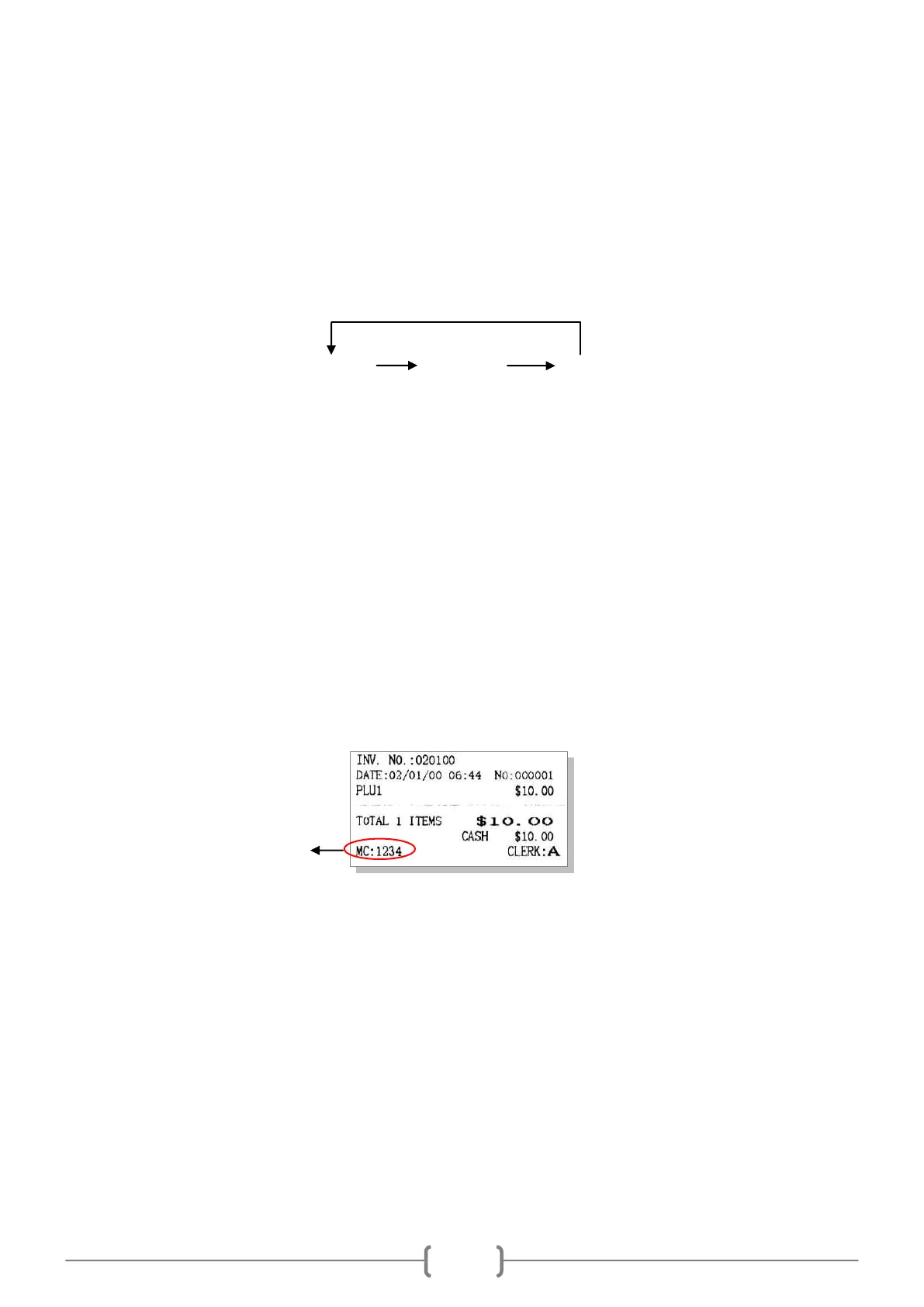
This function is to set user-defined machine number. This function is useful for differentiating several cash
registers.
Use key [↑] or [↓] to select ‗MACHINE NO. PROGRAM‘ item, and then press key [CASH] to enter.
System prompts: <INPUT MACHINE NO. (4 DIGIT)>, input a 4-digit number as the machine number, and then
press [CASH] key to confirm.
If you want to print the self-defined machine number on the receipt, the flag ‗RECEIPT SET/PRINT DEFINE
STORE MACHINE NO.?‘ in SET mode must be set ―YES‖.
12.4 Set Clerk
There are 4 default clerks, Clerk A, Clerk B, Clerk C and Clerk D. Clerk A is the manager with all purviews, and the
others only have the purview of sales operation. Use key [↑] or [↓] to select ‗SET CLERK‘ item, and then press key
[CASH] to enter this function.
System prompts: <IDX (1~4)>, input the clerk‘s number, and then press [CASH] to confirm.
System prompts: <CLERK NAME>, input the clerk‘s name, and then press [CASH] key to confirm. (Please refer to
chapter 8 for ‗HOW TO INPUT CHARACTER‘.)
System prompts: <PSW>, set the clerk‘s password, and then press [CASH] key to confirm. If you won‘t set clerk‘s
password, press [CASH] directly to skip this step.
You can set operation purview for clerks. The LCD will display the following items:
Training mode User mode User mode
(No tax) (No tax) (Tax mode)
Here shows the user-defined
machine number.



 To Next Page