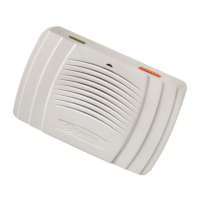
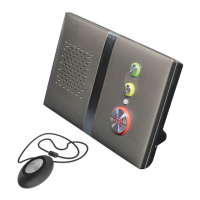
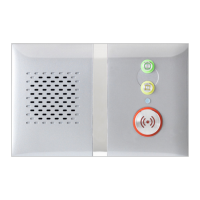
An optional large-screen display can be attached to each Manager’s Panel to act as an electronic Notice Board.
The display will be automatically configured with the information entered in this section.
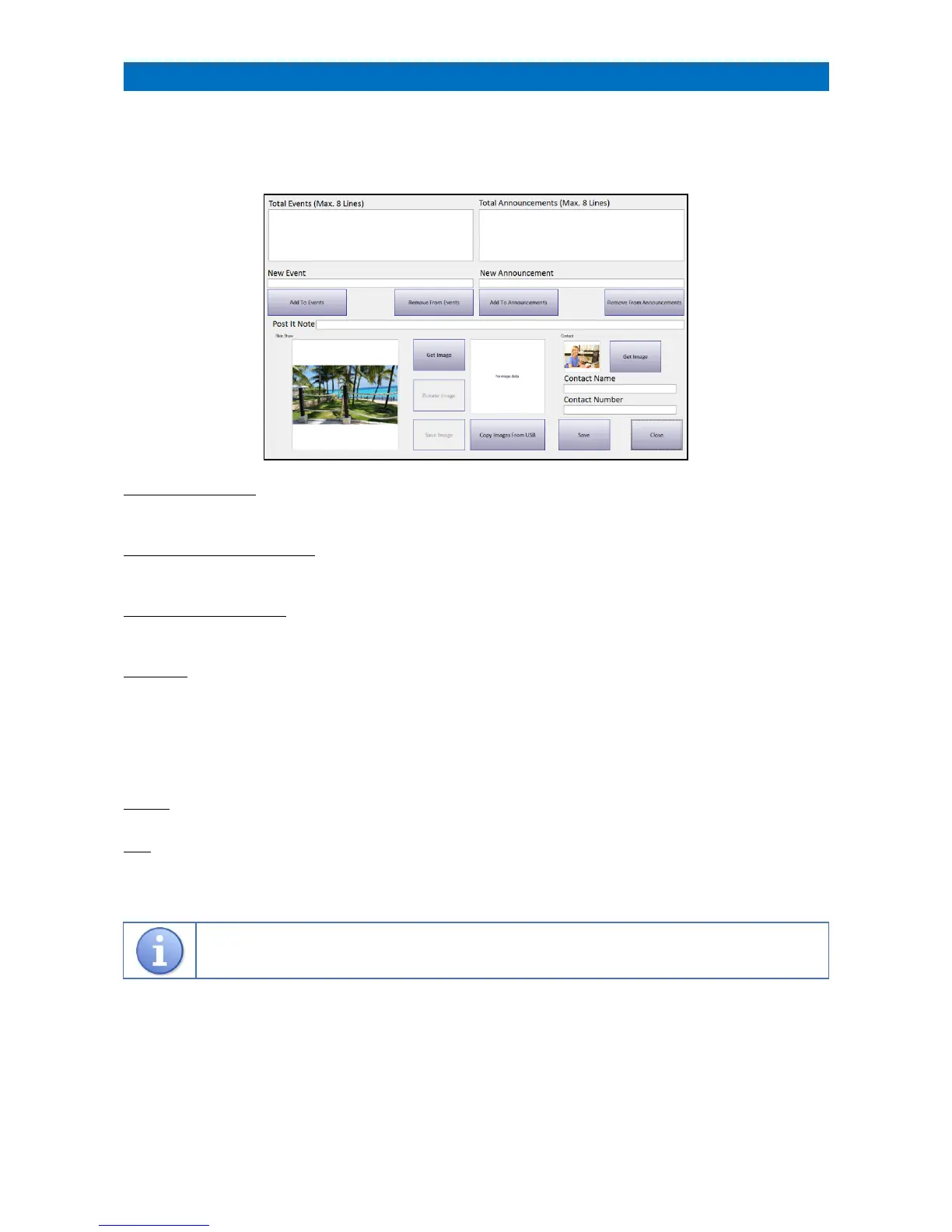
Log on using the Manager (or Engineer) password and touch the Notice Board button to view the edit screen like
below. Note: an on-screen keypad will appear when you touch a text box.
Add/Remove an Event (max 8)
Type the event text into the New Event text box then select Add to Events.
To remove an event, select the event in the list then click Remove from Events.
Add/Remove an Announcement (max 8)
Type the announcement text into the New Announcement text box then select Add to Announcements.
To remove an announcement, select the announcement in the list then click Remove from Announcements.
Add/Remove a Post-it Note
To draw attention to a current event, type the text into the Post-it Note text box.
To remove a Post-it note, select the text then press on the keypad.
Slide Show
Up to 10 photographs can be added to a collection that will be rotated as a slide show on the Notice Board.
The Copy Images from USB button can be used to load the photos from a USB stick with one button click.
Note: all the photos should be in a .jpg format and be in a directory called Images on the USB stick.
Slide show photos should be named 1.jpg, 2.jpg up to 10.jpg and the contact photo should be named 11.jpg.
Once the button is clicked, all the images will be copied from the USB stick to the system.
A message will be displayed once the copy operation is completed.
Contact
The contact details of the Manager along with a photograph (named 11.jpg) can be entered.
Save
Once the information has been entered click the Save button then Close. The Notice Board will be updated.


 To Next Page