XTi-VBox Android TV Gateway User
Manual 6. System Manage
6.7. Update Software
32
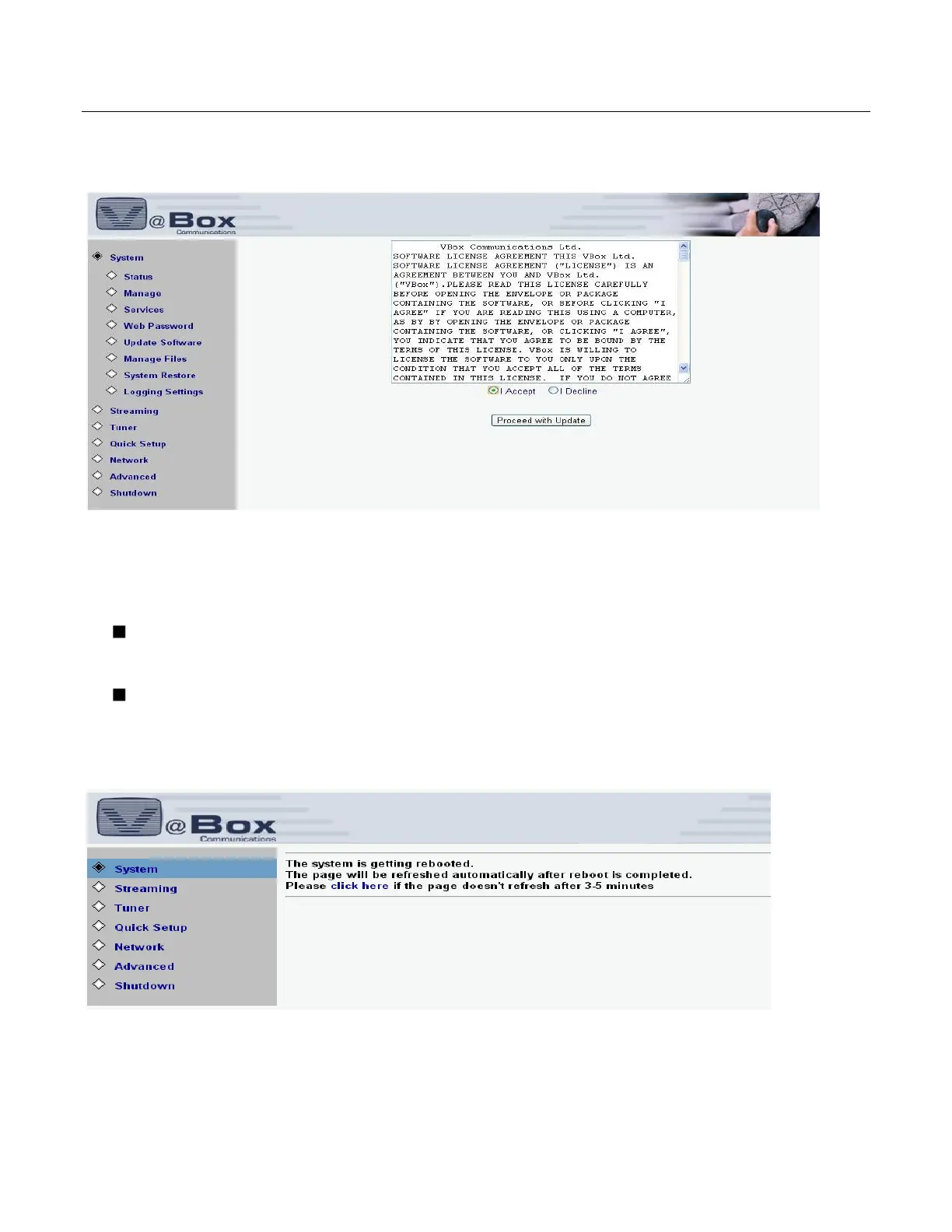
4. Click Update Software button. The following screen displays.
Figure 21: Update Software License Agreement
5. Carefully read through the license agreement, and do one of the following:
Decline: If you decline to agree to the license agreement, make sure that the ‘I Decline’ radio button is
selected and click the PROCEED WITH UPDATE button. No software is updated and you return to the
SYSTEM/MANAGE/Status screen. Contact your vendor with any questions.
Accept: If you agree with the license agreement, select the ‘I Accept’ radio button and then click the
PROCEED WITH UPDATE button. The following screen displays:
6. Click the Proceed with Updare button. A message displays on screen informing that the update is in
process. Upon successful completion of the process, the following screen displays:
Figure 22: Successful Software Update
7. As instructed on the screen, wait approximately three minutes and then click the ‘Click Here’ link.
Wait for your browser to connect to the XTI. The SYSTEM/Status screen displays


 To Next Page