XTi-VBox Android TV Gateway User
Manual 13. Recording
13.2. Setting-up XTi TV Gateway Storage Preferences
57
13.2 Setting-up XTi TV Gateway Storage Preferences
1. Open the XTi TV Gateway Settings Web page
2. Go to “Manage”
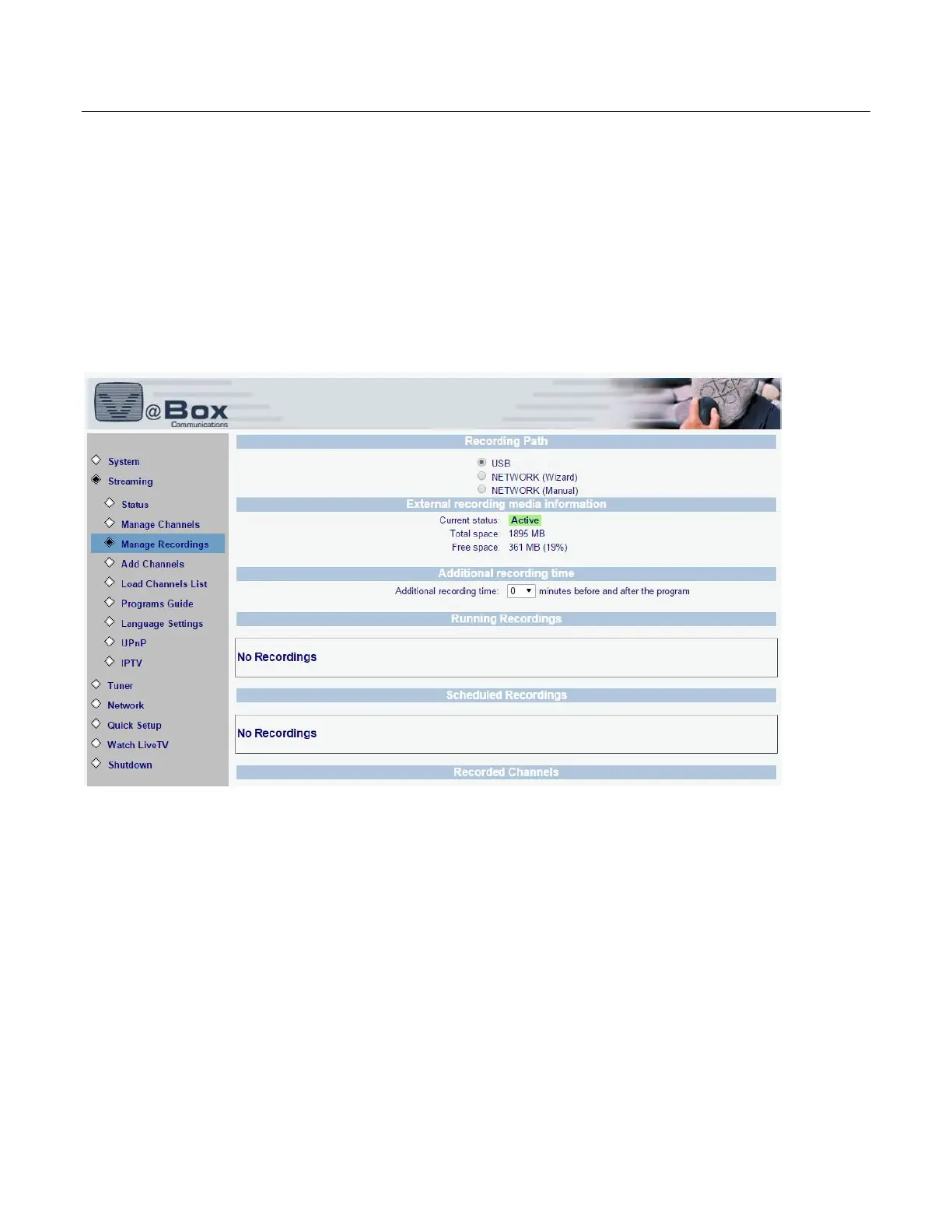
3. On the left side menu choose “Streaming” and then “Manage Recordings”
4. Choose the preferred recording media
a. USB – Attach a USB Storage device directly to the XTi USB port found on the back of the device
b. SD Card- Insert an SD card into the XTi SD card port located on the left side of the device
c. Network – Locate the network folder where you want to store the recordings
13.2.1 Manage recording page
1. Recording path – Set your recording device
2. External recording media information – See the status of your storage device
3. Additional recording time – Set a recording buffer, before and after your set time, to compensate for
last minute program changes
4. Running recordings – See list of active recordings
5. Scheduled recording – See list of future recording schedule
6. Recorded channels – See list of recorded programs


 To Next Page