EasyManua.ls Logo

Vectronix USMC VECTOR 21 - User Manual

Default Icon
64 pages
Print Icon
To Next Page IconTo Next Page
Loading...
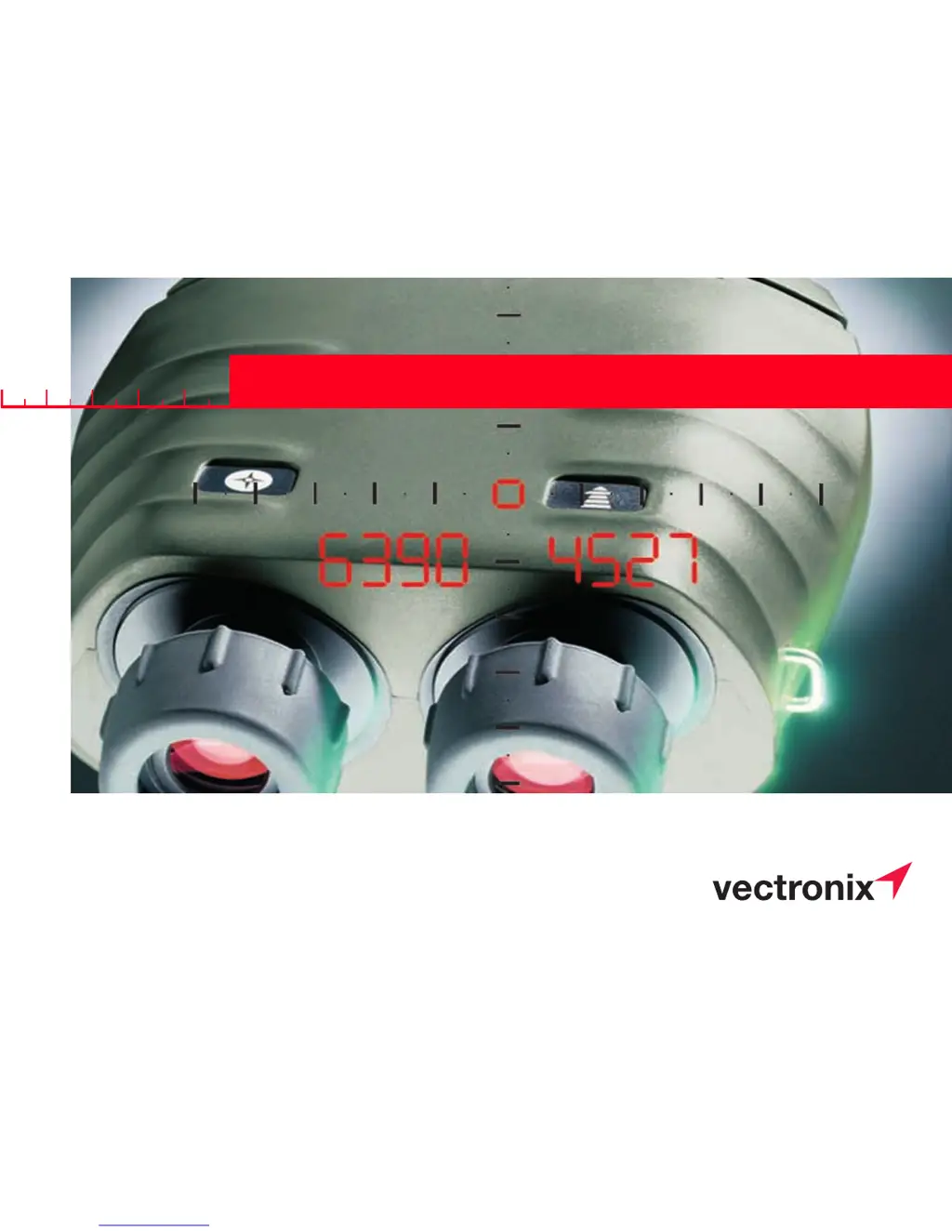
VECTOR™
Operating & Operator Maintenance Instructions
Version 0.3
LEICA VECTOR
50
403020
USMC VECTOR 21
Shop for Vectronix products online at:
1.877.766.5412
www.SCOUTBASE CAMP.com

Table of Contents

Questions and Answers

  • R
    Raymond MolinaAug 17, 2025
    Why does my Vectronix Binoculars display “Lo bAtt”?
    • R
      Rhonda VasquezAug 17, 2025
      If the Vectronix Binoculars display shows "Lo bAtt", it means the battery is low or used up. This can also happen due to reduced battery performance in low temperatures. While you can still get some readings, replace the battery soon. In cold conditions, try warming up the binoculars or the battery, for example, by keeping them close to your body.
  • H
    Holly SullivanAug 19, 2025
    Why does “- - - -” appear when measuring distance with Vectronix Binoculars?
    • O
      opattonAug 19, 2025
      If “- - - -” appears in the display of your Vectronix Binoculars during distance measurement, it indicates that the distance is either outside the specified measuring range, lies within the distance gate, or there is inadequate reflectance. This could be due to the object being too small or inaccurately targeted, shaking during measurement, or bad weather conditions like haze, fog, or turbulence.
  • S
    smithgraceAug 22, 2025
    What to do if the distance display is blinking on Vectronix Binoculars?
    • K
      Kaylee HessAug 22, 2025
      If your Vectronix Binoculars distance display is blinking, it means multiple object measurement is activated. To resolve this, click the distance key to display distances in succession.
  • E
    Edward CarterAug 25, 2025
    Why are the azimuth measurements inaccurate on my Vectronix Binoculars?
    • D
      Dr. Diana RoblesAug 26, 2025
      If you are getting inaccurate azimuth measurement values on your Vectronix Binoculars, it could be due to an incorrect declination value being stored, disruptive magnetic fields at the measuring position, calibration in an area with magnetic interference, or altered magnetic conditions within the instrument after a battery change. Store the correct declination value. Recalibrate the compass.
  • J
    Jeffrey KellerAug 28, 2025
    What to do if the display doesn't appear when I press a key on Vectronix Binoculars?
    • R
      Richard SmithAug 28, 2025
      If the expected display does not appear after clicking a key several times on your Vectronix Binoculars, it means that the key was pressed too slowly, or with insufficient force. Press and release the key in rapid succession. Always ensure you press the key down until you hear an audible click.
  • A
    Amy PotterAug 30, 2025
    How to fix the electronic pointing circle and display if they are not visible on Vectronix Binoculars?
    • S
      smedinaAug 30, 2025
      If the electronic pointing circle and display are not visible on your Vectronix Binoculars, it could be because ”niGT” is activated for use with a night vision device, or the dioptric is out of focus. Select ”niGT OFF” in the configuration menu. Adjust the dioptric setting.
  • G
    greenederekSep 2, 2025
    Why do my Vectronix Binoculars display "niGT on"?
    • P
      patrick87Sep 2, 2025
      If "niGT on" is displayed on your Vectronix Binoculars, it means that the night vision mode (”niGT”) is activated, which is intended for use with a night vision device and not suitable for daylight conditions. To resolve this, select ”niGT OFF” in the configuration menu.
  • L
    Lacey MooreSep 4, 2025
    What does "GAtE on" mean on my Vectronix Binoculars?
    • L
      Logan SullivanSep 5, 2025
      If "GAtE on" is displayed on your Vectronix Binoculars, it means that the distance gate function (”DISt GAtE”) is activated. Select an appropriate range gate.
  • S
    Scott WallaceSep 8, 2025
    Why is the electronic pointing circle not visible on my Vectronix Binoculars?
    • J
      jmaySep 8, 2025
      If the electronic pointing circle is not visible on your Vectronix Binoculars, it might be because ”ErET OFF” is selected, which is intended for use with a glass reticle. To make it visible, select ”ErET on” in the configuration menu.
  • M
    Michael MichaelSep 10, 2025
    What to do if compensation cannot be completed on Vectronix Binoculars?
    • A
      alexissantiagoSep 12, 2025
      If compensation cannot be completed on your Vectronix Binoculars, it could be due to timing out of compensation or going too far on a command. Turn or tilt farther or move faster. Alternatively, turn or tilt more slowly and stop at the appropriate time.

Summary

VECTOR Four Instruments

Binoculars

Describes the superb optics in a robust, watertight, rubber-armoured casing.

Digital Compass

Displays magnetic azimuth or grid azimuth in degrees or mils.

Laser Rangefinder

Measures from 5 m to over 10 km, depending on visibility and target.

Inclinometer

Displays vertical angles between -45° and +45°.

Getting Started: Battery Replacement

Changing the Battery

Instructions for opening the compartment, inserting a 6V lithium battery (2CR5).

Getting Started: Strap and Storage

Adjusting Neck Strap

Adjust the length of the neck strap by pulling the strap slowly but firmly around the back of the catch.

Storing the VECTOR

To protect from dirt, fit the eyepiece cover and keep the VECTOR in its pouch when not in use.

Getting Started: Eyepiece Adjustments

Eyepiece Adjustments

Covers adjusting viewing distance, eye-base, and dioptric settings for clear vision.

Getting Started: Basic Operation

Using the VECTOR

Operation is entirely by means of the keys on the top of the casing. Sight object and hold steady.

Distance Measurements: Factors Affecting Range

Factors Affecting Measurement Range

Illustrates how reflective properties, target size, atmospheric conditions, etc., affect measurement range.

Distance Measurements: Slope Distance

Measuring Slope Distance

Press and hold distance key, sight object, release key to read distance.

Distance Measurements: Multiple Objects

Multiple Object Measurement

Obtain up to 3 separate distances with a single measurement.

Distance Measurements: Data Transfer for Multiple Targets

Data Transfer for Multiple Measurements

Procedure for transferring multiple target measurements via PLGR.

Distance Measurements: Combined Data Transfer

Combined Measurement with Data Transfer

Transmit slope distance, azimuth, and inclination data via interface cable.

Distance Measurements: Horizontal and Height Difference

Horizontal Distance and Height Difference

Measures horizontal distance and height difference to a remote object.

Distance Measurements: Between Two Objects

Distance Between Two Objects

Measure the distance between two distinct objects by taking sequential measurements.

Distance Measurements: Horizontal and Vertical Between Two Objects

Horizontal and Vertical Distance Between Two Objects

Measures horizontal and vertical distances between two objects.

Azimuth & Inclination: Factors Influencing Accuracy

Factors Influencing Azimuth Accuracy

Explains how metal objects and magnetic fields can cause errors in directional readings.

Azimuth & Inclination: Azimuth Measurement

Azimuth Measurement

Press and hold azimuth key, sight object, release key to display measured azimuth.

Azimuth & Inclination: Combined Angle Measurement

Combined Azimuth and Inclination Angle Measurement

Measures and displays both azimuth and inclination angle to an object.

Azimuth & Inclination: Azimuth and Horizontal Distance Between Two Objects

Azimuth and Horizontal Distance Between Two Objects

Measures azimuth to the first object and horizontal distance to the second object.

Azimuth & Inclination: Fall of Shot (FOS)

Fall of Shot (FOS)

Measures azimuth and inclination, then calculates corrections (L/r, A/d).

Azimuth & Inclination: FOS Corrections

Fall of Shot (FOS) Corrections

Displays corrections for 'up', 'down', 'left', 'right' based on FOS measurement.

Data Transfer: Interface Cable Connection

Connecting;Disconnecting the Interface Cable

Instructions for properly plugging and unplugging the interface cable.

Data Transfer: PLGR Cable Configuration

Cable Configuration to PLGR

Details wiring and interface parameters for connecting to a PLGR.

Data Transfer: PC Cable Configuration

Cable Configuration to PC

Details wiring and interface parameters for connecting to a PC.

Data Transfer: PC Data Format

Data Transfer Format for PC

Describes the 10/11 ASCII character format for distance, azimuth, and inclination data.

Configuration: Making Adjustments

Making Adjustments

Switching instrument functions on/off via the configuration menu.

Configuration: Electronic Reticle and Night Vision

Electronic Reticle and Night Vision

Covers enabling the electronic reticle and activating the night vision function.

Configuration: Using with Night Vision Device

Using VECTOR with Night Vision Device

Instructions for attaching and adjusting the VECTOR with a night vision device.

Configuration: Night Vision Device Usage (Cont.)

Night Vision Device Usage (Continued)

Focusing and adjusting PVS-14 brightness for clear viewing in night vision mode.

Settings: Measurement Units

Setting Measurement Units

Configure angular units (mils/degrees) and distance units (meters/feet).

Settings: Range Gate

Range Gate Configuration

Limits the closest distance the VECTOR will measure; default is 500m.

Settings: Declination Compensation and Display

Declination Compensation and Display

Explains declination, its compensation, and how the stored value is displayed.

Settings: Declination Setting;Correction

Declination Setting;Correction

Allows setting or correcting the declination value, with options for increment/decrement.

Settings: Compass Calibration

Compass Calibration

Details calibration procedures (4-point, 12-point) and general instructions for when and where.

Settings: Operator Guidance for Calibration

Operator Guidance

Instructions for swiveling the VECTOR in various directions during calibration.

Settings: Handheld Calibration Procedure

Calibration Procedure (Hand Held)

Step-by-step guide for performing a 4-point or 12-point calibration without a tripod.

Settings: Tripod Calibration Procedure

Calibration Procedure (On Tripod)

Instructions for performing calibration using the VECTOR on a mini-tripod.

Settings: Calibration Verification and Failure

Calibration Verification and Failure

Verifying compass accuracy after calibration and understanding possible causes of failure.

Settings: Data Interface Mode

Setting Data Interface Mode (RS 232)

Switching between PC mode and PLGR+96/PLGR II data output mode.

Settings: PLGR+96 Configuration

Setting the PLGR+96

Configuring tracking mode, position format, units, reference, and serial mode for PLGR+96.

Settings: Built-in Test Procedure

Built-in Test

Initiates and interprets the results of the built-in self-test for the VECTOR.

Settings: Reset to Factory Settings

Setting VECTOR back to Factory Settings

Procedure to reset all settings to their original factory defaults.

Troubleshooting: Image and Measurement Issues

Troubleshooting: Image and Measurement Issues

Addresses issues like not seeing a circular image or failing to take measurements.

Troubleshooting: Range and Reflectance Issues

Troubleshooting: Range and Reflectance Issues

Solves problems related to '-' display, measuring range, and target reflectance.

Troubleshooting: Display Blinking and Azimuth Limits

Troubleshooting: Display Blinking and Azimuth Limits

Addresses blinking distance display and symbols for exceeding azimuth angle limits.

Troubleshooting: Azimuth and Key Input Issues

Troubleshooting: Azimuth and Key Input Issues

Fixes inaccurate azimuth readings due to declination or magnetic fields, and key input issues.

Troubleshooting: Display Visibility and Battery

Troubleshooting: Display Visibility and Battery

Resolves issues with invisible display elements and low battery warnings.

Troubleshooting: Night Vision, Range Gate, and PLGR Data

Troubleshooting: Night Vision, Range Gate, and PLGR Data

Addresses issues with 'niGT on', 'GAtE on', compensation, and PLGR data reception.

Safety Notices: Inappropriate Use and Hazards

Inappropriate Use and Hazards

Warns against improper use, modifications, and hazards like blinding and explosion.

Safety Notices: Physical and Environmental Safety

Physical and Environmental Safety

Covers physical injury risks, environmental hazards, and proper battery disposal.

Care and Cleaning: General Care

General Care and Cleaning

Instructions for maintaining performance through regular care, avoiding dirt and condensation.

Technical Data: Rangefinder Specifications

Rangefinder Specifications

Details laser type, safety standards, range capability, visibility, and accuracy.

Technical Data: Optics and Magnetic Compass Specifications

Optics and Magnetic Compass Specifications

Details optical properties and magnetic compass performance parameters.

Technical Data: Miscellaneous

Miscellaneous Technical Data

Includes power supply, battery capacity, environmental sealing, temperature ranges, and weight.

Equipment: Shipping Inventory

Shipping Inventory Contents

Lists the items included in the standard shipping package.

Equipment: Accessories

Available Accessories

Details optional accessories such as data cables, objective caps, and mini-tripods.

Equipment: Reticle

Glass Reticle

Describes the engraved reticle used in place of the electronic pointing circle.

Equipment: Reticle and Binocular Enhancer

Reticle and Binocular Enhancer

Explains how the reticle size factor changes with the Binocular Enhancer.

Equipment: Options

Mounting Objective Cap with Glint Protection

Instructions for mounting the objective cap with glint protection (SOBD2).

Customer Service Information

Customer Service Information

Contact details and support information for Vectronix AG.

Eye Safety Standards

Eye Safety Standards

Lists eye safety standards relevant to laser products.

Vectronix USMC VECTOR 21 Specifications

General IconGeneral
Magnification7x
Objective Diameter42 mm
Exit Pupil6 mm
WaterproofYes
FogproofYes
Laser Range FinderYes
Digital Magnetic CompassYes
GPSNo
Range12, 000 m