TROUbLEShOOTING TIPS
Note: The advanced settings should only be configured by experienced network
technicians to avoid adversely affecting the operation of your Gateway and your
local network.
6.0/ TROUbLEShOOTING TIPS
6.0a/ IF YOU ARE UNAbLE TO CONNECT TO ThE INTERNET:
• The first thing to check is whether the battery of your Verizon Business
Internet Gateway is completely depleted. If the battery is depleted, charge
the Gateway by plugging the provided power cord to the power supply.
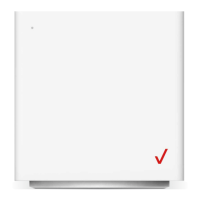
• Be sure your Gateway is powered on and is connected to the internet. Check
the Status LED on the top of the Gateway. Be sure to refer to the “1.1c/ LEDs”
on page 7 to determine status of the Gateway.
• If the prior tips do not resolve your connection issue, try power cycling the
Gateway by unplugging the power cord from the power supply and wait
2 minutes. During the 2 min. wait period, also power cycle the network device
(e.g. the computer, tablet, etc.) and then plug the power cable back into the
Gateway. After 3-5 minutes, recheck the Status LED and try again to access
the internet.
• If rebooting your Gateway does not resolve your connection issue, try
resetting the Gateway back to its factory default state by manually pressing
the reset PIN hole on the rear panel of the Gateway for 3+ seconds (the
Status LED should go off) to begin resetting your Gateway. Your Gateway
will perform a factory reset and return the Gateway to default settings. The
Gateway will return to service in 3-5 minutes depending on your network
connection. Check Status LED and if it is solid white, try again to access the
internet.




 To Next Page