Vertiv™ | Liebert® LDMF™ Distribution Monitoring User Manual | 28
5.5.1 Starting the Configuration Program
Before starting the Configuration tool, decide whether you want to connect to the Liebert LDMF
or work in offline mode.
Offline mode allows you to run the configuration tool without being connected to the equipment.
Proceed to 5.5.2 - Main Configuration Window Overview to begin configuration.
When a local connection to the Liebert LDMF can be performed, load the configuration using the
instructions in 5.5.3 - Load a Configuration File from Disk.
NOTE
A configuration file is required for Offline Mode. If one is not available, connect to the equipment
locally and save the configuration to disk. See 5.5.4 - Install Configuration Changes in the Unit
and 5.5.5 - Save the Configuration File to Disk.
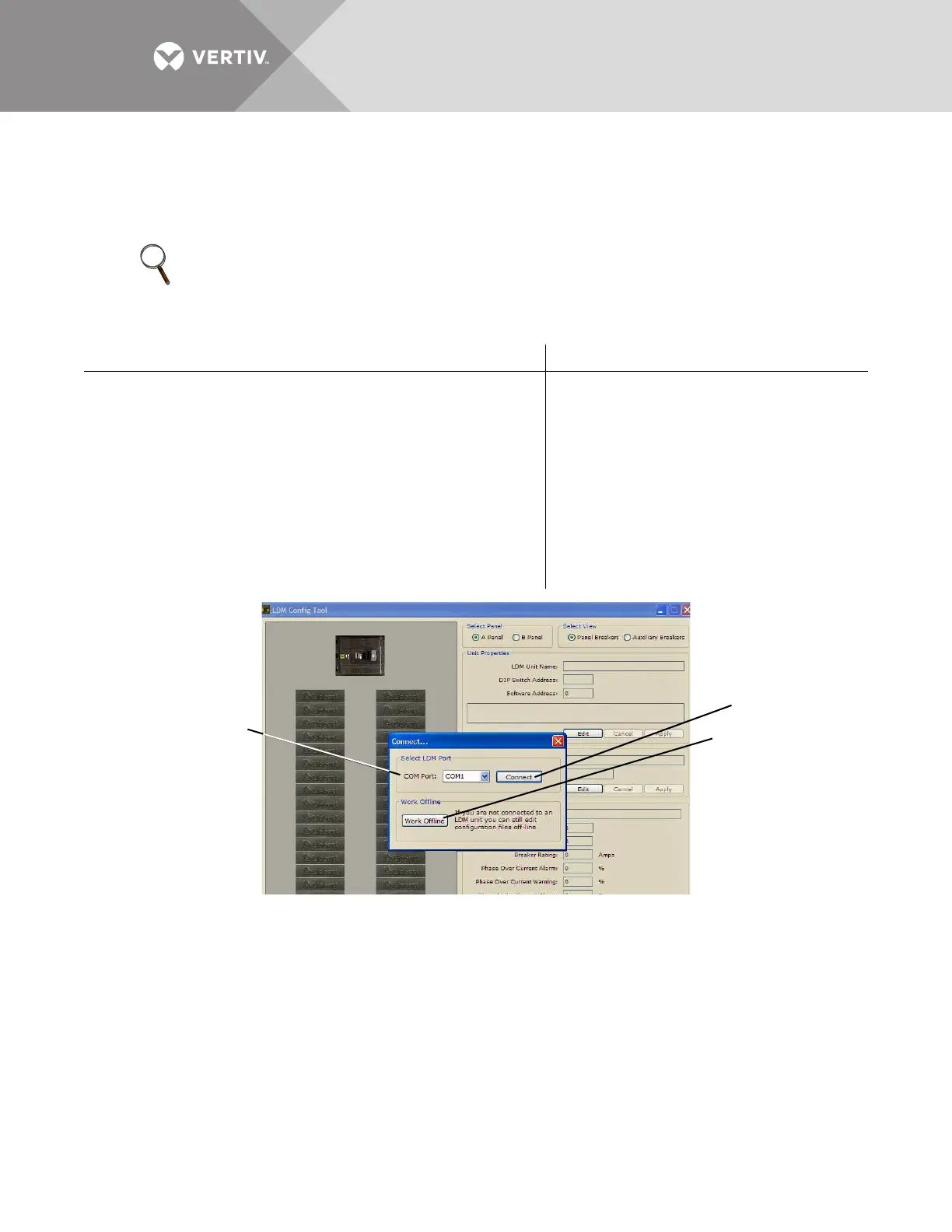
To Connect via COM Port To Work in Offline Mode
1. If needed, download the latest version of the software
(see 5.3 - Downloading the Software).
2. Connect a PC to the Liebert LDMF via the external DB9
connection. Refer to 5.2.1 - LDMF Setup Port
Connection.
3. Run the file LDMF-Config-xx.exe (where xx is the version
number) to start the Configuration program.
4. In the Connect window, select the appropriate COM port
from the list of available ports.
5. Click Connect.
1. If needed, download the latest
version of the software (see 5.3 -
Downloading the Software).
2. Run the file LDMF-Config-xx.exe
(where xx is the version number) to
start the Configuration program.
3. In the Connect window, click the
Work Offline button, shown below.
4. When prompted for the
configuration file, navigate to the
location of the file.
5. Click Open.
Work Offline
COM Port
Connect Locally
1
3
5
7
9
11
13
15
17
19
21
23
25
27
29
2
4
6
8
10
12
14
16
18
20
22
24
26
28
30



 To Next Page