Configuring SX Virtual Link & DENTALCNC
1. Ensure that the CAM computer is directly connected
to the machine via an Ethernet cable. Otherwise,
the machine may obtain incorrect network settings
and may become unreachable.
If this happens, an on-site visit by customer service
may be necessary: What to do if the machine is
unreachable – on page28
2. Switch on the machine at the main power switch.
The working chamber is illuminated in white.
The machine does not reference.
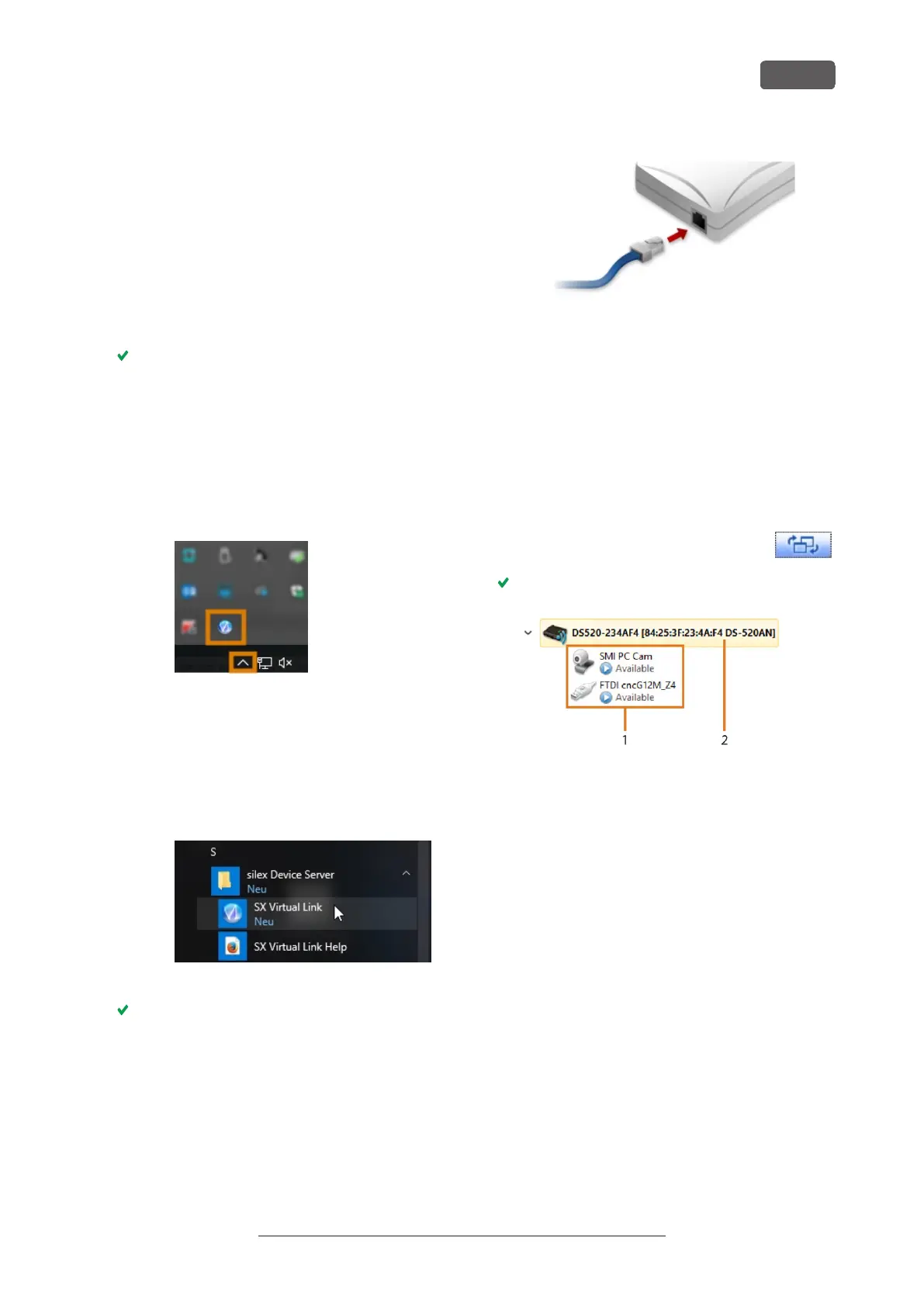
3. Open the SX Virtual Link application window:
n
The software should already be running –
select the arrow on the right side of your task
bar to open the system tray.
In the system tray, select the SX Virtual Link
icon.
FIG. 22 SELECTING THE ARROW AND THE SX VIRTUAL LINK
ICON
n
If the SX Virtual Link icon is not in the system
tray, start the application via the start menu.
You should find it in the Silex Device Server
group.
FIG. 23 STARTING SX VIRTUAL LINK VIA THE START MENU
The SX Virtual Link application window displays.
n
If SX Virtual Link cannot find your machine,
the following image displays in the window:
FIG. 24 MACHINE COULD NOT BE FOUND IN YOUR NETWORK
n
If SX Virtual Link has found your machine, the
internal network devices of the machine
display in the window.
4. If the machine was found, continue with the next
step.
If the machine was not found, do the following:
a. Check if the CAM computer is properly
connected to the machine.
b. Restart the machine.
5. In the SX Virtual Link application win-
dow, select the depicted icon.
A more detailed list of the network devices displays.
FIG. 25 MACHINE WAS FOUND IN YOUR NETWORK
1. The internal devices of the machine
2. The superior list entry for the machine
6. In the SX Virtual Link window, right-click on SMI USB
2.0 Camera.
7. From the context menu, select Properties….
8. Switch to the Disconnect tab.
9. Activate the Allow auto-disconnect when a Request Use
is received check box.
10. From the Auto-disconnect timeout drop-down list,
select 10.
11. To save your settings, select [OK].
12. Right-click on SMI PC Cam.
13. From the context menu, select Connect.
14. In the SX Virtual Link window, locate the device
whose name starts with FTDI. Repeat steps 7 – 13
for this device.
K5+ – Installing the machine
EN 25
Original Operating Instructions:K5+
Version: 12/16/2021



 To Next Page