52
Multi-Sensor 360 User Manual
Chapter 2: Camera Configuration
Copyright © 2021 Vicon Industires Inc. All Rights Reserved.
System - Maintenance
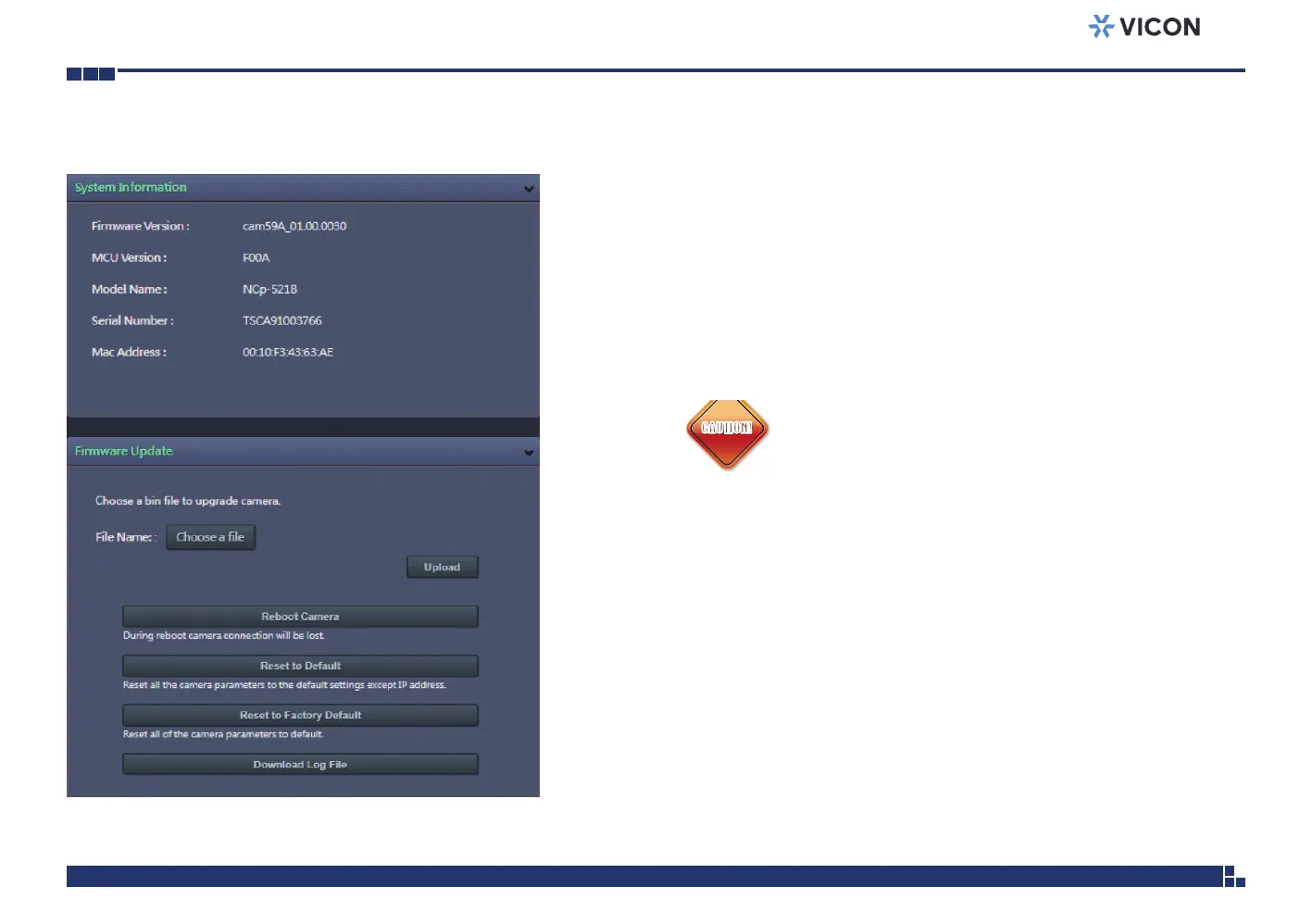
System Information
Firmware Version & Model Name
Displays the current firmware version and IP camera model number.
Serial Number & MAC Address
Displays the IP camera serial number and MAC address.
Firmware Update
To update the camera’s firmware, click on the Choose a file button and
locate the firmware image file; once the file is selected, press the Upload
button to begin.
CAUTION!CAUTION!
During update, please do not disconnect the network cable,
reset or power off the IP camera, as you may damage the
device.
Reboot Camera
Click this button to reboot the camera.
Reset to Default
Click this button to restore all the camera’s setting back to factory default
except IP address (keeps all the settings on the Network Basic setting page).
Reset to Factory Default
Click this button to restore all the camera’s setting back to factory default,
including IP address (default is DHCP).
Download Log File
Records all the status information of the camera in list format when the
camera is connecting to the PC. Downloads the log file to the computer as
a text file.


 To Next Page