VTM-2000 Installation and Operation Handbook
3-1
Section 3 ♦ General Operation
Terms
Pane: One quadrant in a four-quadrant screen.
Display: The output that appears on the XGA monitor.
Quad: Screen that contains four panes.
Full: Full-screen display of the selected pane (non quad).
Introduction to Operating the VTM-2000
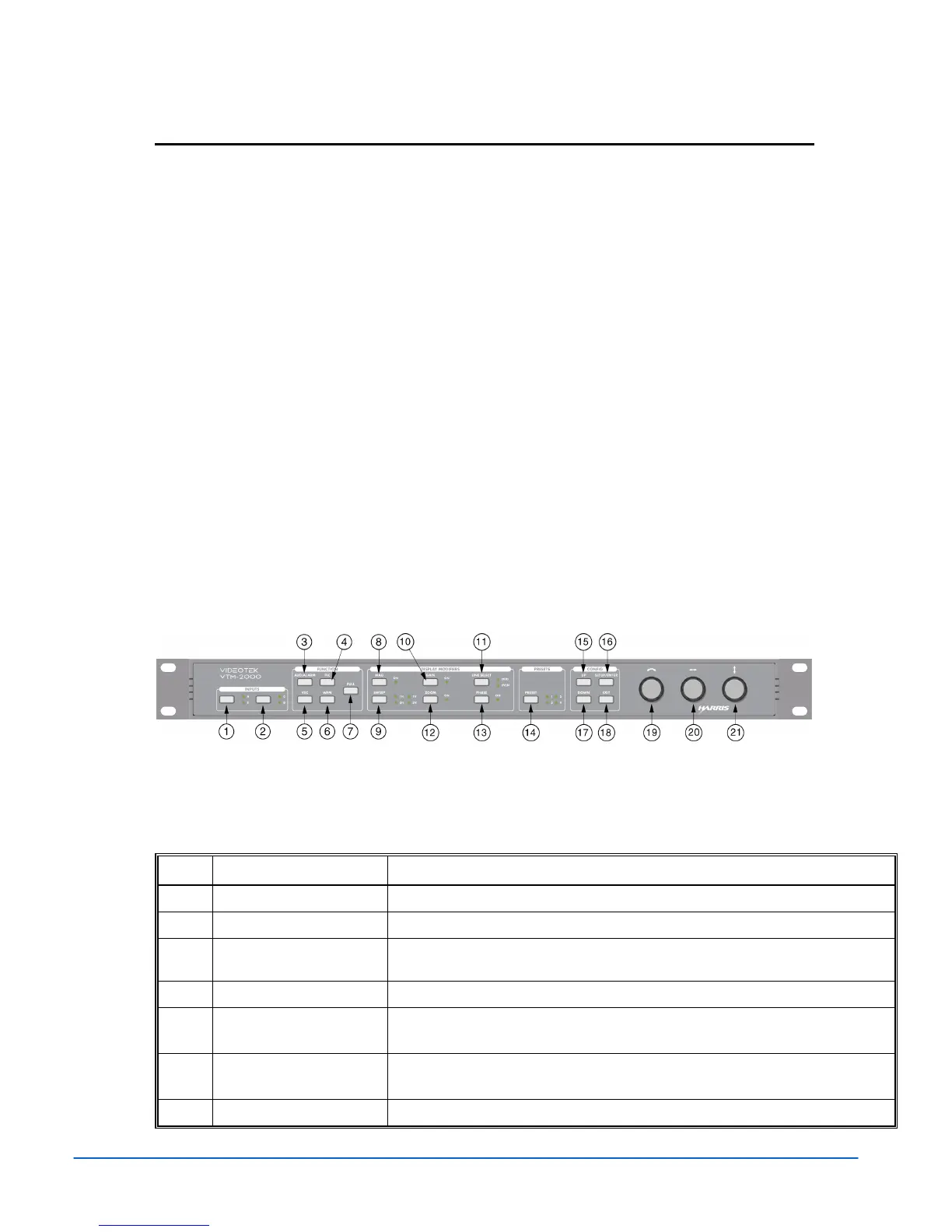
The VTM-2000, shown in Figure 3-1 and described in Table 3-1, can display four
panes on the screen, in standard quad mode each of which provides a fixed display of
waveform (lower-right), vector (lower-left), audio and alarm status (upper-left), and
picture (upper-right). A sample quad screen with the lower-right pane selected is
shown in Figure 3-2.
Certain buttons function differently according to the selected pane. Once the pane is
selected, more detailed settings can be configured. This section focuses on the
operation of the VTM-2000 according to the selected display.
Figure 3-1. VTM-2000 Front Panel*
*NOTE: Pressing and holding some of the function buttons will activate menus for additional
functionality.
Table 3-1. Front Panel Description
Key
Label Description
1 INPUTS A and B
Press to select SDI input A or SDI input B.
2 INPUTS C and D
Press to select composite input C or composite input D.
3 AUDIO/ALARM
Press to highlight and switch between the Audio and Alarm pane. When audio
is installed, the Audio pane is the default pane.
4 PIC
Press to highlight the Picture pane
5 VEC
Press to highlight the Vector pane
Press and hold to access the Vector Pane menu.
6 WFM
Press to highlight the Waveform pane
Press and hold to access the Waveform Pane menu.
7 FULL
Press to show a full-screen display of the selected pane.
(Table continues on next page)



 To Next Page