The first time printing
74
5661290000/00/06.08
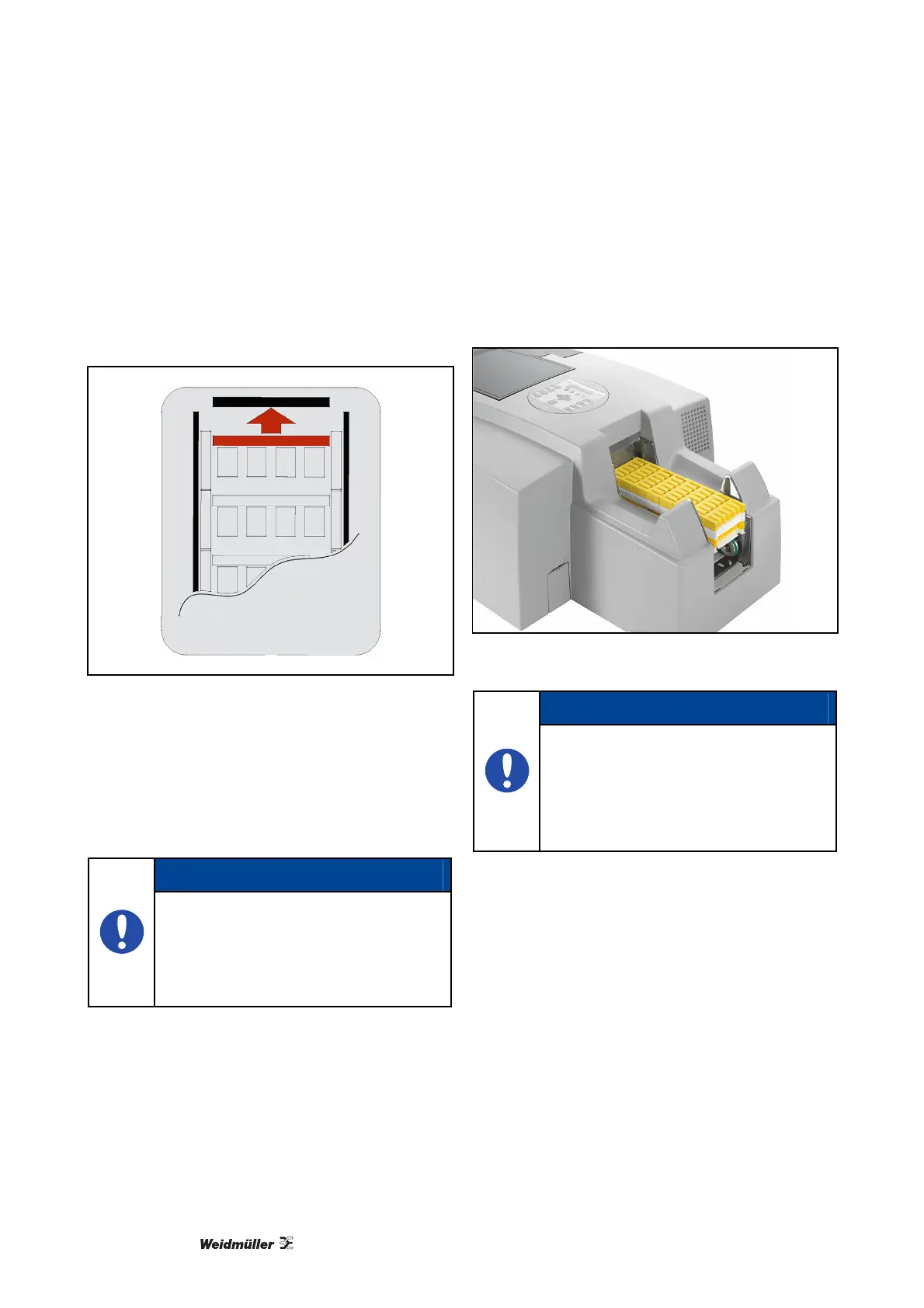
Insert as shown
Make sure the MultiCards are inserted in the correct
way with the project marking surface facing towards
the PrintJet PRO.
Figure 81 Insertion instructions
Insert the MultiCards into the loader so that they are
laying flush with the end stop.
By pressing the "LOADER" button on the display,
the lowest MultiCard is separated and taken into the
system (in case that there is no other MultiCard on
the transport mechanism).
NOTE
Do not exceed the maximum permitted
stacking height when filling the loader.
You can insert complete or half Multi-
Cards. Do not mix or alternate complete
and half MultiCards.
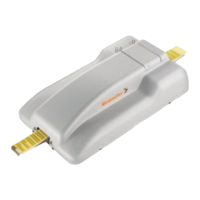
Stacking heights
Do not stack the MultiCards above the height of the
loader paper stop.
Figure 82 Stacking heights in the loader
NOTE
Under certain circumstances, the sepa-
ration process may malfunction when
the maximum amount of MultiCards is
inserted. Remove a few of the Multi-
Cards from the loader to rectify this
problem.
After the first MultiCard has been transported into
the printer, it is printed and fed out to the PrintJet
PRO output rail. The next MultiCard is then sepa-
rated out so that it can be fed in and printed.
If no MultiCards are in the loader during an auto-
matic separation step, then the feed-in will fail and
an error message will be displayed on the PrintJet
PRO.
If this happens, re-load the loader and acknowledge
the error message (flashing loader button) on the
PrintJet PRO.


 To Next Page