EasyManua.ls Logo

Winmate M101B - User Manual

Winmate M101B
92 pages
Print Icon
To Next Page IconTo Next Page
Loading...
Please read this instructions carefully before using this product, and save this manual for future use.
M101B, M101BL
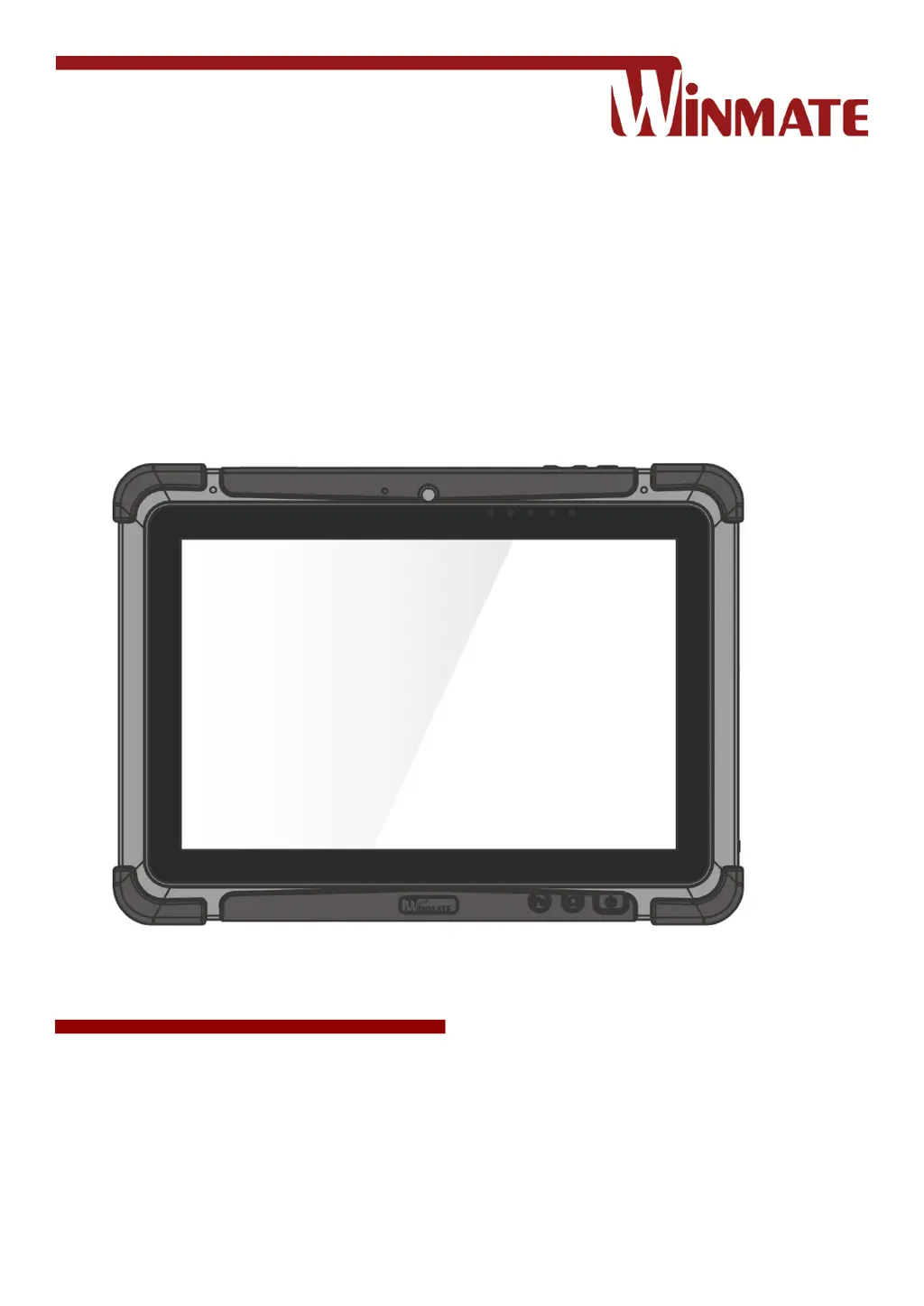
Rugged Windows Tablet
Intel® Celeron® Quad Core N2930, 1.83 GHz
Windows 10 IoT Enterprise
Windows Embedded 8.1 Industry Pro
Windows 7 Pro for Embedded Systems
User Guide
Version 1.6
Document Part No. 9171111K101X

Table of Contents

Other manuals for Winmate M101B

Questions and Answers

  • L
    Levi MoonSep 6, 2025
    What to do if the barcode scanner emits laser beam but does not read barcode presented to it on Winmate M101B Tablet?
    • N
      nshawSep 7, 2025
      If the barcode scanner on your Winmate Tablet emits a laser beam but does not read the barcode, adjust the distance between barcode scanner of the device and the barcode being scanned. Also, make sure the barcode code type is enabled in the tablet. To enable/disable a specific barcode code type, go through the “Barcode Scanner Configuration” section.
  • K
    Kevin ButlerAug 22, 2025
    What to do if nothing appears on the Winmate M101B screen?
    • J
      johnny16Aug 22, 2025
      If nothing appears on the screen of your Winmate Tablet, the device may be in sleep mode. Try pressing the power button to wake up the display. Also, the brightness level may be too low, so try increasing the brightness.
  • D
    Dr. Jeffery RobertsSep 3, 2025
    What to do if the RFID scanner does not seem to work on Winmate Tablet?
    • M
      Monica AustinSep 3, 2025
      If the RFID scanner does not seem to work on your Winmate Tablet, make sure under Windows, the RFID hardware is set to COM 3 port.
  • D
    Dustin WilliamsSep 2, 2025
    What to do if I cannot project the Winmate Tablet display to another monitor?
    • G
      Gabriela AliSep 2, 2025
      If you cannot project the tablet computer display to another monitor, make sure the VGA driver is installed and that the output setting selected is correct.
  • A
    alan33Sep 1, 2025
    What to do if the removable battery is not charging on my Winmate M101B Tablet?
    • D
      delgadoandrewSep 1, 2025
      If the removable battery is not charging on your Winmate Tablet, make sure the AC adapter is properly connected, and that the removable battery is properly inserted.
  • V
    Vanessa HuberAug 30, 2025
    How do I fix GPS accuracy issues on my Winmate Tablet?
    • D
      Dawn MartinAug 30, 2025
      If you are experiencing GPS accuracy issues with your Winmate Tablet, it is recommended to disable the Barcode Reader in HotTab to reduce interference when using the GPS function.
  • J
    James BellAug 29, 2025
    Why can't the GPS application find my location on my Winmate M101B?
    • M
      Mark WrightAug 29, 2025
      If the GPS application on your Winmate Tablet cannot find your location, first make sure that GPS is turned on in HotTab. Also, ensure that the GPS receiver and the location sensor are enabled in Control Panel. The tablet computer may be out of coverage area, so move your tablet computer outdoors or closer to a window. Check for interferences from devices such as microwave ovens or cordless phones and move the tablet computer away from objects causing interference.
  • L
    lisamartinAug 27, 2025
    Why is there no sound produced by my Winmate Tablet?
    • L
      Linda SanchezAug 28, 2025
      If no sound is being produced by your Winmate Tablet, first adjust the volume using the volume rocker. If you are using an external audio device, ensure that the cable is properly connected.
  • J
    joshuacaldwellAug 27, 2025
    How to fix Winmate M101B when screen suddenly turns blank and the power indicator goes off?
    • N
      natalieaguilarAug 27, 2025
      If the screen of your Winmate Tablet suddenly turns blank and the power indicator goes off, ensure that the LED indicator is not turned off in HotTab. Also, make sure the AC adapter is properly connected. If you're running on battery power, the battery may be depleted, so charge the battery.
  • M
    Marissa BanksAug 25, 2025
    What to do if I cannot connect to another wireless LAN device with my Winmate M101B Tablet?
    • D
      Daniel WoodAug 25, 2025
      If you cannot connect to another wireless LAN device with your Winmate Tablet, ensure that the wireless LAN feature is turned on. Also, verify that the SSID setting is the same for every wireless LAN device in the network. Try restarting the tablet computer. Finally, confirm that the IP address or subnet mask setting is correct.

Winmate M101B Specifications

General IconGeneral
Display Size10.1 inches
RAM4 GB
Storage64 GB eMMC
Operating SystemWindows 10 IoT Enterprise
Battery LifeUp to 8 hours
IP RatingIP65
SensorsAmbient light sensor, G-sensor
Resolution1920 x 1200
Wireless ConnectivityWi-Fi 802.11 a/b/g/n/ac
Ports3.5mm audio jack
Expansion SlotsMicroSD card slot
CameraRear: 5 MP, Front: 2 MP
TouchscreenCapacitive multi-touch

Related product manuals