4.3 Using Wi-Fi
By default, the wireless antenna is turned on.
To turn on the wireless antenna:
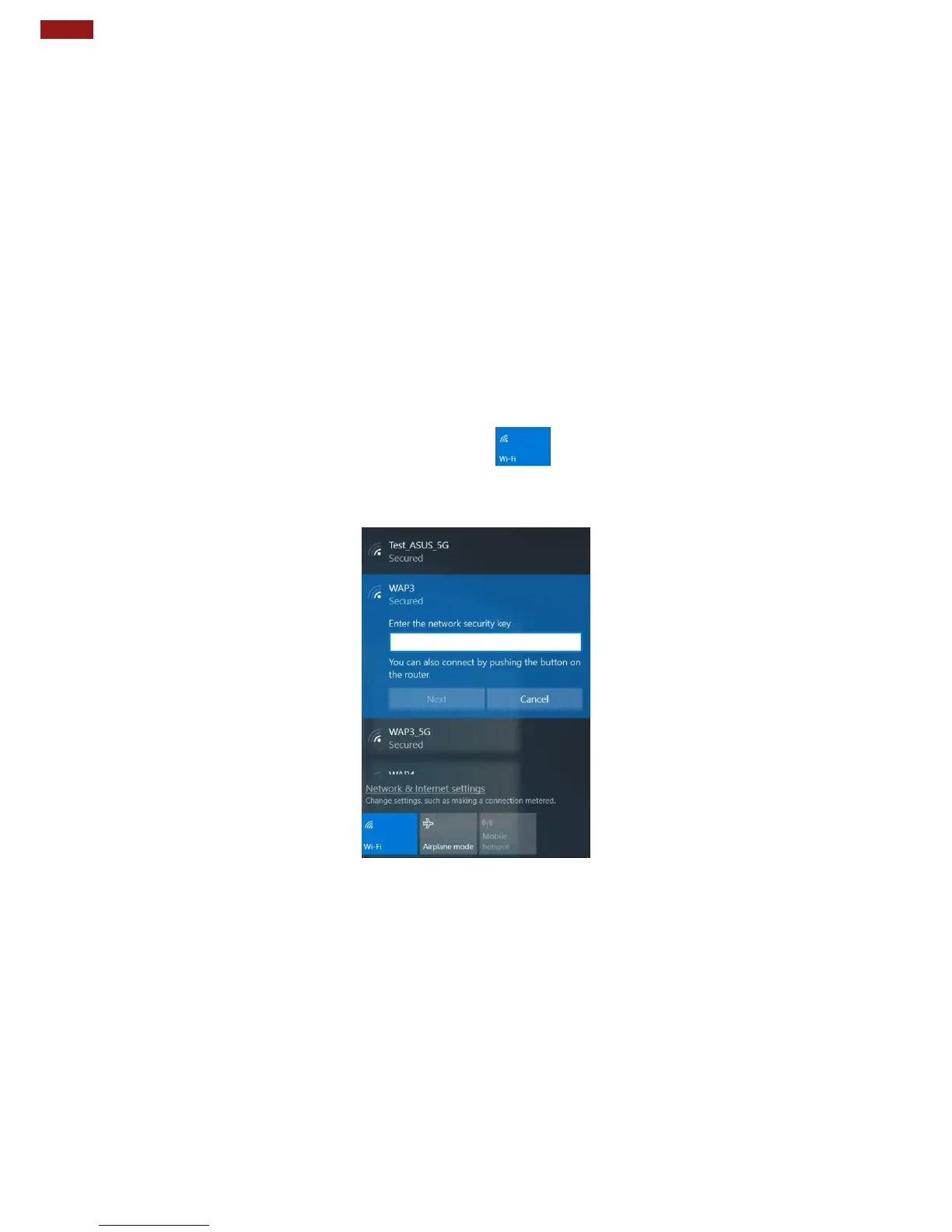
1. Click the wireless network connection status icon in the Windows notification area. A list of
available wireless networks is displayed.
2. Double-click a network to connect to it. Provide required authentication information if needed.
3. To check the connection status, observe wireless network connection status icon in the Windows
notification area. The more bars the icon shows, the better the wireless LAN connection strength is.
4. Now wireless LAN connection is setup, try connection to the network with an internet browser
such as Internet Explorer.
Perform the following to connect to a wireless network:
1.
Make sure that the wireless power is “on” (The Wi-Fi LED indicator is green and the Wireless
network icon on the taskbar shows).
2.
Tap the Wireless Network icon
3.
In the list of available networks, tap a Wi-Fi network .
4.
Tap Connect.
5.
If the network requires authentication, enter the security key or passphrase.
Personal information and files on your wireless network can sometimes be seen by people who pick up
your network signal. This can lead to identity theft and other malicious acts. A network security key or
passphrase can help protect your wireless network from this type of unauthorized access.



 To Next Page