Chapter 4: Operating the Device
4.7 Changing Touchscreen Modes
The tablet’s advanced capacitive touchscreen has 4 built-in operating modes, for users to
choose under different usage scenarios:
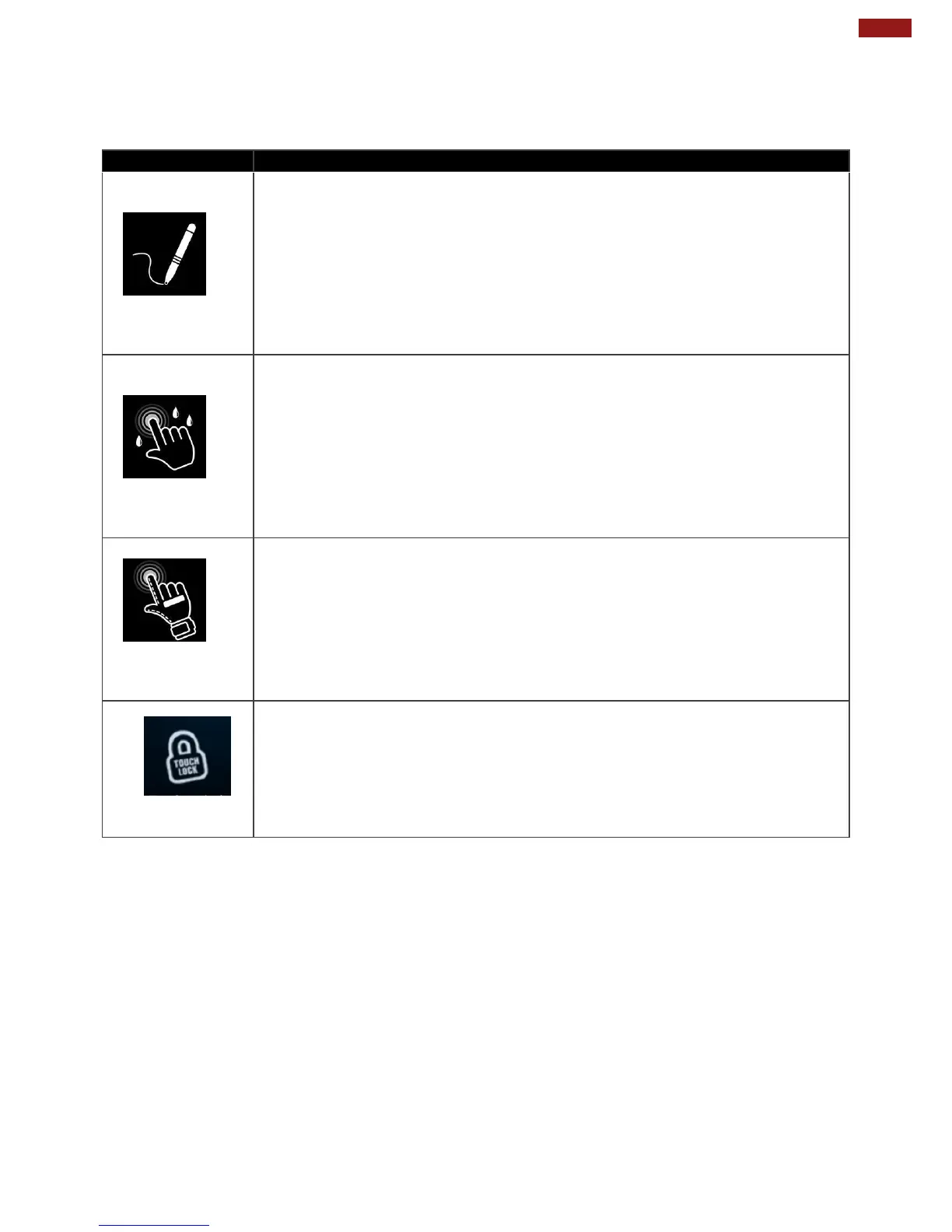
Normal mode is the default operating mode of the touchscreen. Under
the Normal mode, the touchscreen is set to have the ability to pick up
touch inputs from the bare fingertips as well as fine-tip passive
capacitive stylus that is shipped with the tablet.
Supports the following input solutions:
Fine-tip passive stylus w/ palm rejection
Active stylus w/ palm rejection
Rubber Tip passive stylus
Finger
Under this mode, the touchscreen is set to have the ability to reject
false touch inputs while liquid is present on the touchscreen. Once the
liquid is removed from the touchscreen, touch inputs from bare
fingertips will continue to operate.
Support the following input solutions:
Active stylus w/ palm rejection
Rubber Tip passive stylus
Finger
Under the Glove mode, the touchscreen is set to have the ability to
pick up touch inputs while the user is operating the touchscreen with
gloves on.
Touch inputs from bare fingertips will also continue to operate. Support
the following input solutions:
Glove
Rubber Tip passive stylus
Finger
Under the Touch Lock mode, the touchscreen is locked from all touch
inputs, while keypad input remains operational.



 To Next Page