Chapter 5: Frequently Used Settings
5.1 Screen Resolution Scaling and Setting
The M101BK has a high resolution 1280 x 800 display which is perfect for viewing image, video, or other
applications, however, Windows user interface (icons, buttons, and other user interface elements) may be
too small to read and operate at the default Windows settings.
By changing the display scaling or the display resolution setting of the device, you can adjust the size of the
text and other items on the desktop for optimal viewing. Display scaling is the recommended method
because it has the effect of adjusting user interface element without having to move away from the optimal
resolution setting at 1280 x 800. This section will explain how you can adjust the built-in windows display
scaling setting and resolution setting.
Note:
The Tablet computer is shipped with display scaling set at Larger - 150%. We
recommend the users set the scaling to this setting for optimal text and image viewing.
Before proceeding to change the scaling option, make sure any opened document is
saved and close, and all running applications are closed before proceeding to change
the display scaling, because this procedure requires users to log out of their account to
apply display scaling change.
5.1.1 Changing Display Scaling Setting (Recommended)
Perform the following to change display scaling setting:
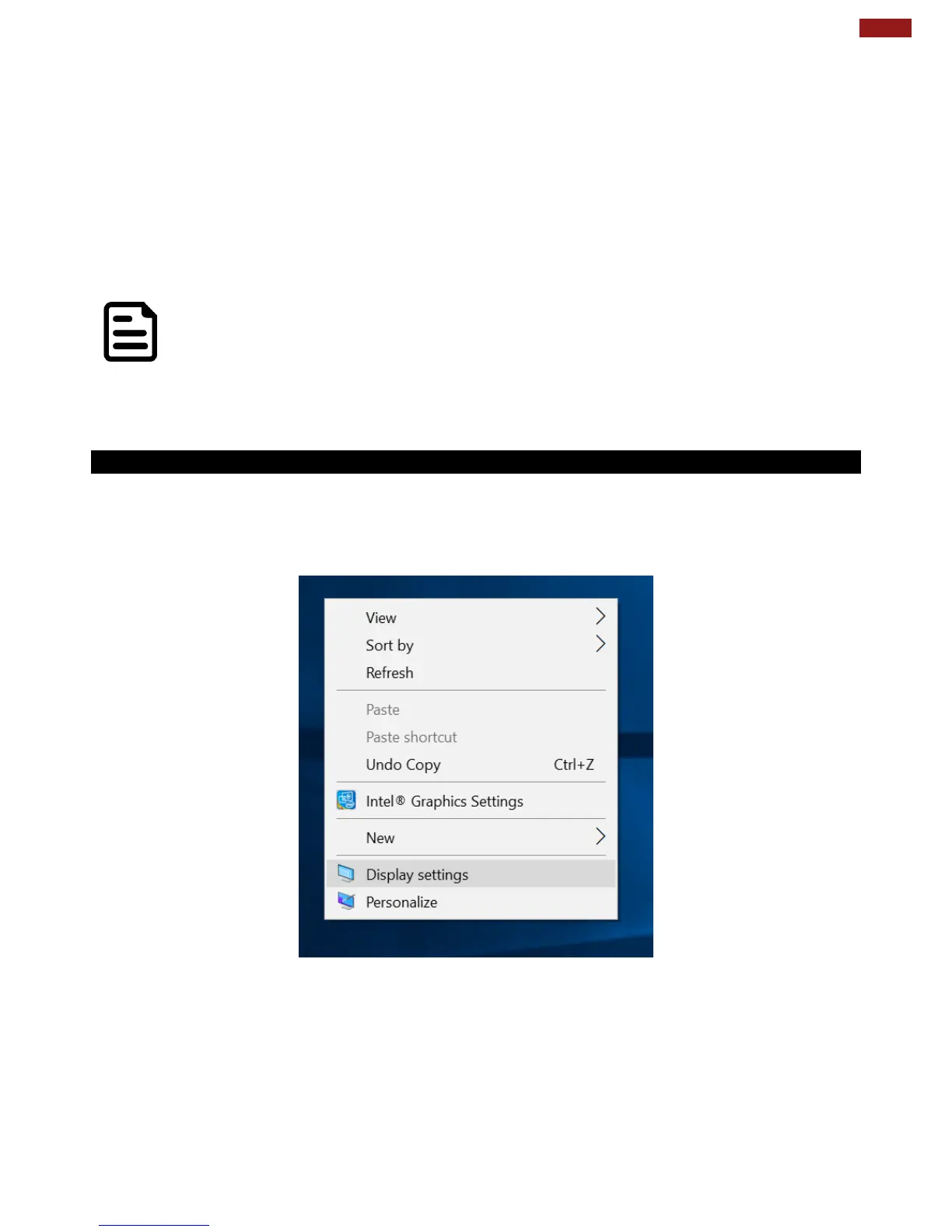
1. Tap and hold anywhere on the desktop for 3 seconds and release to bring up the context menu, and
select “Display settings” option as shown below:



 To Next Page