5.3 Using Recovery Wizard to Restore Computer
M101BK tablet computer has a dedicate recovery partition stored on the hard drive of the tablet to
enable quick one-key recovery process. This partition occupies about 11GB of the storage space,
and comes built-in to each M101BK tablet computer.
Important:
Before starting the recovery process, be sure to backup all user data, as all data will be
lost after the recovery process.
Follow the procedure below to enable quick one-key recovery procedure:
1. Plug-in the AC adapter to M101BK tablet computer. Make sure the M101BK tablet
computer stays plugged in to power source during the recovery process.
2. Power on the tablet computer, and when the boot screen shows up, press the F6 button
(Recovery Key) on the front bezel OSD button OR press F6 when using an external USB
keyboard to initiate the Recovery Wizard.
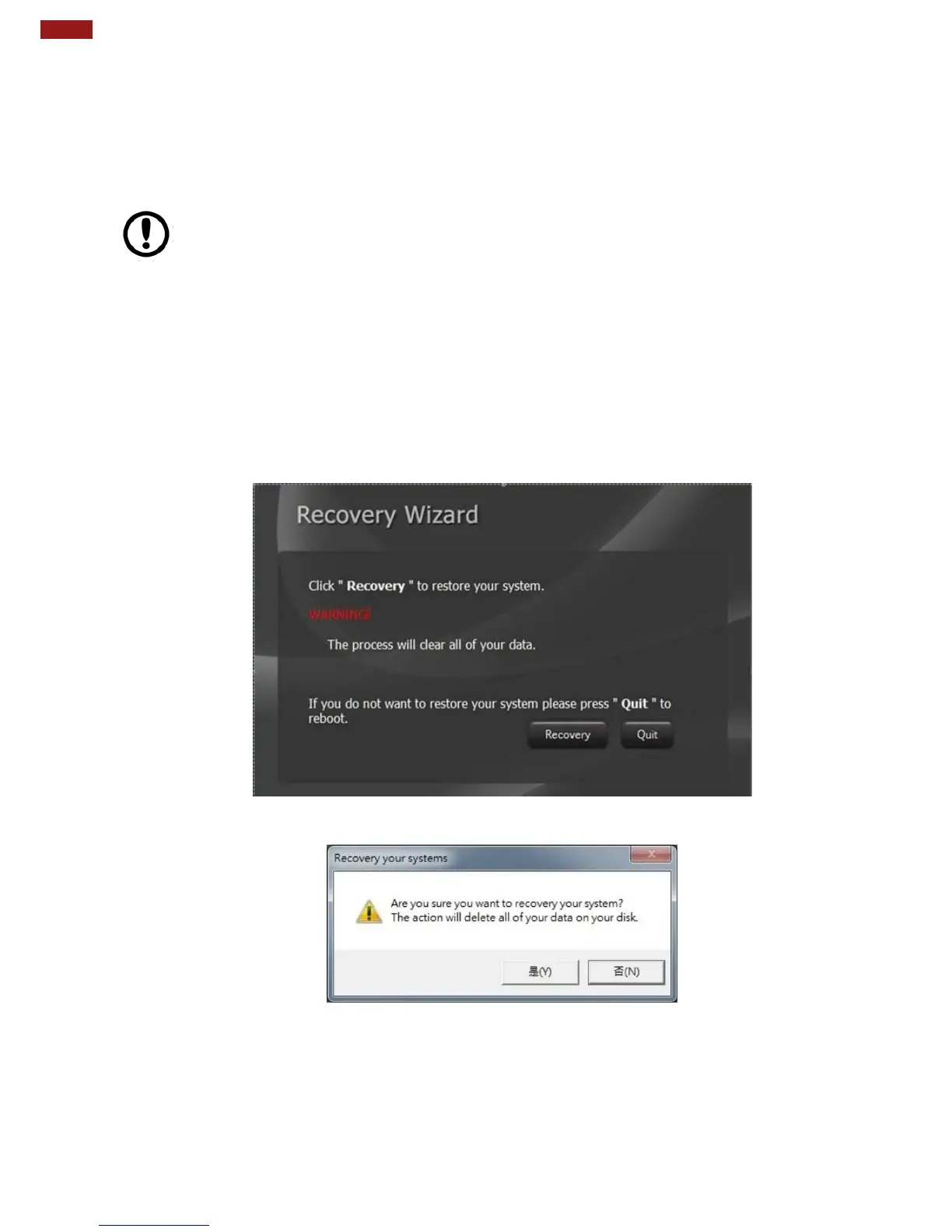
3. The following screen shows the Recovery Wizard. Click on “Recovery” button to continue.
4. A warning message about data loss will show up. Make sure data is backed up before
recovery, and click on “Yes” to continue.



 To Next Page