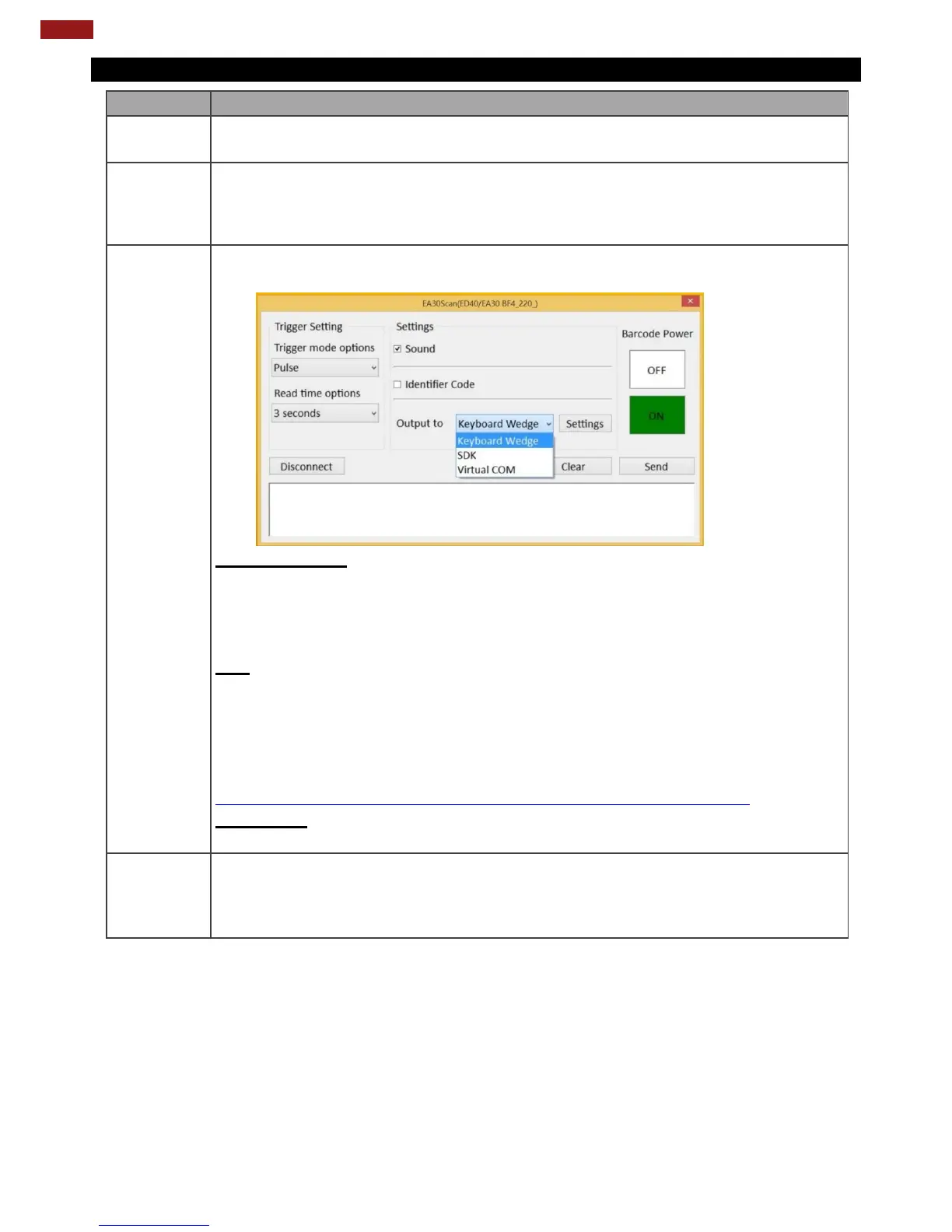
The Identifier Code check box defines whether to filter Application Identifiers from
the scanned data. Some barcode types, such as EAN-128, use Application Identifiers
to include additional data. User can disable Identifier Code check box to ignore
specific characters.
This setting defines the output type of the scanned data. Here are the options
available:
Keyboard Wedge
Under this setting, the data scanned is sent like keyboard data. The scanned data can
be output directly to the demo area below this window, or user can also open other
utility, such as Office Word or Notepad files, for data input.
Note: notice that the input method should support the scanned character.
SDK
For users following SDK for software porting, the scanned data can also be
output with the format needed.
Note:
User can download the SDK from Winmate Download center webs
>> M101BK>> Development Kit or check the Driver CD whic shipped with the tablet.
http://www.winmate.com/DownCenter/DownLoadCenter.asp?DowyContent
Virtual COM
User can also choose Virtual COM to transfer scanned data to the defined COM port.
User can tap on the Disconnect button to stop the connection with Barcode
Reader.
*To recover the connection, please tap on the button again to re-connect with
Barcode Reader.



 To Next Page