Chapter 5: Frequently Used Settings
7. Next, the user has to configure the application that is used to accept the scanned data from
the wireless Bluetooth Barcode Scanner. The application has to be configured to accept the
same COM Port that has been assigned for the Bluetooth Serial Port Profile in the previous
step.
Important:
Make sure the application stays open while pairing.
8. Now the computer is ready to start pairing process.
5.2.2 Set up the Barcode Scanner for Bluetooth Pairing
Now the Barcode Scanner is ready for pairing process to start.
5.2.3 Bluetooth Pairing
After you finish setting up both the Computer and Barcode Scanner you are ready to start pairing.
1. Open a program that is used for pairing.
2. Perform scanning procedures. A Bluetooth notification window pops-up on the right-hand
side of the desktop. Left click on the mouse to enter the Add a device menu.
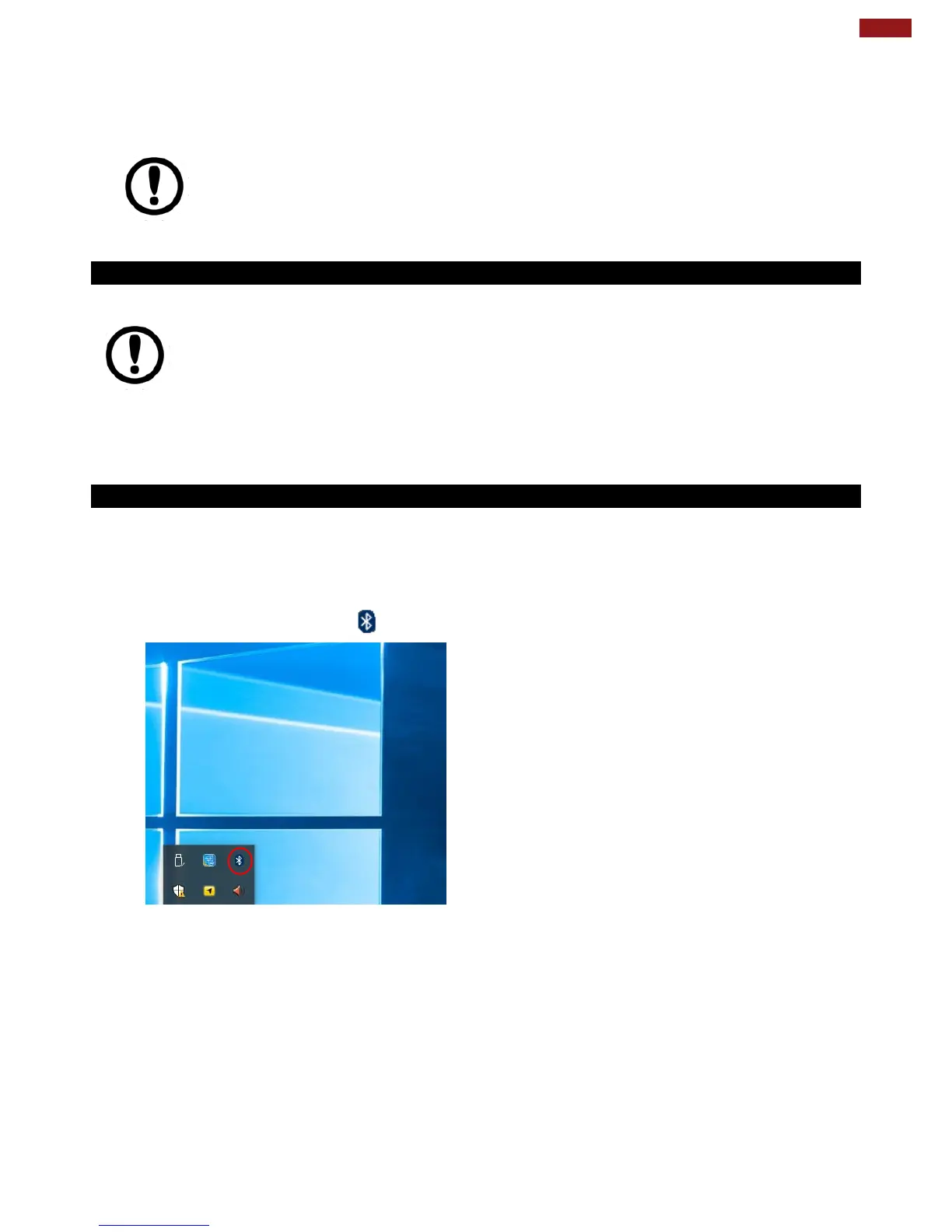
3. Locate the Bluetooth icon in the Notification Area.
Important:
The wireless Bluetooth Barcode Scanner has to be configured as Bluetooth Serial
Port Profile Master device to establish connection via Bluetooth MAC address
barcode label. For a more detailed instruction, please refer to the User Guide for
the wireless Bluetooth Barcode Scanner you are using for paring.



 To Next Page