EasyManua.ls Logo

Xerox 6015/NI - User Manual

Xerox 6015/NI
214 pages
Print Icon
To Next Page IconTo Next Page
Loading...
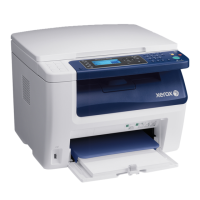
Xerox WorkCentre 6015
Color Multifunction Printer
Imprimante multifonction couleur
Xerox
®
WorkCentre
®
6015
User Guide
Guide d'utilisation
Italiano Guida per l’utente
Deutsch Benutzerhandbuch
Español Guía del usuario
Português Guia do usuário
Nederlands Gebruikershandleiding
Svenska Användarhandbok
Dansk Betjeningsvejledning
Čeština Uživatelská příručka
Polski Przewodnik użytkownika
Magyar
Felhasználói útmutató
Русский Руководство пользователя
Türkçe
Kullanıcı Kılavuzu
Ελληνικά Εγχειρίδιο χρήστη

Table of Contents

Other manuals for Xerox 6015/NI

Questions and Answers

  • J
    James SanchezJul 30, 2025
    What to do if Xerox 6015/NI does not print?
    • S
      shelbyrochaJul 31, 2025
      If your Xerox All in One Printer isn't printing, first, press the control panel button in case it is in Energy Saver mode. Then, check if PrintingScout displays an error message and follow the instructions provided. Ensure that the printer has paper in the tray and that the toner cartridge isn't empty. If the Error Indicator is blinking, try turning the printer off and on again. Also, check that the power cord and USB connections are secure, and clear any print jobs from the print queue using PrintingScout.
  • M
    Mary BerryAug 5, 2025
    Why does my Xerox 6015/NI All in One Printer reset or turn off frequently?
    • Z
      zacharyjohnsonAug 5, 2025
      If your Xerox All in One Printer frequently resets or turns off, ensure the power cord is correctly plugged into both the printer and the outlet. If that doesn't solve it, the printer may be connected to an uninterruptible power supply or a power strip shared with high-power devices; plug the printer directly into a suitable outlet. A system error could also be the cause; in that case, turn the printer off and on again.
  • N
    Natasha KingAug 12, 2025
    How to fix Xerox 6015/NI that does not turn on?
    • A
      Alicia StevensAug 12, 2025
      If your Xerox All in One Printer doesn't turn on, start by checking if the power switch is turned on. Next, make sure the power cord is securely plugged into the outlet. Try plugging another electrical appliance into the outlet to ensure it's working correctly, or try a different outlet. Finally, verify that the power source matches the printer's electrical specifications.
  • J
    jeffrey60Aug 17, 2025
    What to do if condensation has formed inside Xerox All in One Printer?
    • T
      Timothy HartmanAug 18, 2025
      If condensation has formed inside your Xerox All in One Printer, allow the printer to operate for several hours at room temperature. Also, try to reduce the humidity in the room or move the printer to a location where the temperature and relative humidity are within the operating specifications.
  • R
    Rachel FosterAug 25, 2025
    Why is my Xerox 6015/NI All in One Printer making unusual noises?
    • G
      Gina NavarroAug 25, 2025
      If your Xerox All in One Printer is making unusual noises, turn off the printer and check for any obstructions or debris inside. Remove any obstructions or debris that you find.

Summary

Safety

Electrical Safety

Covers precautions for safe use of power cords and electrical connections.

Operational Safety

Guidelines for safe operation, including handling paper and avoiding moving parts.

Maintenance Safety

Precautions to take when performing printer maintenance procedures.

Features

Parts of the Printer

Identifies and describes the physical components of the printer.

System Menus

Details various system settings and configuration options accessible via the control panel.

Installation and Setup

Connecting the Printer

Instructions on how to connect the printer via USB, wired, or wireless network.

Configuring Network Settings

Details on setting up TCP/IP, IP addresses, and network protocols for connectivity.

Installing the Software

Guidance on installing printer drivers and necessary utilities for different operating systems.

Printing

Loading Paper

Step-by-step instructions for loading paper into the main and bypass trays.

Selecting Printing Options

How to configure print settings, defaults, and job-specific options.

Copying

Making Copies

Basic steps for creating copies using the document glass or automatic document feeder.

Adjusting Copying Options

How to modify settings like color, size, sharpness, and exposure for copy jobs.

Scanning

Faxing

Maintenance

Troubleshooting

Xerox 6015/NI Specifications

General IconGeneral
BrandXerox
Model6015/NI
CategoryAll in One Printer
LanguageEnglish

Related product manuals