EasyManua.ls Logo

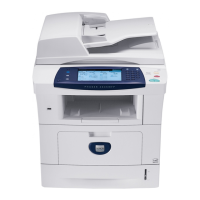
Xerox PHASER 3635 - User Manual

Xerox PHASER 3635
228 pages
Print Icon
To Next Page IconTo Next Page
Loading...
Xerox PHASER 3635
User Guide

Table of Contents

Other manuals for Xerox PHASER 3635

Questions and Answers

  • J
    jburchSep 10, 2025
    What to do if my Xerox PHASER 3635 All in One Printer says Tray Cassette Out?
    • V
      Virginia WrightSep 10, 2025
      If your Xerox All in One Printer displays 'Tray Cassette Out', it indicates that the paper tray is not securely closed. Close the paper tray until it locks into place.
  • L
    Laura HooperAug 22, 2025
    What to do if my Xerox PHASER 3635 All in One Printer says Paper Empty at Tray?
    • L
      Lauren LongAug 22, 2025
      If your Xerox All in One Printer displays a message indicating 'Paper Empty at Tray', it means the copy paper in the paper tray has run out. To resolve this, load paper in the tray indicated by the warning message.
  • W
    Wanda JonesAug 25, 2025
    What to do if my Xerox PHASER 3635 says Toner Empty?
    • K
      Kristin HumphreyAug 25, 2025
      If your Xerox All in One Printer indicates 'Toner Empty', it means the print cartridge is empty and needs replacing. Open the front cover and replace it with a new print cartridge.
  • A
    Ariel ReevesAug 26, 2025
    How to fix Jam from Tray on Xerox PHASER 3635?
    • K
      Kevin Moore IIIAug 27, 2025
      If your Xerox All in One Printer is showing 'Jam from Tray', it means copy paper has jammed in the paper tray. Open the indicated tray and remove the jammed paper. Also, open the back and front covers to remove any additional jammed paper.
  • A
    Alexander SmithAug 27, 2025
    What to do if my Xerox PHASER 3635 All in One Printer says Paper Empty at Bypass Tray?
    • R
      Rebecca MaciasAug 28, 2025
      If your Xerox All in One Printer indicates 'Paper Empty at Bypass Tray', it means the copy paper in the bypass tray has run out. Load paper in the bypass tray to continue.
  • K
    Kevin JohnsonAug 29, 2025
    How to clear Duplex Jam on Xerox PHASER 3635 All in One Printer?
    • E
      Elaine BauerAug 29, 2025
      If your Xerox All in One Printer displays 'Duplex Jam', it means copy paper has jammed in the side cover. Open the back covers and remove the jammed paper to resolve the issue.
  • T
    Thomas BurnsSep 18, 2025
    How to fix Staple Cartridge Not Installed error on Xerox PHASER 3635?
    • H
      hurstelizabethSep 18, 2025
      If your Xerox All in One Printer displays 'Staple Cartridge Not Installed', install the staple cartridge.
  • A
    Andrea SmithSep 12, 2025
    What to do if my Xerox PHASER 3635 displays Full Stack message?
    • A
      Amy GibsonSep 12, 2025
      If your Xerox All in One Printer shows 'Full Stack', the output tray is full. Remove the printed material from the output tray.
  • P
    paulsmithSep 8, 2025
    What to do if my Xerox PHASER 3635 displays Door Open error?
    • R
      Robert CampbellSep 8, 2025
      If your Xerox All in One Printer displays a 'Door Open' message, it means that the back cover or front covers are not securely latched. Close the covers until they lock into place. If the fault persists, call service.
  • H
    heather15Sep 5, 2025
    What to do if my Xerox All in One Printer says Invalid Print Cartridge?
    • A
      Alan RobinsonSep 5, 2025
      If your Xerox All in One Printer displays 'Invalid Print Cartridge', the installed print cartridge is not a valid Xerox cartridge. Check the print cartridge and install a valid Xerox cartridge if necessary. If the problem persists, call for service.

Summary

Welcome

Introduction

Describes Xerox Phaser 3635MFP models & capabilities.

Customer Support

Provides contact info & tips for seeking assistance.

Safety

Details safety precautions & warnings for equipment use.

Environmental Compliance

Discusses compliance with environmental standards.

Product Recycling and Disposal

Guidelines for disposing of old equipment & batteries.

Getting Started

Machine Overview

Details component locations & model differences.

Control Panel Overview

Explains control panel buttons & screen functions.

Loading Paper

Instructions for loading paper into the trays.

Machine Status

How to view machine info, faults, & service status.

Faults

Explains how to view & understand machine errors.

Copy

Copy Procedure

Outlines the basic steps for making copies.

Image Quality

How to adjust appearance settings like lighten/darken.

Layout Adjustment

Adjusting original size & scan areas.

Output Format

Options for finished output like booklet creation.

ID Card Copy

Copying both sides of an ID document onto one side.

Fax

Fax Procedure

Basic steps for sending faxes.

Dialing Options

Methods for entering fax numbers.

Fax Options

Advanced fax features like polling & delay send.

Forward to Fax;E-mail Features

Automatically forwarding incoming/outgoing faxes.

Network Scanning

Scan Procedure

Outlines the basic steps for scanning.

Select Network Scanning Template

Choosing pre-configured scan templates.

Advanced Settings

Adjusting scan appearance & style.

Filing Options

Managing file destinations, formats, & metadata.

E-mail

E-mail Procedure

Basic steps for sending emails from the machine.

E-mail

Standard email job options like recipient, subject, & message body.

Advanced Settings

Adjusting scan appearance for email.

Store File

Store File Procedure

Steps to scan & store documents to a USB drive.

File;Folder Management

Managing files & folders on a USB drive.

Print Files

Print Files

Selecting & outputting pre-stored jobs for printing.

Print from USB

How to print files directly from a USB drive.

Print

Print Procedure

Basic steps for printing documents.

Custom Size Printing

Procedure for printing on custom size media.

Paper; Output

Selecting job type & media requirements.

Image Options

Modifying appearance of print jobs.

Paper and other Media

Loading Paper

Instructions for preparing & loading paper into trays.

Media Specifications

Guidelines for selecting & loading paper & envelopes.

Setups

Accessing Tools

How to access the machine's setup menus.

Fax Setup

Customizing various fax settings.

Setting up Paper Trays

Information on configuring paper trays.

Accounting

Tracking machine usage & controlling access.

Security Settings

Settings for job operation rights & image overwrite.

Machine Tests

Verifying machine & UI performance.

Maintenance

Consumables

Information on items needing replenishment or replacement.

Print Cartridge

Procedure for replacing a used print cartridge.

Cleaning the Machine

Instructions for cleaning various parts of the machine.

Specifications

Machine Specifications

Details on machine configurations, size, weight, & speed.

Electrical Specifications

Frequency, voltage, & power consumption details.

Feature Specifications

Details on Fax & Print features.

Troubleshooting

Fault Clearance

Instructions for clearing machine faults.

Paper Jams

Identifying & clearing paper jams.

Error and Fault Codes

Table of errors, faults, descriptions, & solutions.

Xerox PHASER 3635 Specifications

General IconGeneral
Print TechnologyLaser
Print Speed35 ppm
Print ResolutionUp to 1200 x 1200 dpi
Standard Paper Capacity550 sheets
ADF Capacity50 sheets
Duplex PrintingYes
Scanner TypeFlatbed with ADF
FunctionsPrint, Copy, Scan, Fax
Processor360 MHz
ConnectivityEthernet
Maximum Paper Size8.5 x 14 inches
Scanner ResolutionUp to 600 x 600 dpi
Network ConnectivityEthernet
Display7-inch color touchscreen
Weight49 lbs

Related product manuals