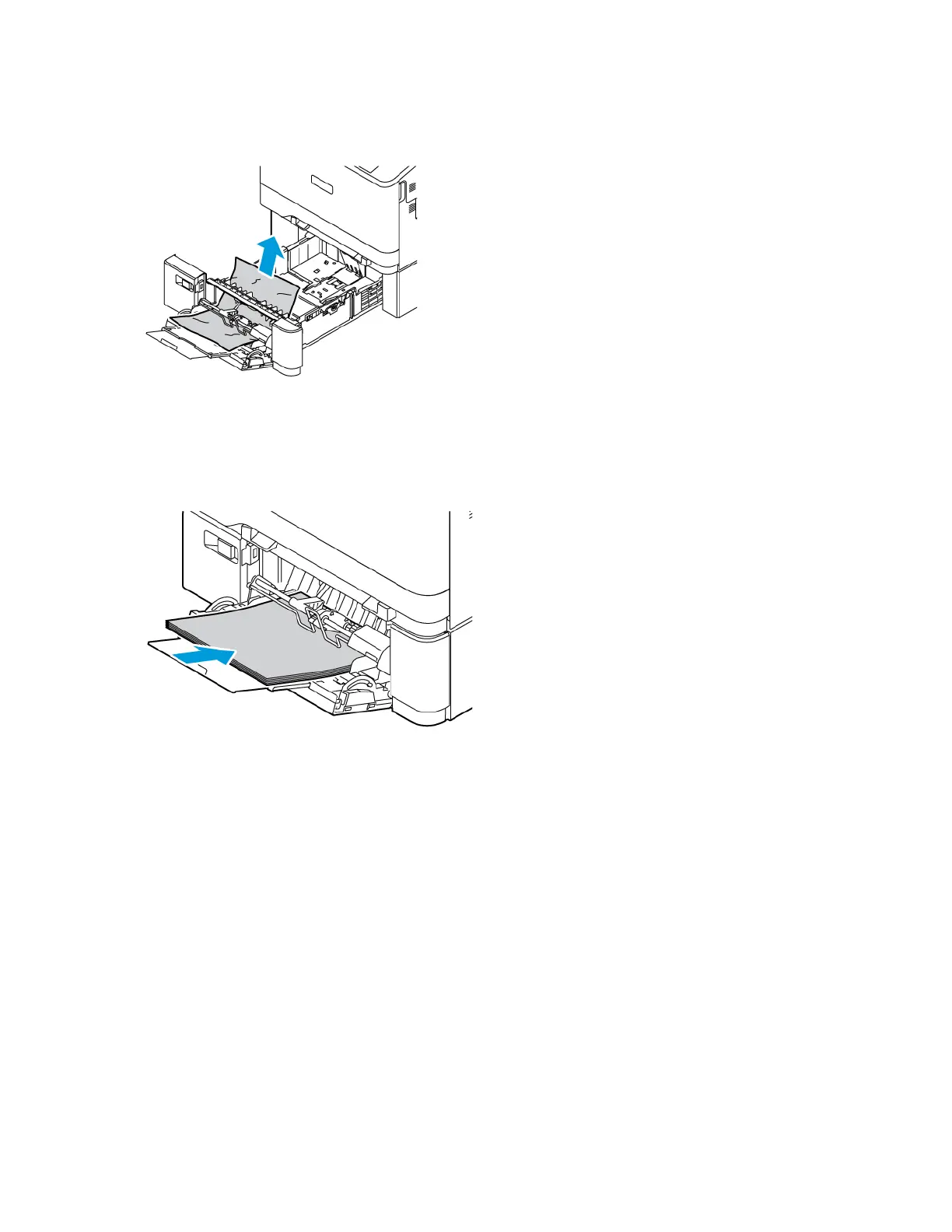
2. Remove the jammed paper from the tray. Ensure that the paper feed entrance, where the tray connects to the
printer, is clear.
3. If the paper is torn, check inside the printer for torn pieces of paper.
4. Fan the paper that you removed from the tray and ensure that all four corners of the paper are well aligned.
5. Insert the paper into the Bypass Tray. Ensure that the leading edge of the paper touches the paper feed
entrance.
6. At the control panel, select correct size, type, and color of the paper.
• To select a new paper size, touch SSiizzee.
• To select a new paper type, touch TTyyppee.
• To select a new paper color, touch CCoolloorr.
7. To confirm the settings, touch CCoonnffiirrmm.
Clearing Jams at Door A
To clear paper jams from inside the printer front door, Door A, do the following.
Clearing Jams in the Fuser Unit
To clear the paper jams in the fuser unit:
Xerox
®
VersaLink
®
C415 Color Multifunction Printer User Guide 261
Troubleshooting



 To Next Page