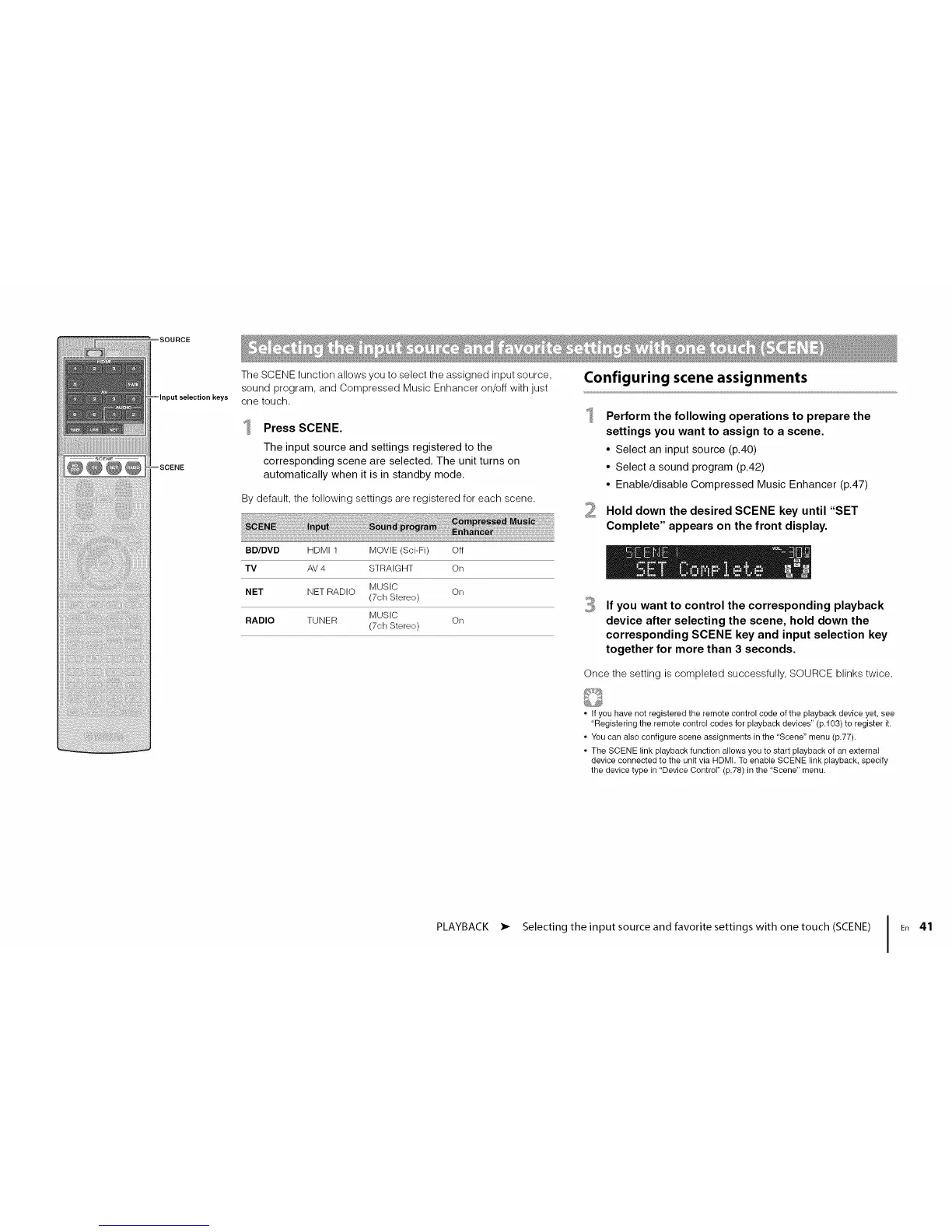
SOURCE
@@@@
)ut selection keys
The SCENE function allows you to select the assigned input source,
sound program, and Compressed Music Enhancer on/off with just
one touch.
Press SCENE.
The input source and settings registered to the
corresponding scene are selected. The unit turns on
automatically when it is in standby mode.
By default, the following settings are registered for each scene.
BD/DVD HDMI 1 MOVIE (Sci-Fi) Off
TV AV 4 STRAIGHT On
MUSIC
NET NET RADIO On
(7ch Stereo)
MUSIC
RADIO TUNER On
(7ch Stereo)
Configuring scene assignments
2
Perform the following operations to prepare the
settings you want to assign to a scene.
• Select an input source (p.40)
• Select a sound program (p.42)
• Enable/disable Compressed Music Enhancer (p.47)
Hold down the desired SCENE key until "SET
Complete" appears on the front display.
3 If you want to control the corresponding playback
device after selecting the scene, hold down the
corresponding SCENE key and input selection key
together for more than 3 seconds.
Once the setting is completed successfully, SOURCE blinks twice.
• Ifyou have not registered the remote control code of the playback device yet, see
"Registering the remote control codes for playback devices" (p.103) to register it.
• You can also configure scene assignments in the "Scene" menu (p.77).
• The SCENE link playback function allows you to start playback of an external
device connected to the unit via HDMh To enable SCENE link playback, specify
the device type in "Device Control" (p.78) in the "Scene" menu.
PLAYBACK • Selecting the input source and favorite settings with one touch (SCENE) I En 41




 To Next Page