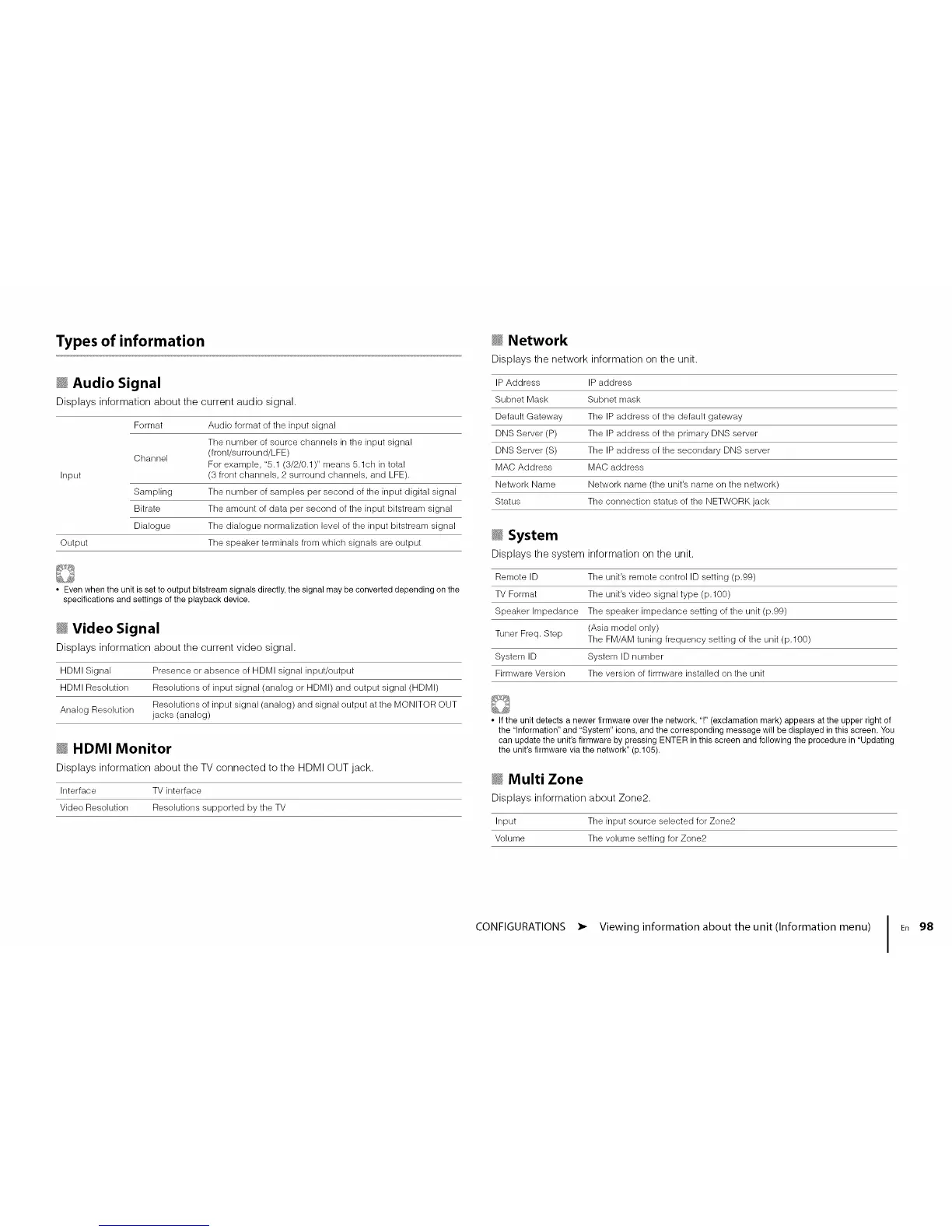
Types of information
_ Audio Signal
Displays information about the current audio signal.
Format Audio format of the input signal
The number of source channels in the input signal
Channel (front/surround/LFE)
For example, "5.1 (3/2/0.1)" means 5.lch in total
Input (3 front channels, 2 surround channels, and LFE).
Sampling The number of samples per second of the input digital signal
Bitrate The amount of data per second of the input bitstream signal
Dialogue The dialogue normalization level of the input bitstream signal
Output The speaker terminals from which signals are output
• Even when the unit is set to output bitstream signals directly, the signal may be converted depending on the
specifications and settings of the playback device.
_ Video Signal
Displays information about the current video signal.
HDMI Signal Presence or absence of HDMI signal input/output
HDMI Resolution Resolutions of input signal (analog or HDMI) and output signal (HDMI)
Resolutions of input signal (analog) and signal output at the MONITOR OUT
Analog Resolution jacks (analog)
_ HDMI Monitor
Displays information about the TV connected to the HDMI OUT jack.
Interface TV interface
Video Resolution Resolutions supported by the TV
_ Network
Displays the network information on the unit.
IP Address IP address
Subnet Mask Subnet mask
Default Gateway The IP address of the default gateway
DNS Server (P) The IP address of the primary DNS server
DNS Server (S) The IP address of the secondary DNS server
MAC Address MAC address
Network Name Network name (the unit's name on the network)
Status The connection status of the NETWORK jack
_ System
Displays the system information on the unit.
Remote ID Tile unit's remote control ID setting (p.99)
TV Format The unit's video signal type (p.100)
Speaker Impedance The speaker impedance setting of the unit (p.99)
(Asia model only)
Tuner Freq. Step The FM/AM tuning frequency setting of the unit (p. 100)
System ID System ID number
Firmware Version The version of firmware installed on the unit
• Ifthe unit detects a newer firmware over the network, '!" (exclamation mark) appears at the upper right of
the "Information" and "System" icons, and the corresponding message will be displayed in this screen. You
can update the unit's firmware by pressing ENTER in this screen and following the procedure in "Updating
the unit's firmware via the network" (p.105).
_ Multi Zone
Displays information about Zone2.
Input Tile input source selected for Zone2
Volume The volume setting for Zone2
CONFIGURATIONS • Viewing information about the unit(Information menu) I En 98




 To Next Page