EasyManua.ls Logo

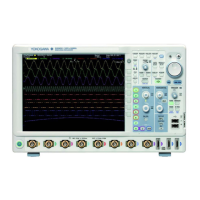
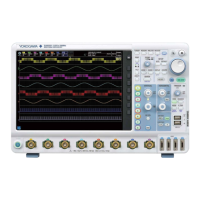
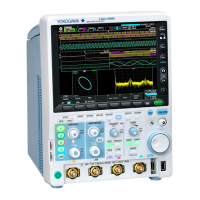
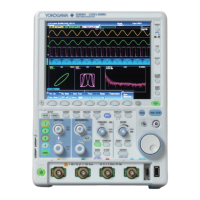
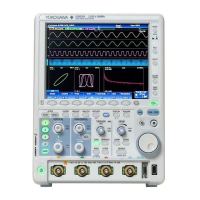
YOKOGAWA DLM2000 Series - User Manual

YOKOGAWA DLM2000 Series
340 pages
Print Icon
To Next Page IconTo Next Page
Loading...
IM 710105-17E
10th Edition
Communication Interface
Mixed Signal Oscilloscope
Digital Oscilloscope
DLM2000 Series

Table of Contents

Other manuals for YOKOGAWA DLM2000 Series

Questions and Answers

  • H
    Holly MasonAug 13, 2025
    Why are the measured values not correct on my YOKOGAWA Test Equipment?
    • L
      lawrencewyattAug 13, 2025
      If the measured values on your YOKOGAWA Test Equipment DLM2000 are incorrect, several factors could be the cause. First, allow the device to warm up for 30 minutes after powering it on. Second, calibrate the DLM2000. Third, ensure proper phase correction of the probe. Fourth, verify that the probe attenuation is correctly set. Fifth, set the offset voltage to 0 V. If the issue persists after checking these points, calibrate the DLM2000 again; if the measured values are still incorrect after calibration, servicing is required.
  • A
    Amanda PaulAug 17, 2025
    What to do if nothing is displayed on my YOKOGAWA DLM2000 Test Equipment?
    • D
      Drew BauerAug 17, 2025
      If nothing is displayed on your YOKOGAWA Test Equipment DLM2000, here are a couple of things to try: - First, the backlight might be turned off, press any key. - Second, the screen might be displayed with inappropriate colors, turn the power off, and then turn the power on again while pressing RESET.
  • C
    Crystal AlvarezAug 20, 2025
    Why I am unable to configure or control the YOKOGAWA DLM2000 through the communication interface?
    • S
      Sergio JacksonAug 21, 2025
      If you are unable to configure or control the YOKOGAWA Test Equipment DLM2000 through the communication interface, it could be due to a mismatch between the DLM2000 address used by the program and the specified address. Ensure that the address used in the program matches the DLM2000 address. Also, ensure that the interface is used in a way that conforms to the specifications.
  • N
    Neil ChristianAug 25, 2025
    What to do if I cannot save to the specified storage medium on my YOKOGAWA DLM2000?
    • A
      alicia83Aug 25, 2025
      If you cannot save to the specified storage medium on your YOKOGAWA Test Equipment DLM2000, it may be because the storage medium is not formatted. Format the storage medium. Alternatively, there may be no more free space on the storage medium. In this case, delete unneeded files or use another storage medium.
  • B
    barnesjoeAug 28, 2025
    Why is the display odd on my YOKOGAWA DLM2000?
    • J
      jodikellyAug 28, 2025
      If the display on your YOKOGAWA Test Equipment DLM2000 appears odd, it could indicate that the system is not operating correctly. Try turning off the DLM2000 and then turning it back on.
  • R
    Robert JonesSep 1, 2025
    How to fix a YOKOGAWA Test Equipment DLM2000 that does not power on?
    • J
      Jennifer SantiagoSep 1, 2025
      If your YOKOGAWA Test Equipment DLM2000 does not power on, it might be due to using a power supply outside the specified ratings. Use a correct power supply.
  • N
    Nicole HarrisSep 4, 2025
    What to do if keys do not work on my YOKOGAWA DLM2000 Test Equipment?
    • M
      Micheal JohnsonSep 5, 2025
      If the keys on your YOKOGAWA Test Equipment DLM2000 do not work, it could indicate a malfunction. Perform a key test. If the test fails, servicing is required.
  • B
    brianna25Sep 9, 2025
    Why can't I print to the built-in printer on my YOKOGAWA DLM2000 Test Equipment?
    • J
      Joshua MarshSep 9, 2025
      If you cannot print to the built-in printer of your YOKOGAWA Test Equipment DLM2000, it indicates that the printer head is damaged or worn out, which means servicing is required.

Summary

DLM2000 Series Digital Oscilloscope Mixed Signal Oscilloscope Communication Interface USERS MANUAL

Chapter 1 USB Interface

1.2 USB Interface Features and Specifications

Details the electrical, mechanical, and data transfer specifications for the USB interface.

Chapter 2 Ethernet Interface (Optional)

2.2 Ethernet Interface Features and Specifications

Details the electrical, mechanical, and data transfer specifications for the Ethernet interface.

Chapter 3 GP-IB Interface (Optional)

3.3 GP-IB Interface Features

Explains listener and talker capabilities and mode switching for GP-IB.

3.4 GP-IB Interface Specifications

Details electrical, mechanical, and functional specifications for the GP-IB interface.

Chapter 4 Programming Overview

4.2 Commands

Details command types, groups, and syntax for controlling the instrument.

4.5 Synchronization with the Controller

Explains methods for synchronizing command execution, including overlap and *WAI.

Chapter 5 Commands

5.1 List of Commands

Provides a comprehensive list of SCPI commands for instrument control.

5.2 ACQuire Group

Commands related to waveform acquisition settings.

5.3 ANALysis Group

Commands for waveform analysis features, including histograms.

5.6 CHANnel Group

Commands for configuring channel settings like vertical axis, coupling, and display.

5.8 COMMunicate Group

Commands for managing communication settings like header, lockout, and remote mode.

5.9 CURSor Group

Commands for configuring and using cursors for measurements on T-Y and XY displays.

5.11 FFT Group

Commands for configuring and performing FFT analysis.

5.19 MATH Group

Commands for configuring and performing user-defined computations.

5.20 MEASure Group

Commands for automated measurement of waveform parameters.

5.24 SERialbus Group

Commands for analyzing and searching serial bus signals (CAN, LIN, SENT, etc.).

5.33 TRIGger Group

Commands for configuring various trigger types and conditions.

5.34 WAVeform Group

Commands for retrieving and managing waveform data.

Chapter 6 Status Reports

YOKOGAWA DLM2000 Series Specifications

General IconGeneral
Bandwidth200 MHz, 350 MHz, 500 MHz
Channels4
Sampling Rate1.25 GS/s
Display8.4-inch LCD
Vertical Resolution8 bits
Trigger TypesEdge, Pulse Width, Serial Bus (I2C, SPI, CAN, LIN, UART)
InterfaceUSB
Power Supply100-240 VAC, 50/60 Hz
FFTYes

Related product manuals