HINT:
• “Ambisonic Mode” can be set during use as an audio interface (Multi Track). (→Using as an audio interface
(Audio Interface))
• Even when “Ambisonic Mode” is not set to “Off”, you can press track to monitor their input sounds.
When “PFL mode” is set to “PFL”, you can monitor sounds before they are converted to ambisonics
B-format. When “PFL mode” is set to “SOLO”, you can monitor sounds after they are converted to
ambisonics B-format. (→Setting the monitoring sound on the PFL Screen (PFL Mode), Monitoring the
input signals of specific tracks (PFL/SOLO))
• The input enabled/disabled statuses of the “Ambisonic Mode” input tracks are linked, so the settings of all
assigned tracks can be switched simultaneously by pressing any of their track keys.
• The following parameters that can be set on the PFL screen are linked for input tracks using “Ambisonic
Mode”. (→PFL Screen)
“HPF”/“Input Limiter”/“Phantom”/“Fader”/“PFL Mode”/“Input Source”/“Input Level“
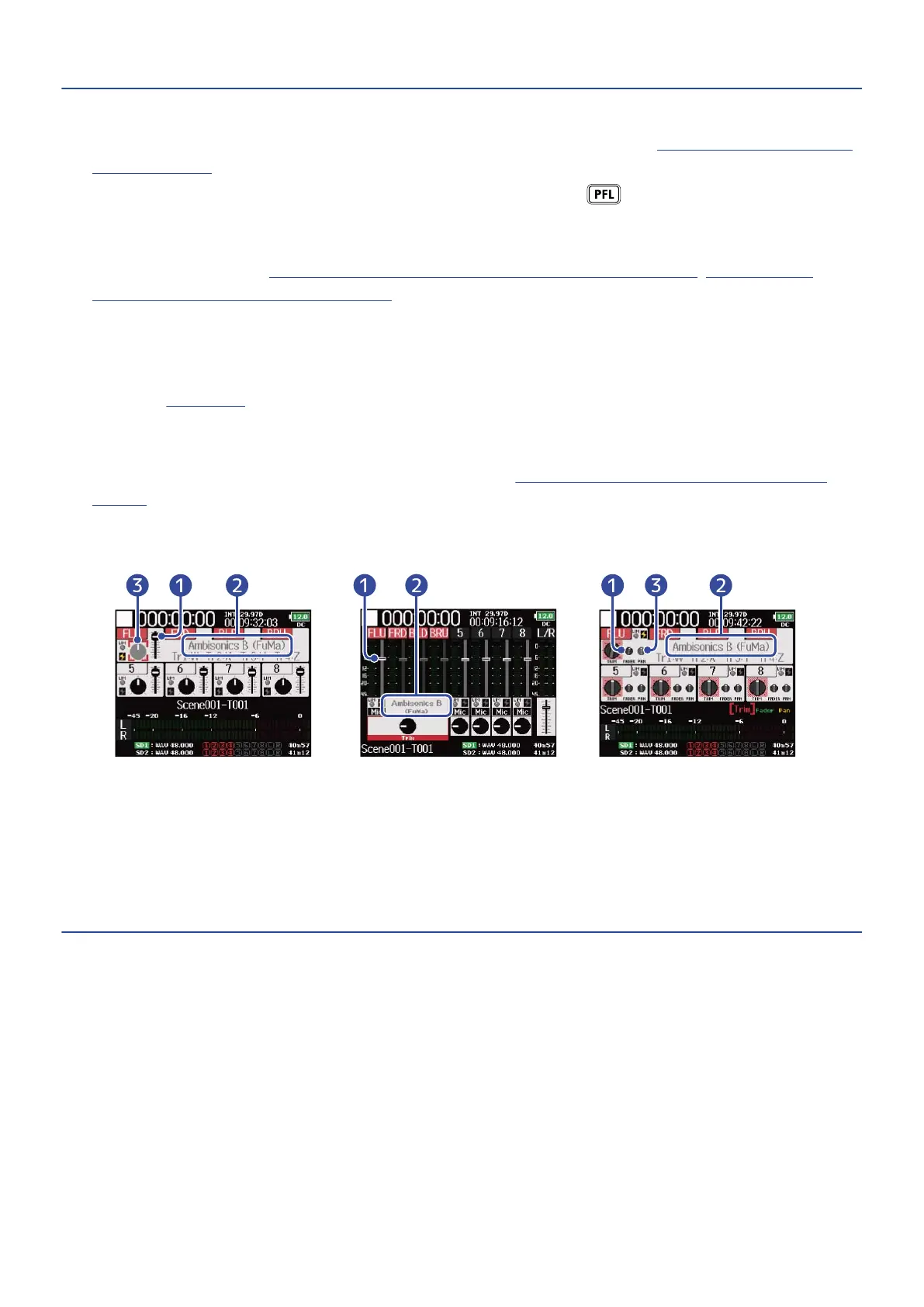
• When“Ambisonic Mode” is not set to “Off”, The Home Screen is displayed as follows. (The display is
changed depending on the “Track Knob Option” setting. (→Setting the track knob function (Track Knob
Option))
■When “Track Knob
Option” is set to “Trim”
■When “Track Knob
Option” is set to “Fader”
■When “Track Knob
Option” is set to “Mixer”
❶
Track 1-4 fader
❷
Format name
❸
Pan disable
89



 To Next Page