Recording new les
1.
Tap Punching In/Out and set to Off.
2.
Repeatedly press the track buttons for tracks to rerecord until they light red.
3.
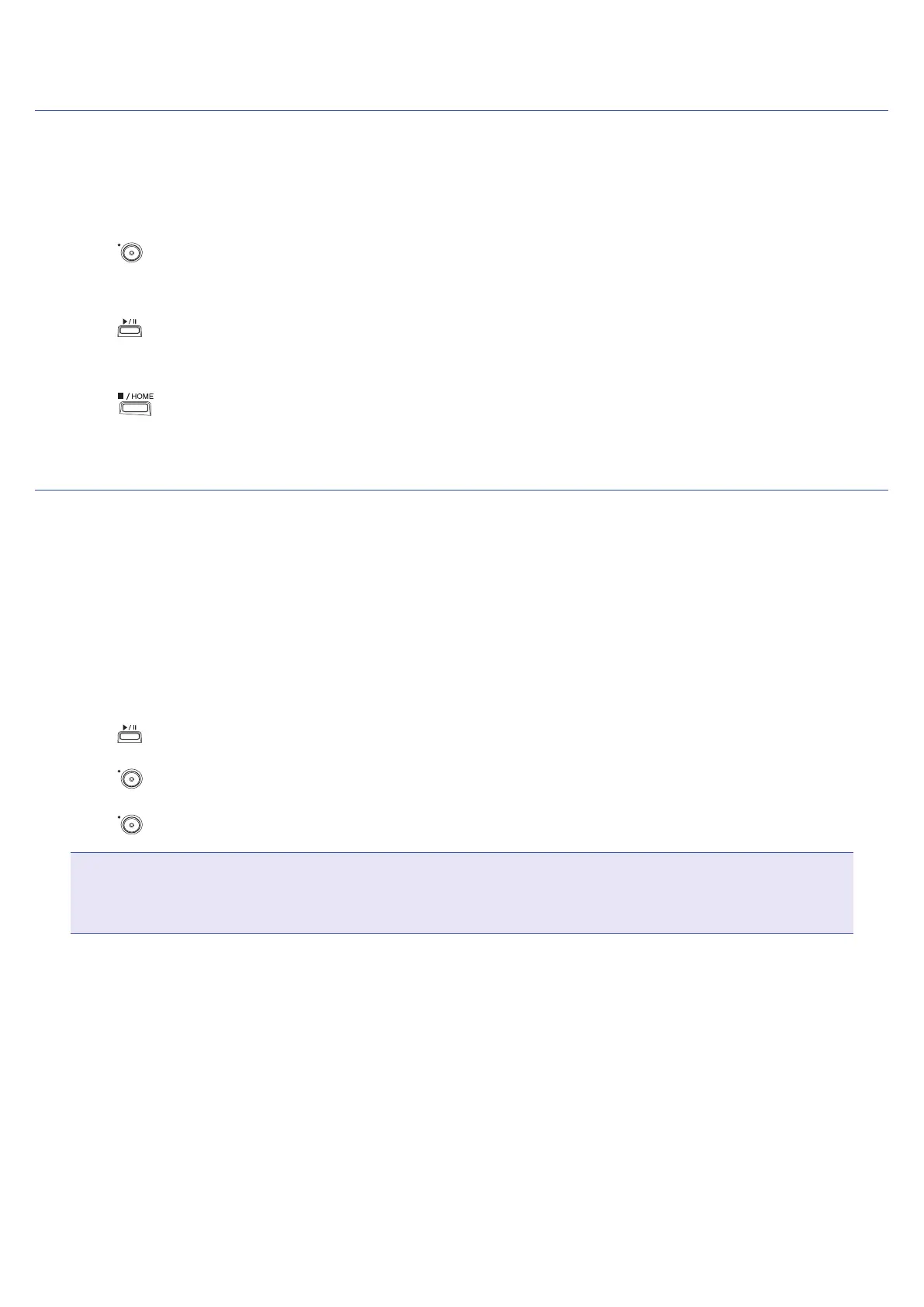
Press .
This will start recording standby.
4.
Press .
This starts recording.
5.
Press to stop.
Rerecording parts of tracks
Punching in/out is a function that can be used to rerecord parts of already recorded tracks. "Punching in" is
switching track status from playback to recording. "Punching out" is switching track status from recording to
playback.
With the H8, punching in/out can be conducted manually.
1.
Tap Punching In/Out and set to On.
2.
Repeatedly press the track buttons for tracks to rerecord until they light red.
3.
Press to start playback.
4.
Press at the position where you want to start rerecording (punch in).
5.
Press at the end of recording (punch out).
NOTE
• Punching in/out can be done once each time playback is started.
• Since punching in/out overwrites part of the le, the previous data will be lost.
74



 To Next Page