Recording
Recording process
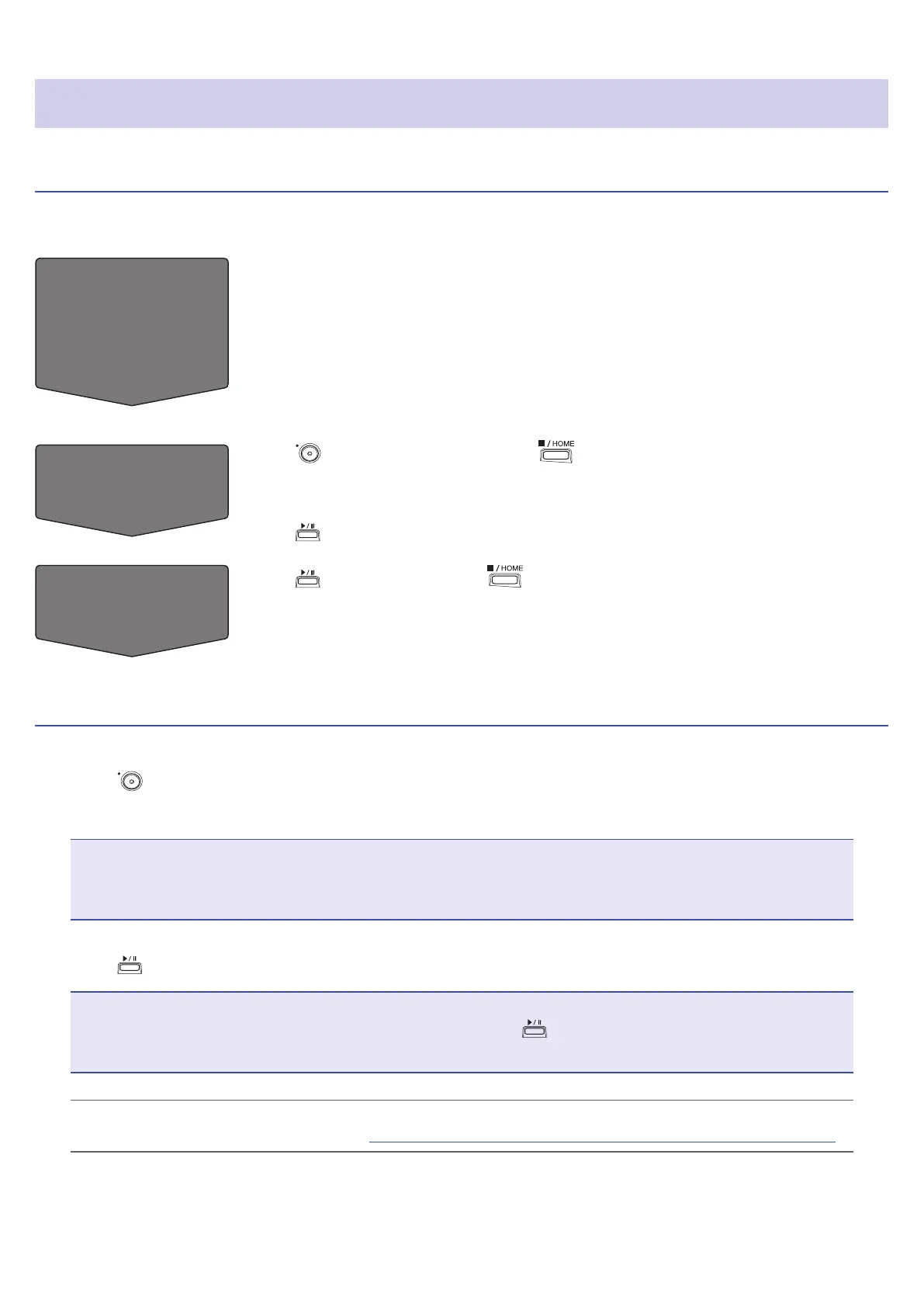
Recording follows the process shown below.
Prepare to
record
• Use batteries or an AC adapter
• Insert an SD card
• Connect the XY mic
• Connect mics, instruments, mixers and other equipment
• Turn the power on
• Set the recording format
• Make input and output settings
Record
• Press to start recording and press to stop recording
• Sound pads can also be recorded
• Marks can also be added
• Press
to pause
Play and check
• Press to start playback and to stop
• Cue to mark positions and to make project mixer settings, for example
Recording
1.
Press on the PODCAST app screen.
This starts recording.
NOTE
• When sound pads are used during recording, their sounds are mixed in stereo and recorded on tracks 3/4.
• In PODCAST mode, Inputs 3/4 cannot be used.
2.
Press to pause.
NOTE
• When recording is paused, a mark is added at that point. Press
again to resume recording.
• A maximum of 99 marks can be added in a project.
HINT
Marks can be added without pausing. (
→
“Setting how marks are added when recording/playing” on page 124)
80



 To Next Page