System Applications
114
6.
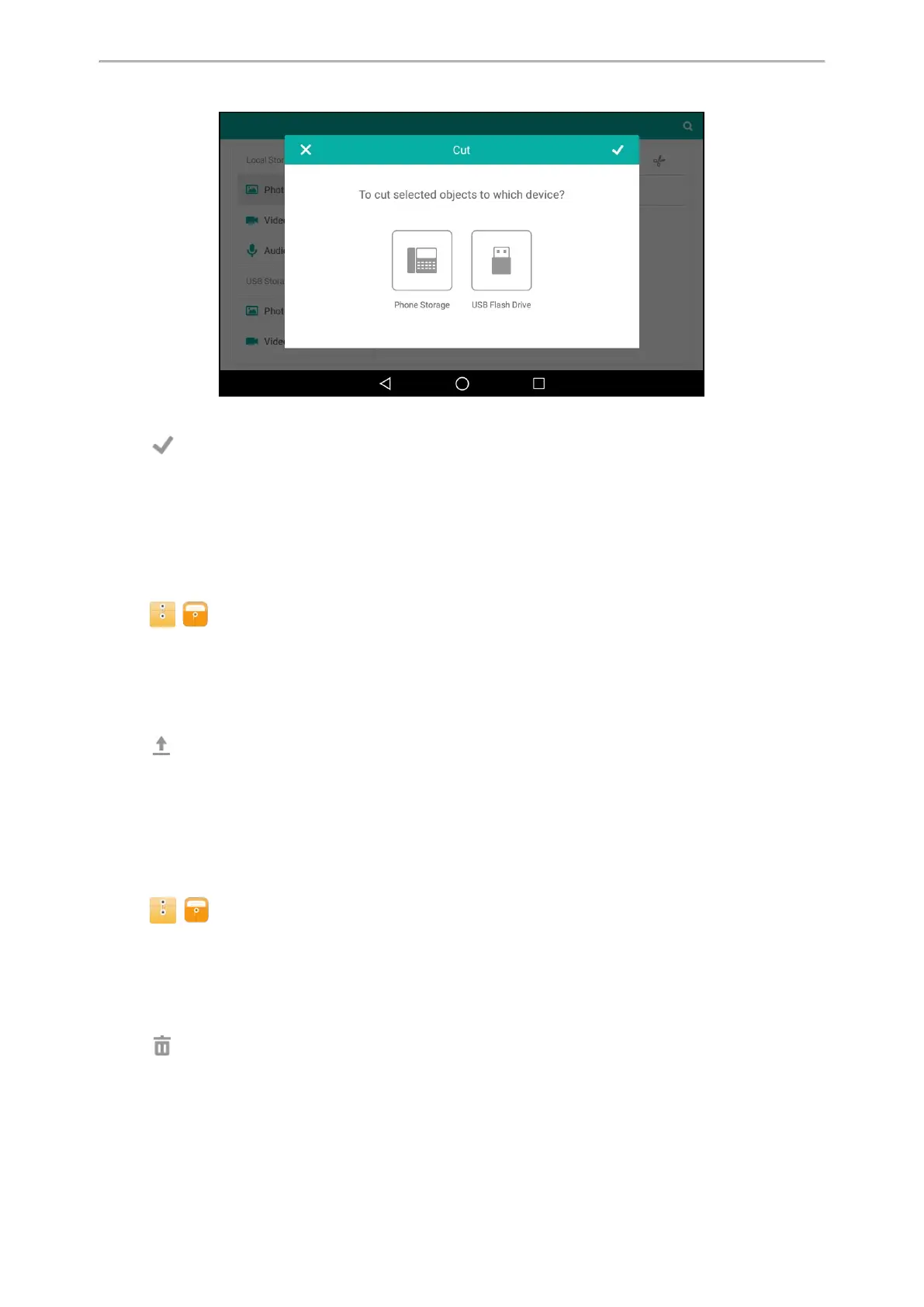
Tap the destination storage device.
7.
Tap .
The files are cut successfully with a prompt.
Uploading Files
You can upload the files to the server designated by the administrator.
Procedure
1.
Swipe left or right to go to the second idle screen.
2.
Tap ( ) to launch File Manager.
3. Tap Videos/Audios in Local Storage field.
If a USB flash drive has been connected to your phone, you can tap Videos/Audios in the USB Storage field to
view the files stored in USB flash drive.
4.
Select the check box before the desired file.
You can also select the Select All check box to cut all files.
5.
Tap .
The file is uploaded to the server successfully with a prompt.
Deleting Files
You can delete the useless files to make room for other files.
Procedure
1.
Swipe left or right to go to the second idle screen.
2.
Tap ( ) to launch File Manager.
3. Tap Photos/Videos/Audios in Local Storage field.
If a USB flash drive has been connected to your phone, you can tap Photos/Videos/Audios in the USB Storage
field to view the files stored in USB flash drive.
4.
Select the check box before the desired file.
You can also select the Select All check box to delete all files.
5.
Tap .
The phone prompts you whether to delete the files.
6. Tap OK.


 To Next Page