Getting Started
31
No. Item Description
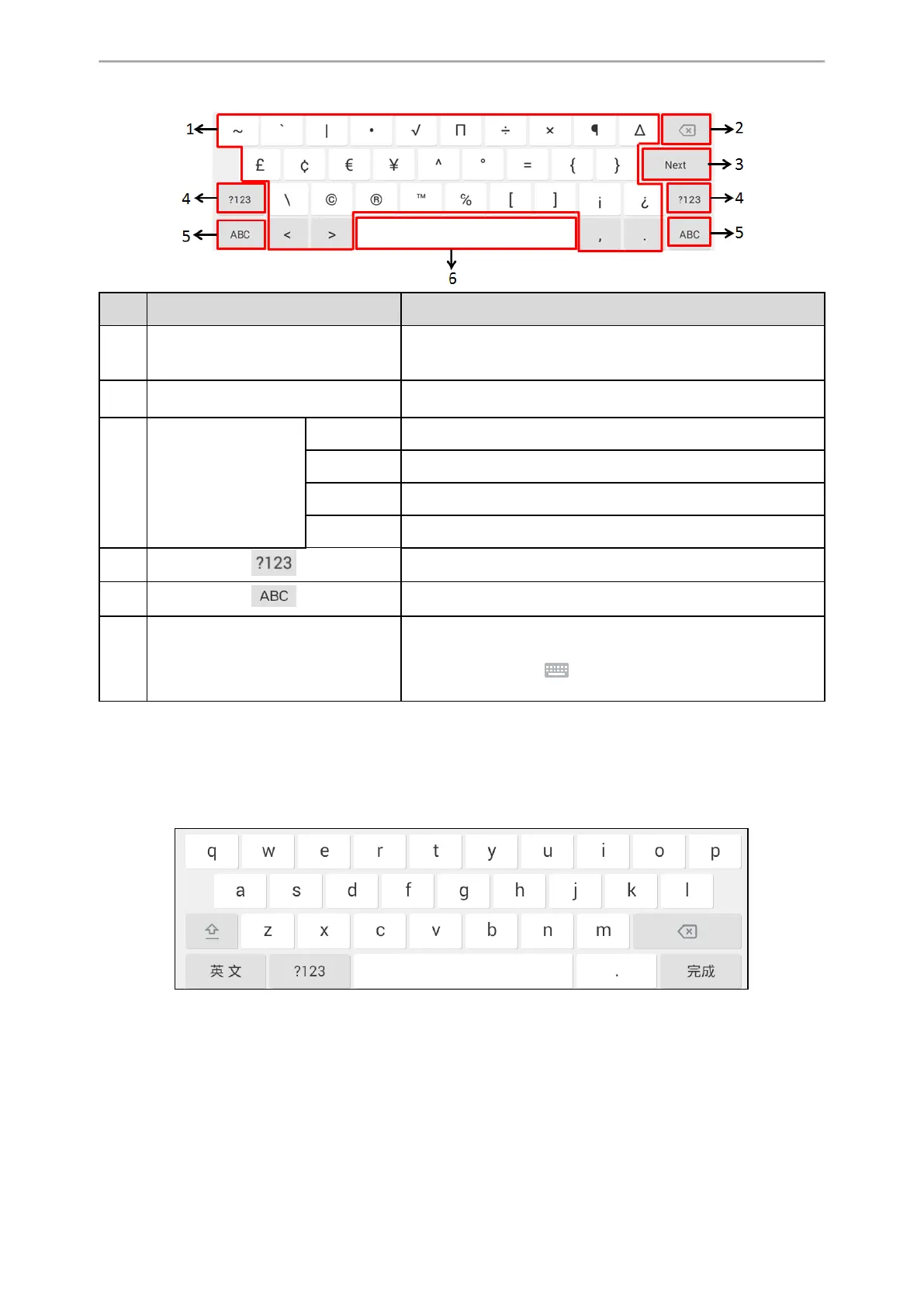
1 Special Characters
• Tap to enter special characters.
• Long tap a key then slide to choose one of the options to enter an
alternate character.
2 Delete Key
• Tap to delete the entered characters one by one.
• Long tap to delete two or more characters.
3
Label automatically to
identify the context-sens-
itive features.
Next Key Tap to go to the next field.
Done Key Tap to confirm the settings.
Send Key Tap to dial out the number.
Go Key Tap to browse the web page.
4 Tap to switch to the numeric&symbolic input mode.
5 Tap to switch to the lowercase input mode.
6 Space Key
• Tap to enter spaces.
• Long tap to change the input method.
Tip: You can also tap at the bottom right corner of the phone
screen to change the input method.
Google Pinyin Input Method
You can use Google Pinyin input method (谷歌拼音输入法) to enter Chinese characters.
When you change the input method to Google Pinyin, the onscreen keyboard displays the English input mode as
shown below by default:
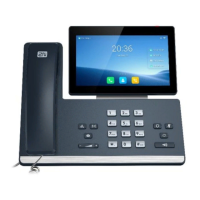
T58A/VP59
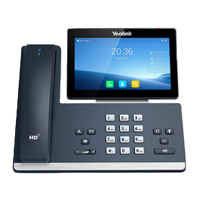
T58W


 To Next Page