CHAPTER 9. TEMPO CONTROL AND WARPING 128
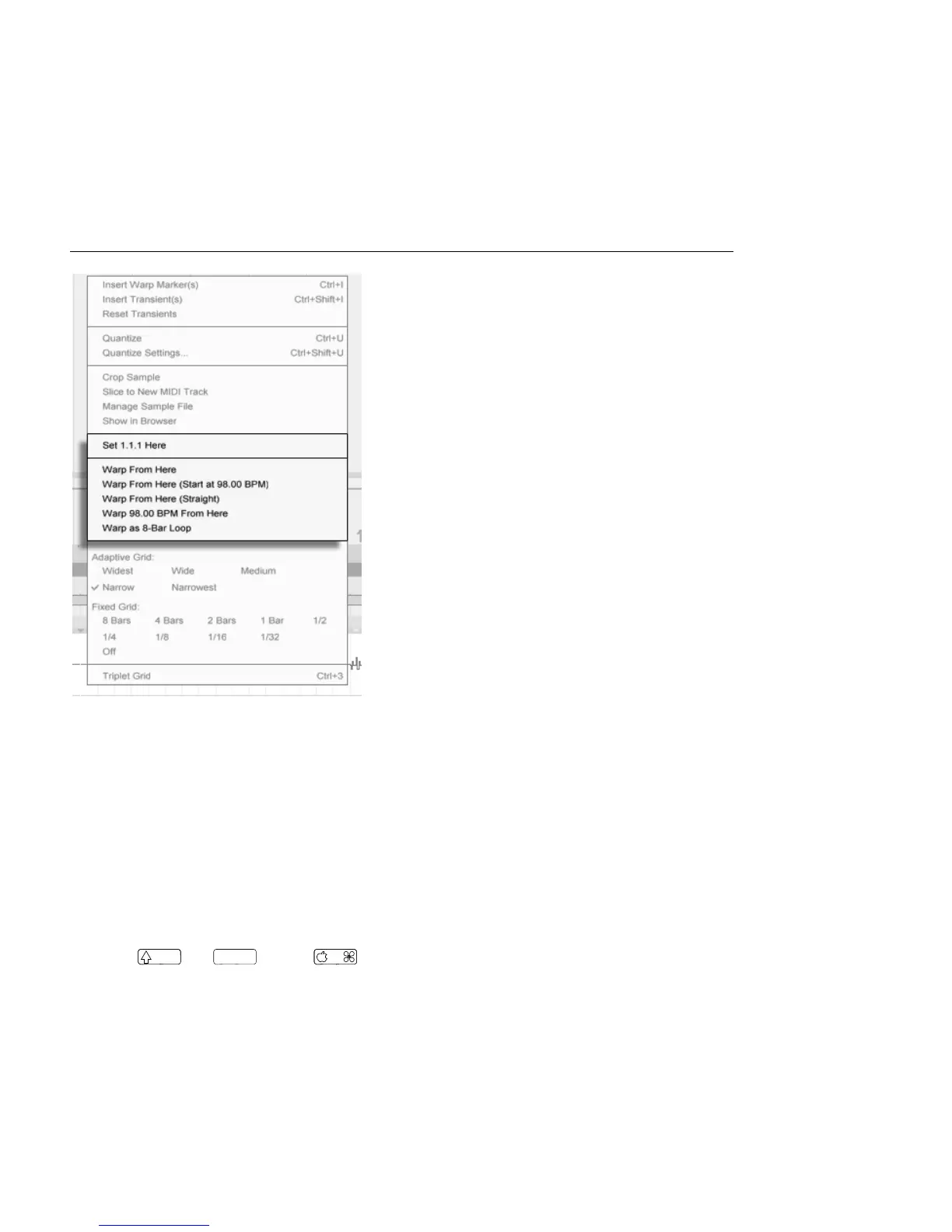
Using the Context Menu
to Direct Auto-Warp.
Directing Auto-Warp is also relatively simple when you have imported a perfectly cut loop.
You can tell Auto-Warp to work accordingly using the Warp As ...-Bar Loop command. Live
will propose a loop length that makes the most sense given the current Live Set's tempo.
Decreasing the Live Set's tempo can, for instance, lead Live to assume the loop is 8 bars at
90 BPM instead of 16 bars at 180 BPM.
Sometimes more accurate control of Auto-Warp is necessary. The best way to go about
warping a clip that requires more detailed attention is in sections, working gradually from
left to right. You can set a Warp Marker by double-clicking in the sample to the right of
each correctly warped section, pinning it into place. The shortcuts for working with the
clip loop brace and start/end markers can speed up this process considerably.
You might also nd it helpful to select multiple Warp Markers for moving by selecting them
with the or



 To Next Page