53
Settings Guide
The Settings Guide helps select pre-set therapy ranges
according to wound type and treating physician’s orders.
Selected ranges are a guide based on common settings for
different wound types. Individual patient conditions may vary.
Consult physician to verify settings for each patient.
Should physician orders fall outside the pre-set therapy ranges,
select Other in this mode or use the Manual Therapy Settings
(see Access Manual Therapy Settings section).
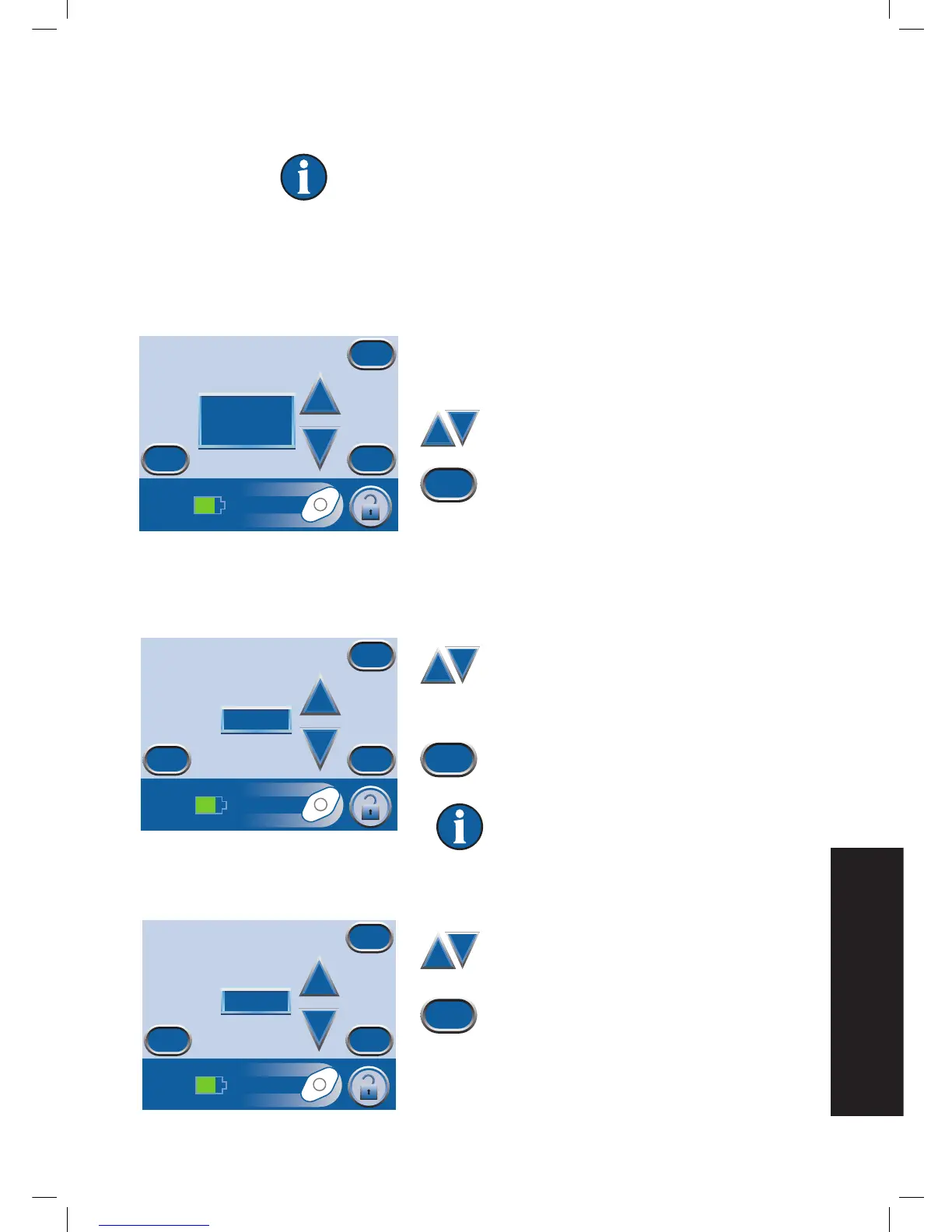
1. From the
Clinician Mode
home screen, press Therapy,
then Next, then Settings Guide, then OK to access the
Select Wound Type
screen.
2. Use + and - to scroll through the
available wound type selections.
3. Press Next to continue to the
Select
Pressure
screen.
4. Use + and - to scroll through the
pressure selections. Pressure selections
are in ranges for the wound type
selected on the previous screen.
5. Press Next when finished to continue to
the next screen.
For wound types in which Intermittent
is an option, the
Select Mode
screen will
appear. If Intermittent is not an option, the
Confirm
screen will appear.
6. Use + and - to choose Continuous or
Intermittent therapy.
7. Press Next to continue.
Select Wound Type
Cancel
NextBack
+
_
Partial Thickness
Burns


 To Next Page