Notebook Manager
76 User’s Guide
Setting the Supervisor Password
To set the Supervisor Password, follow these steps:
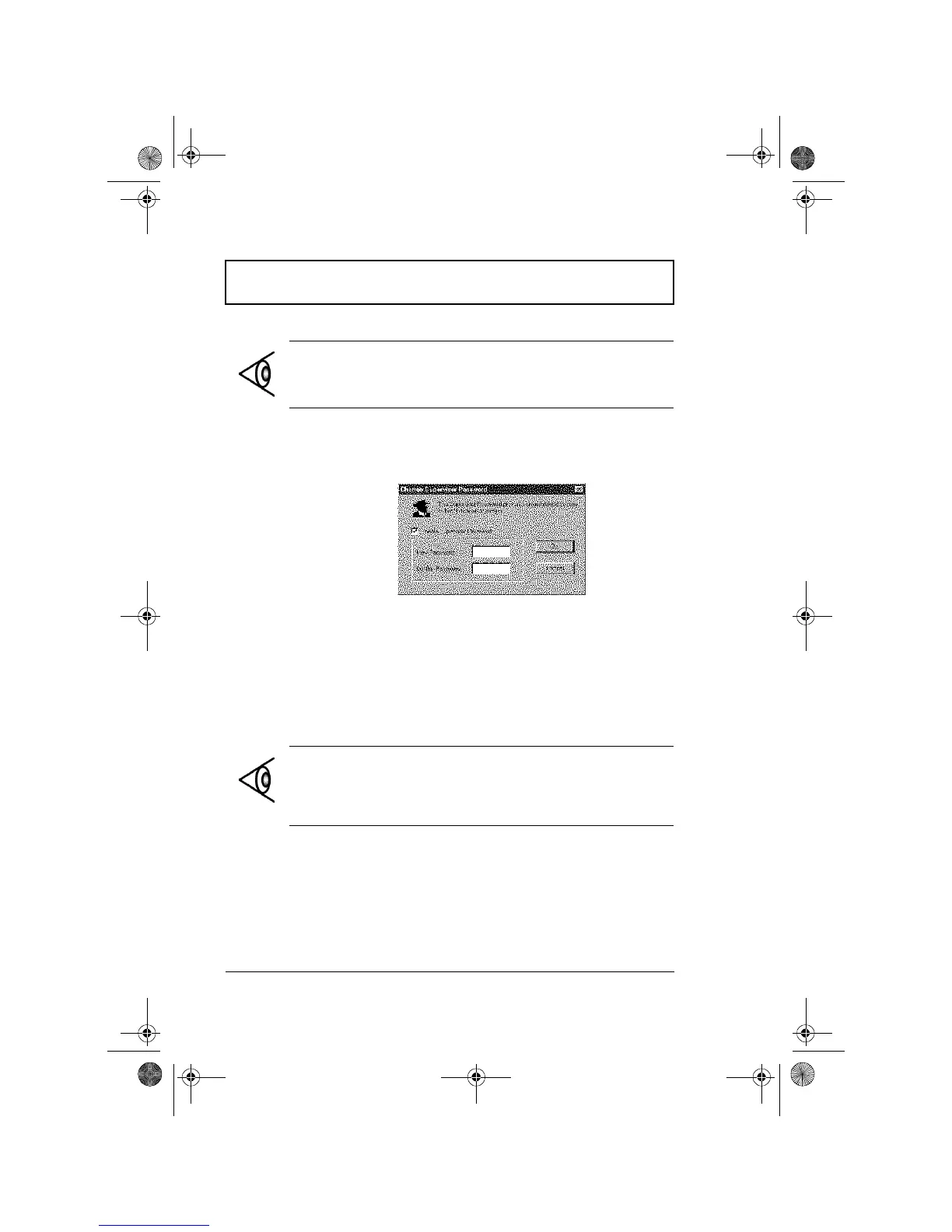
1. Click on the Change Supervisor Password button. The
following dialog box displays:
2. Click on the Enable Supervisor Password checkbox.
3. Click in the New Password textbox and type in up to
seven alphanumeric characters (A-Z, a-z, 0-9) which you
want to be your Supervisor Password.
4. Click in the Confirm Password textbox and retype the
password.
5. Click on OK to accept it.
Note: Before you can set the User Password, you need to
set the Supervisor Password.
Note: To change a password, follow the same steps used
to set a password. To remove a password, follow the
same steps used to set a password but leave both fields
blank.
310-e.book Page 76 Tuesday, October 27, 1998 5:17 PM














 To Next Page