EasyManua.ls Logo

ALC Observer AWS3266 - User Manual

ALC Observer AWS3266
44 pages
Print Icon
To Next Page IconTo Next Page
Loading...
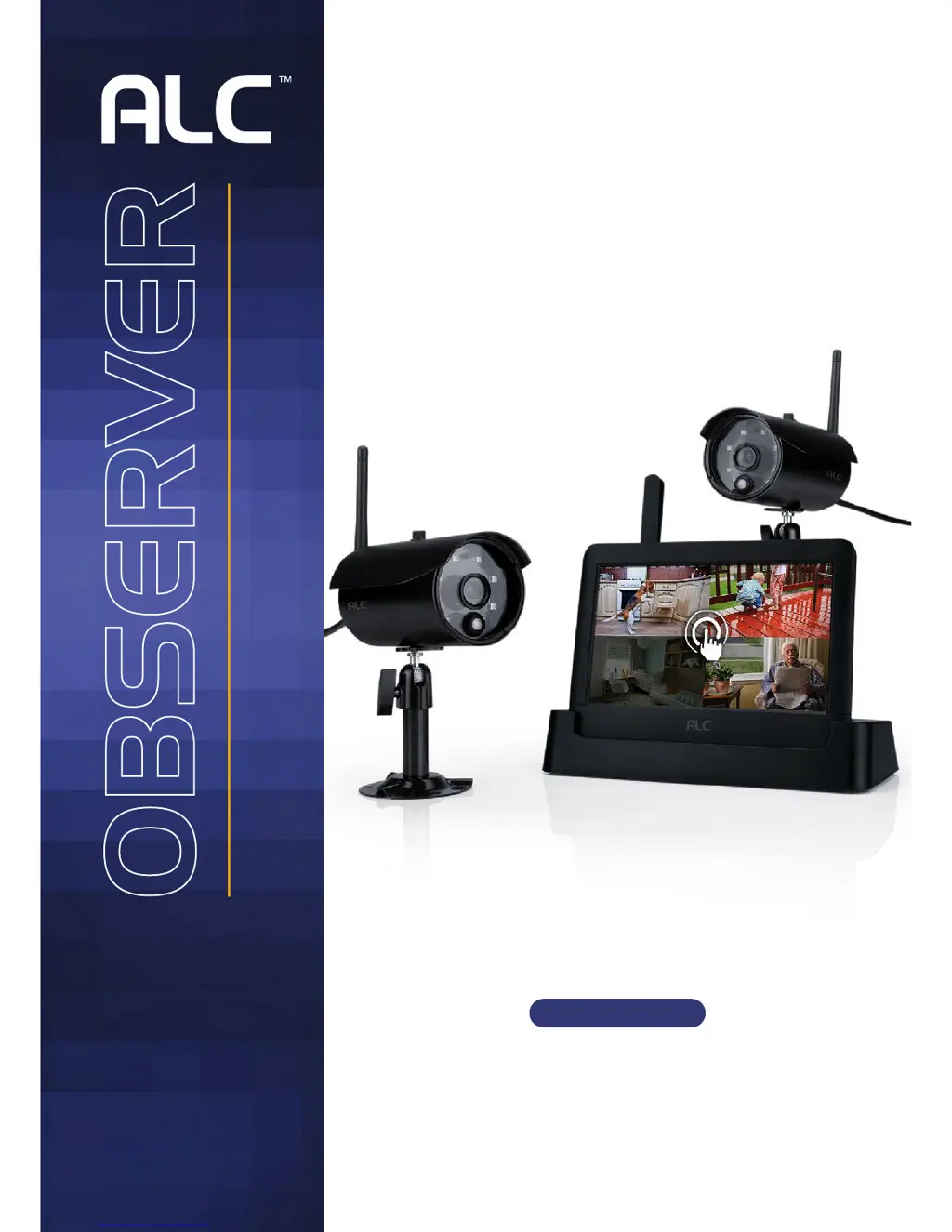
7" Connected
Touch Screen Wireless
Surveillance System
Wireless Made Simple.
Remote Monitoring Anytime from Anywhere
User Guide
Please read these instructions completely
before operating this product.
Model AWS3266

Table of Contents

Other manuals for ALC Observer AWS3266

Questions and Answers

  • J
    Jonathan MckeeAug 16, 2025
    What to do if the ALC Touchscreen shows no image?
    • B
      Brendan BarnesAug 16, 2025
      If your ALC Touchscreen shows no image, ensure the screen lock is off by tapping the Power button. Also, verify that the camera’s power is on and that the monitor has sufficient charge or is connected to the adapter. If the issue persists, try moving the camera closer to the monitor or adjust the antenna for better reception.
  • B
    Brittany LyonsAug 19, 2025
    Why is my ALC Touchscreen not working?
    • D
      David JonesAug 19, 2025
      If the ALC Touchscreen is not working, it might be in Lock mode; press the Power button once to unlock it. Alternatively, it could be in Start (Vacation) mode, or set to internet, which limits Touch Screen operation.
  • S
    Shannon ButlerAug 22, 2025
    What to do if ALC system has locked up?
    • N
      ngonzalezAug 22, 2025
      If the ALC system has locked up, turn off the monitor and restart it. If the power button is unresponsive, use a pin to press the reset button located on the side of the monitor.
  • M
    Manuel TaylorAug 25, 2025
    Why is the ALC Touchscreen camera signal weak?
    • D
      Denise LongAug 26, 2025
      If the ALC Touchscreen camera’s signal status icon shows no bars, ensure the camera is plugged in and the red LED is on. Also, make sure the camera is paired to the correct channel and try re-pairing it to the monitor. Move the camera closer to the monitor or adjust the antenna of the monitor or camera for better reception.
  • S
    Sara PadillaAug 27, 2025
    How to improve poor picture quality on ALC Touchscreen?
    • M
      Mark NashAug 27, 2025
      To improve poor picture quality on the ALC Touchscreen, move the camera closer to the monitor or adjust the antenna of the monitor or camera for better reception. Additionally, clean the camera lens using a microfiber cloth.
  • K
    Kent StoneAug 31, 2025
    How to fix ALC Touchscreen not receiving Email Alerts?
    • S
      sandersmarcusAug 31, 2025
      To fix the ALC Touchscreen not receiving Email Alerts, set the Port to 465 and the smtp to smtp.gmail.com.
  • J
    Johnny CervantesSep 3, 2025
    What to do if ALC Touchscreen live screen has no icons?
    • S
      Shaun HowardSep 3, 2025
      If the ALC Touchscreen live screen has no icons, the screen lock may be activated. To resolve this, tap the power button to unlock the screen.
  • E
    Erin LoveSep 5, 2025
    What to do if ALC Touchscreen standard or scheduled recording is not working properly?
    • C
      Carrie JohnsonSep 6, 2025
      If standard or scheduled recording is not working properly on your ALC Touchscreen, ensure the SD card is inserted into the monitor and formatted. Also, there might be no movement detected to trigger the motion sensor.
  • M
    Michelle ThompsonSep 9, 2025
    How to fix ALC Touchscreen unable to pair the camera to the monitor?
    • E
      Elizabeth MyersSep 9, 2025
      To resolve the issue of being unable to pair the camera to the ALC Touchscreen monitor, ensure the camera’s power is on. Press and release the pairing button quickly. If problems persist, turn off the monitor and restart. If the power button does not respond, use a pin to press the reset button located on the side of the monitor.
  • M
    Mary CooperSep 12, 2025
    Why is my ALC Touchscreen showing a white image at night?
    • B
      brenda53Sep 12, 2025
      If a white image appears at night on your ALC Touchscreen, it's likely due to the camera’s infra-red LEDs reflecting off surfaces like glass. To improve night vision, place the camera on the other side of the window or in a well-lit area, such as by installing a security lamp.

Summary

Installation Guide

Installation Tips

Provides advice for optimal camera placement and signal strength during installation.

System Introduction and Navigation

Live Screen and Menu Navigation

Describes how to navigate the monitor's live screen and access different operational modes.

Recording Live Video

Details the steps required to start, stop, and manage live video recordings.

System Menu Operations

Motion Detection and Email Alerts

Guides on configuring motion detection sensitivity and setting up email notifications.

Remote Access and Mobile App Usage

Downloading and Using the ALC Observer App

Details on obtaining and setting up the mobile application for remote monitoring.

Product Specifications

Warranty Information

One-Year Limited Warranty Details

Outlines the terms, conditions, and limitations of the product's warranty coverage.

ALC Observer AWS3266 Specifications

General IconGeneral
BrandALC
ModelObserver AWS3266
CategoryTouchscreen
LanguageEnglish