Apogee Symphony Desktop User’s Guide
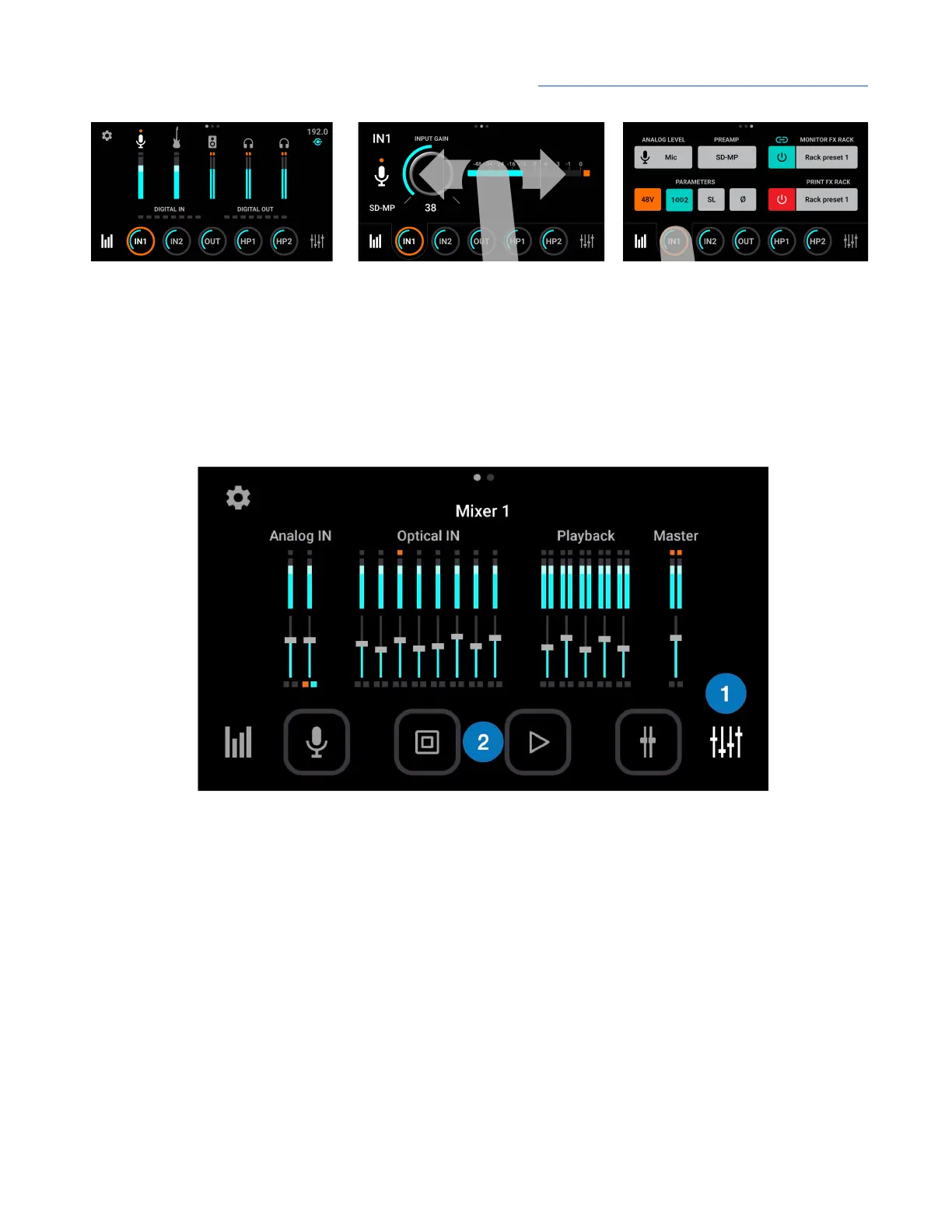
I/O View Input 1 Overview Input 1 Settings
2. In the upper right hand corner of the touch screen, the hardware sample rate and current USB
connection status are displayed.
The Mixer view provides access to Symphony Desktop’s two Direct monitoring mixers.
1. Tap the Mixer icon repeatedly to toggle between the two Direct mixers. You can also swipe L<>R
between the mixers.
2. Four square Channel buttons at the bottom of the Mixer views provide access to settings for the
Analog, Optical, Playback and Master Out channels.
● Tap a Channel button repeatedly to toggle through Channel Settings views for a specific type
of channel - for example, tapping the Analog Channel button toggles between Analog IN 1 and
Analog IN 2 Channel Settings views. You can also swipe through the views.
23



 To Next Page