Apogee Symphony Desktop User’s Guide
Page 3
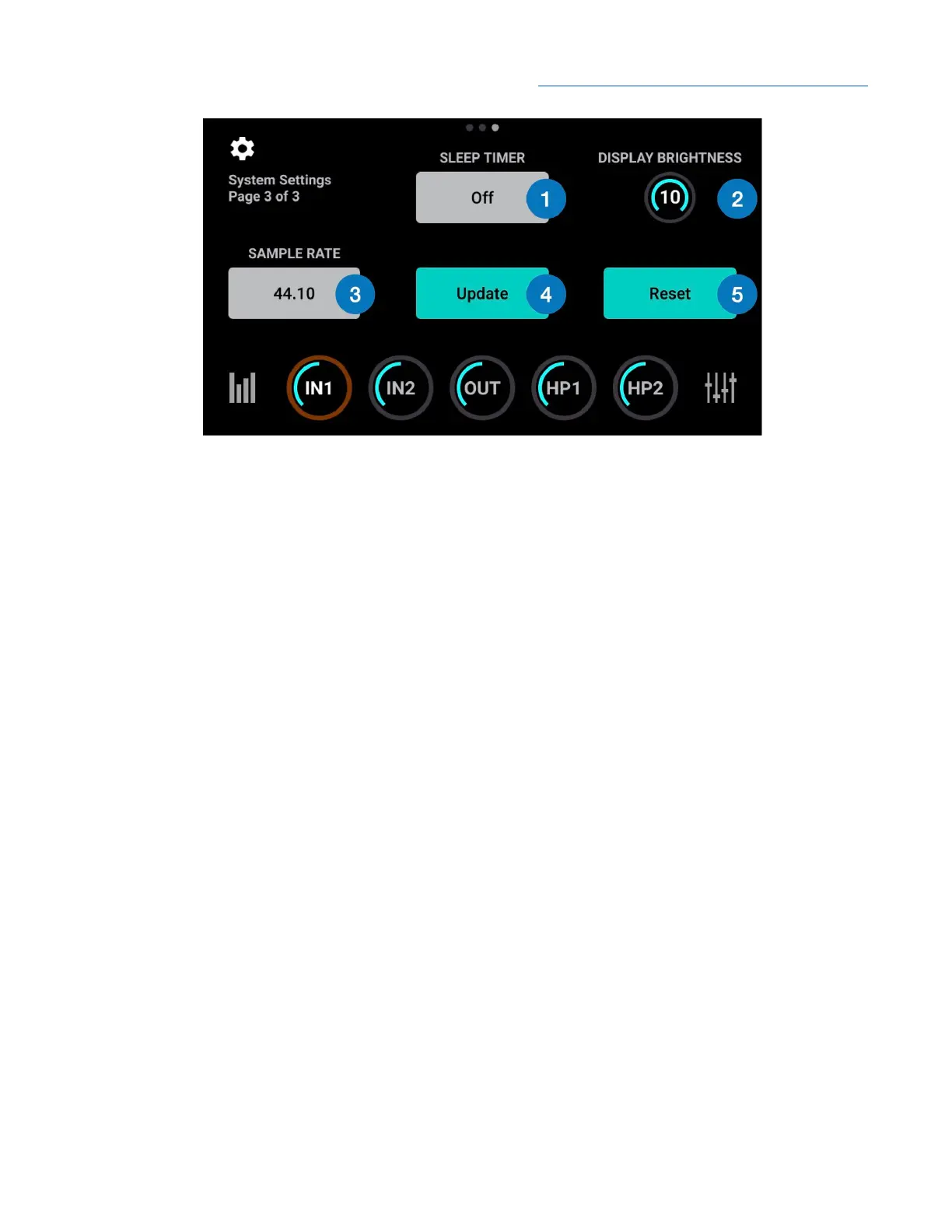
1. Sleep Timer - tap to set the time that, if untouched, the touch screen enters sleep mode.
2. Display Brightness - set the brightness of the touch screen.
3. Sample Rate
● When Symphony Desktop is connected to a computer or iPad, the sample rate is a read-only
indicator of the current sample rate.
● When Symphony Desktop is not connected, i.e. in Standalone mode, tap to set the system
sample rate.
4. Update - Check and update Touch Screen Control.
5. Reset - Reset Symphony Desktop to its factory default state.
Shutdown/Display Sleep
To power off Symphony Desktop, tap and hold the Control knob.
1. Tap Display Sleep to turn off the touch screen but maintain full audio and Control knob operation.
2. Tap Shutdown to power off Symphony Desktop.
32



 To Next Page