Apogee Symphony Desktop User’s Guide
Print FX
With Print FX, you can shape your sound as you record it using up to 6 Apogee FX EQ, compression
and saturation plugins running on Symphony Desktop hardware DSP.
Print FX processing may be applied to analog and optical inputs.
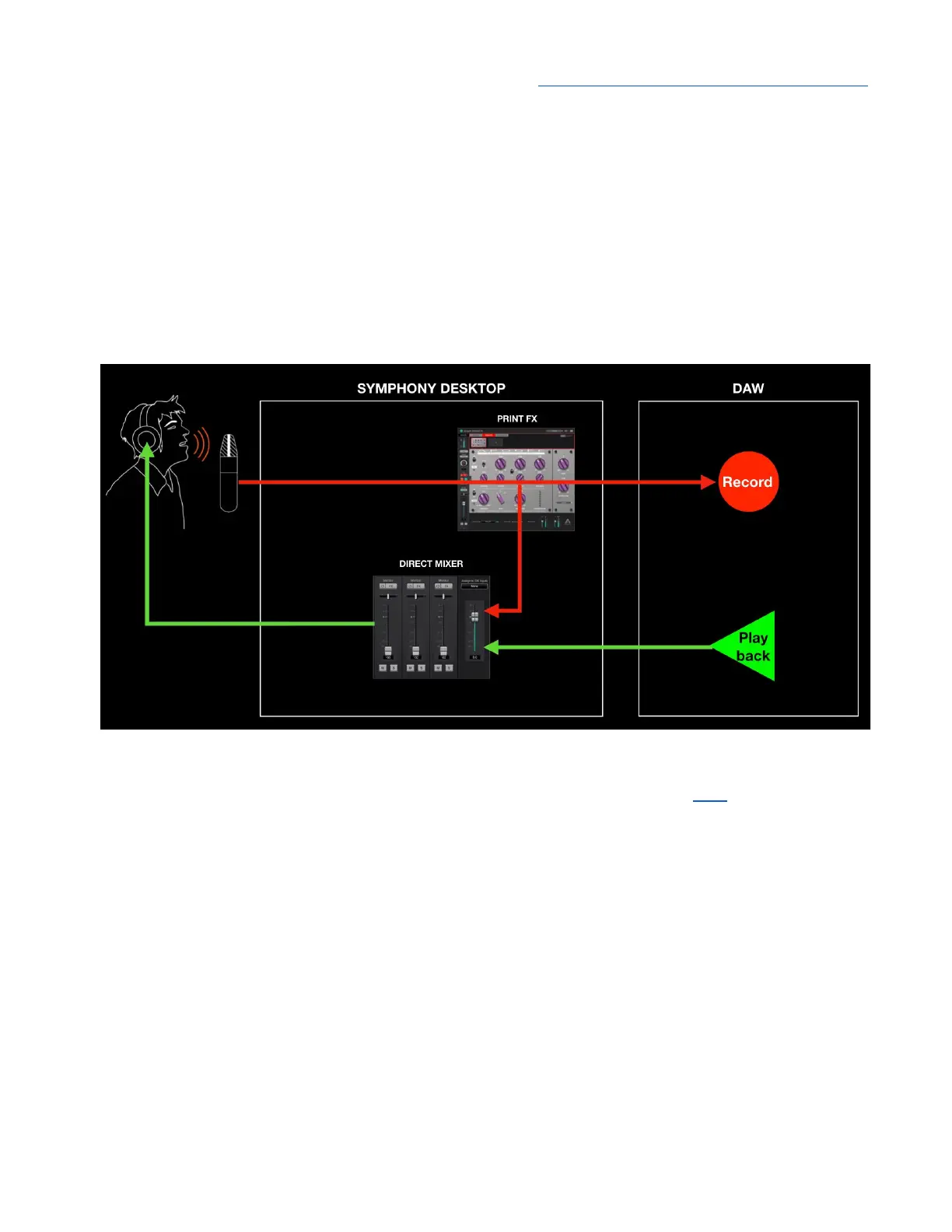
Print FX plugins are inserted in the signal path before the direct monitoring mixer and the “send” to
your DAW, as shown below. Like mic preamp emulation, Print FX processing permanently modifies
the audio signal regardless of your monitoring workflow (Software or Direct monitoring).
To apply Print FX processing, open the Channel FX on the DAW channel(s) you’re recording on. Set
the Channel Link setting to match the DAW channel input setting as described here - now the
Preamp, Print FX and Monitor FX tabs appear at the top of the plugin. Click the Print FX tab, then
load up to 6 Apogee FX plugins.
49



 To Next Page