Apogee Symphony Desktop User’s Guide
Using the Apogee Channel FX Plugin
The Apogee Channel FX plugin provides access to all Symphony Desktop DSP processing, and
includes two unique capabilities to unlock the wide range of processing workflows:
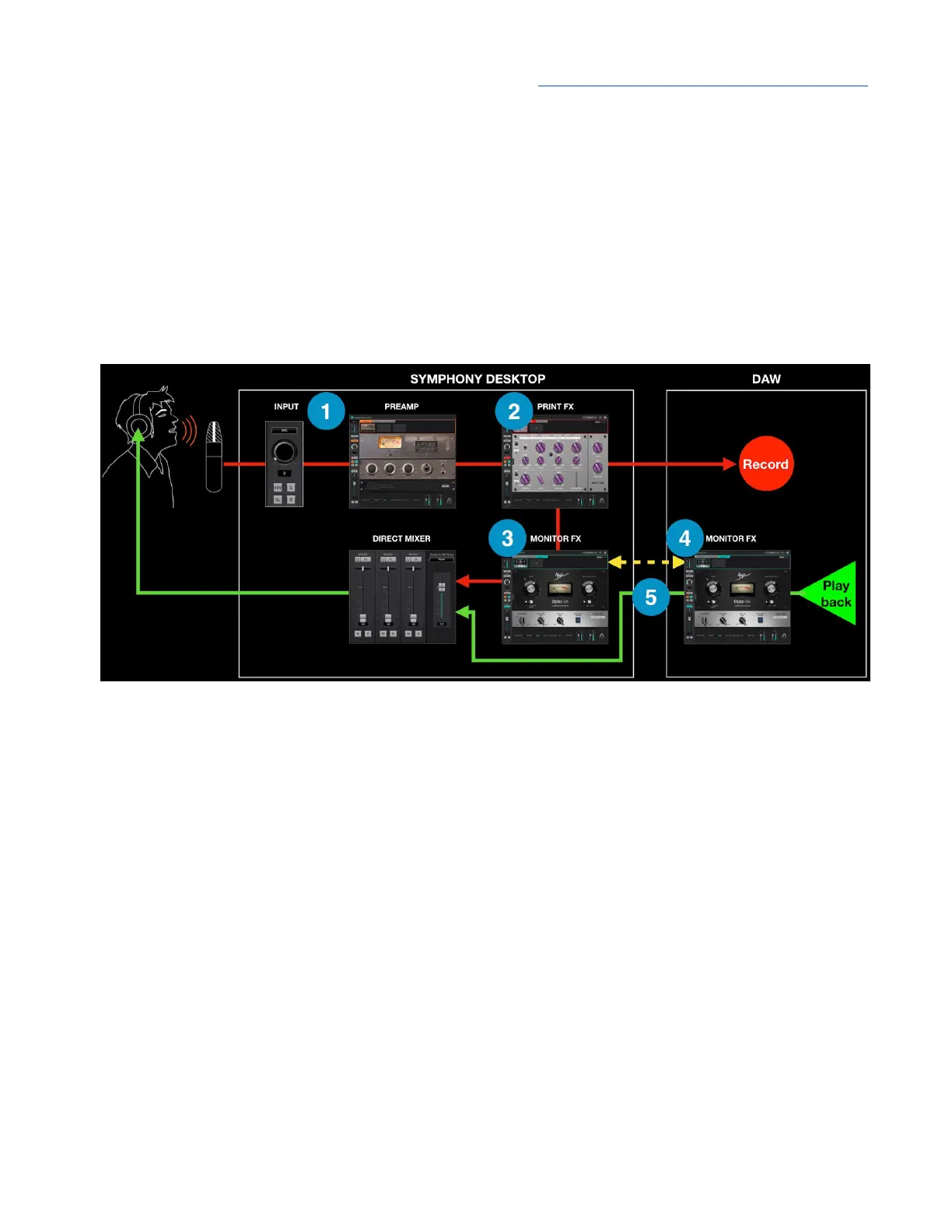
● The Channel FX plugin can be opened both in the Desktop Control app (where plugins run on
Apogee hardware DSP) and natively in your DAW (where the plugins run on your computer’s
CPU). This means that DSP processing may be applied at several points in the typical
overdubbing signal path:
1. Apogee Alloy Mic Preamp Emulation (including Analog In settings), processed in hardware
DSP.
2. Print FX - Up to 6 Apogee FX plugins, processed in Hardware DSP.
3. Direct Mixer Monitor FX - Up to 6 Apogee FX plugins, processed in Hardware DSP.
4. DAW Monitor FX - Up to 6 Apogee FX plugins, processed in Native (computer) CPU.
● When the DAW Channel FX plugin is linked (see 5 above) to a hardware input, then the entire
range of hardware DSP and native processing may be controlled from either
Channel FX - the
plugins are mirrored. Regardless of where Apogee processing is applied in the signal chain - at
the hardware analog inputs, the direct monitor mixer or in your DAW running natively - settings
may be controlled from the Channel FX plugin in your DAW. There’s no need to open the Channel
FX plugin in Desktop Control in the vast majority of circumstances.
52



 To Next Page