Apogee Symphony Desktop User’s Guide
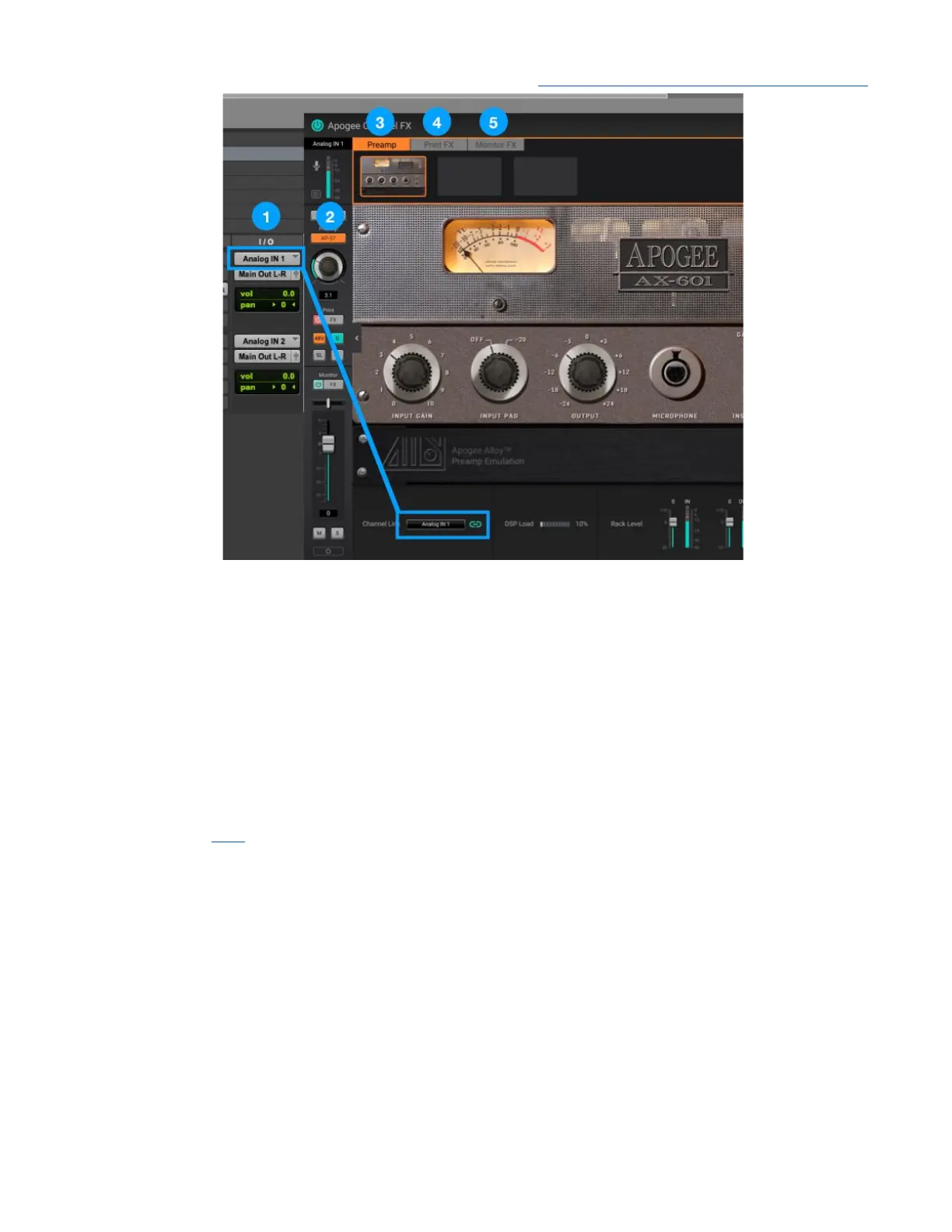
To set up the Channel FX plugin, open it in your DAW and link it to a hardware input:
1. Match the Channel Link setting to the DAW Input dropdown list setting
2. Once linked, all Analog IN 1 hardware controls, including Analog Level, Gain, Input settings,
Direct Mixer Channel fader and pan may be controlled from the Channel FX plugin.
3. Mic preamp emulation selection and settings may be made from the Preamp tab.
4. Apogee FX plugin selection and settings to be permanently “printed” with the recorded audio track
may be made from the Print FX tab.
5. Apogee FX plugin selection and settings to be inserted in both
the direct monitoring signal path
and
the DAW playback path may be made from the Monitor FX tab (see Monitor FX & DualPath
Monitoring here).
53



 To Next Page