Apogee Symphony Desktop User’s Guide
1. Input meter (mono or stereo) - displays the digital signal level of the channel. The Analog IN
channel levels are post A/D conversion.
2. Stereo Link - tap to toggle the channel between mono and stereo. Playback channels are always
stereo linked, so no button appears.
3. Channel fader - Set the level of the channel signal in the Mixer Master stereo output.
4. Channel pan control - Set the left-right placement of the channel signal in the Mixer Master stereo
output. Stereo
5. Mute - Mute the signal to the mixer stereo output.
6. Solo - Solo the channel - all other channels are muted (unless their Solo button is engaged).
System Settings Views
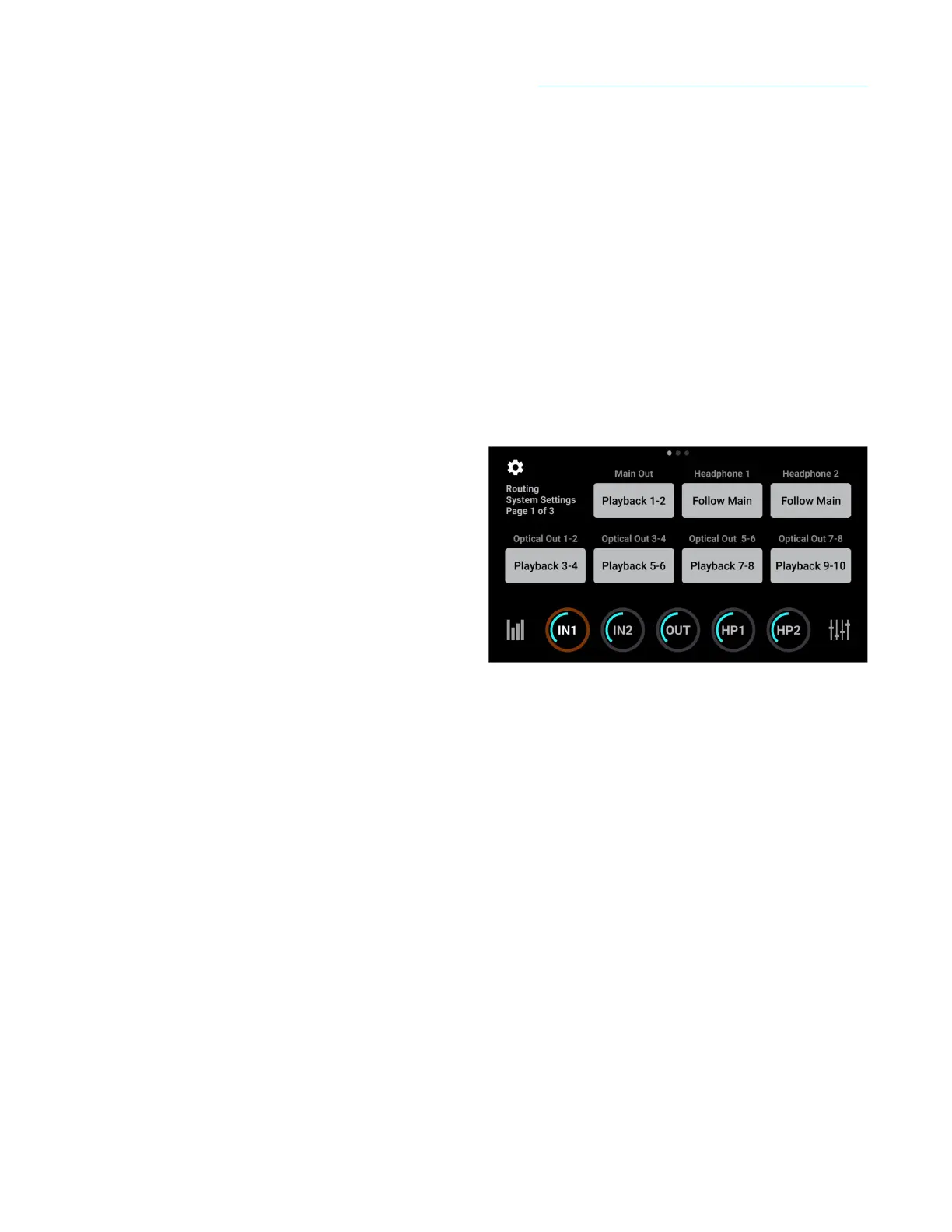
Page 1 - Routing
To configure routing for each stereo analog and digital output pair:
Tap an output button, then choose a source from
the nested menu.
● SW:Playbacks - route the selected stereo
Playback signal from audio software to
the output.
● Direct:Mixers - route the stereo signal
from the selected mixer to the output.
● Direct:HW Inputs - route the selected
mono or stereo signal from the selected
hardware input(s) to the output.
● Follow Main - Headphone 1 & 2 Output
only - when a headphone output is set to Follow Main, the audio signal routed to that output is
determined by the Main Out Routing setting.
For example, to route the Direct Mixer 1 to the Main Out and Headphone 1 while routing Playback 3-4
to Headphone 2:
1. Tap Headphone 1, then tap Follow.
2. Tap Main Out, then tap Direct:Mixers > Mixer 1.
3. Tap Headphone 2, then tap SW:Playbacks > Playback 3-4.
30



 To Next Page