Apogee Symphony Desktop User’s Guide
Mixer Section
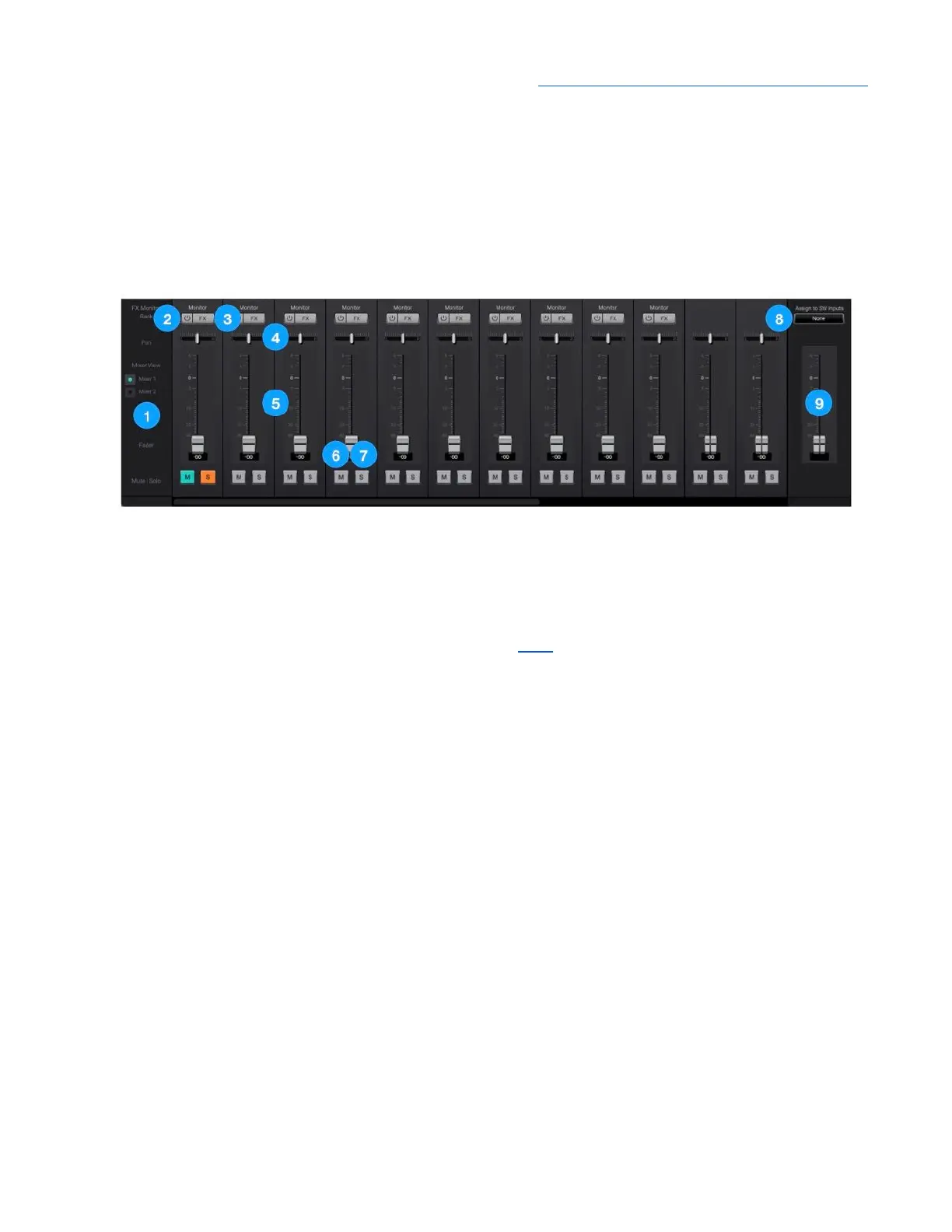
The mixer section provides two independent mixers for blending Analog, Optical and Playback inputs.
● Route mixer outputs to Main and headphone outputs for low latency direct monitoring while
recording;
● Route mixer outputs directly to audio software inputs;
● Route mixer outputs to Optical for standalone mixing.
1. Mixer View - toggle the faders, pan controls and Mute/Solo buttons between two independent
mixers, Mixer 1 and Mixer 2.
2. Enable Apogee FX processing in the Monitor path (through the Mixer).
3. Load Monitor FX - Load and modify Channel FX plugins on the Monitor signal path. For more
detailed information about Channel FX plugins, see here and the Apogee FX User’s Guide.
4. Channel Pan Control - Set the left-right placement of the channel signal in the mixer stereo
output.
● Option-click to reset the pan to center (0)
● Option+Command-click to set all pans in that mixer to center (0).
5. Channel Fader - Set the level of the channel signal in the mixer stereo output.
● Option-click to reset the fader to 0dB.
6. Channel Mute button - Mute the signal to the mixer stereo output.
● Command-click to mute all channels
7. Channel Solo button - Solo the channel - all other channels are muted (unless their Solo button is
engaged).
● Command-click to solo all channels.
● Control-click the Solo button to engage Solo-Safe mode, where the channel remains unmuted
regardless of the Solo status of other channels.
8. Assign to SW Inputs
● Assign the output of the Mixer to a stereo pair of software inputs. This overrides the default
hardware input routing.
9. Mix Master Output Fader - Set the output level of the Mixer.
39



 To Next Page