Apogee Symphony Desktop User’s Guide
Configuring Your DAW
Find below detailed information to configure Symphony Desktop with popular DAWs:
● Configure the DAW to use Symphony Desktop
● Configure the DAW for Direct or Software monitoring
● Access Symphony Desktop inputs & outputs in the DAW
● Additional DAW-specific notes
Apple Logic Pro
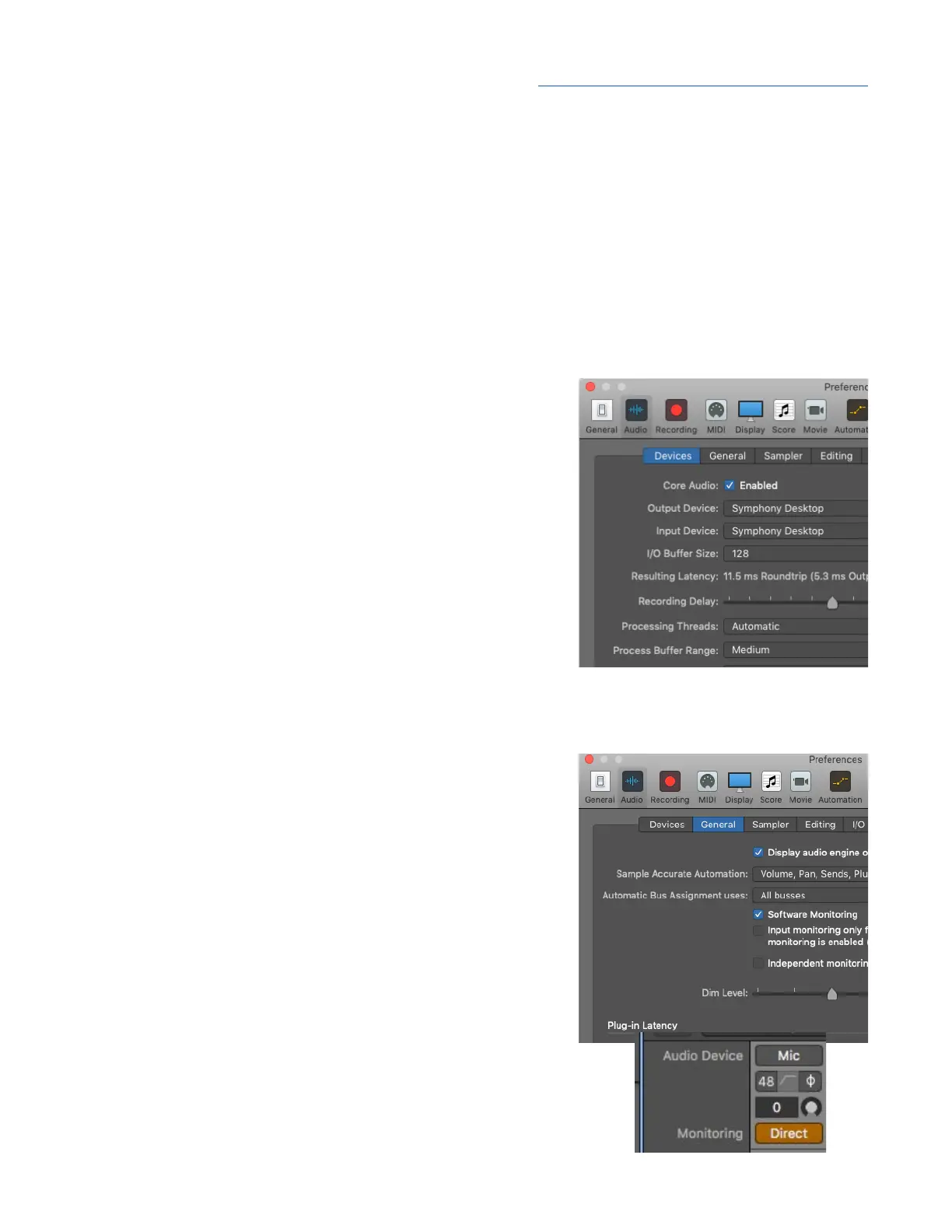
To configure Apple Logic Pro to use Symphony Desktop:
1. In the Logic Pro menu bar, choose Logic Pro >
Preferences > Audio in the menu bar, then click the
Device tab.
2. Check the Core Audio checkbox; set Output Device and
Input Device to Symphony Desktop.
3. Set I/O Buffer Size to 128 or higher.
4. Click Apply.
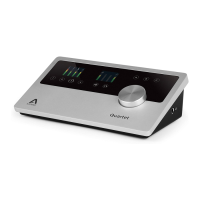
To configure Logic Pro for Direct or Software Monitoring Workflow:
1. In the Logic Pro menu bar, choose Logic Pro >
Preferences > Audio, then click the General tab.
2. Check the Software Monitoring checkbox regardless
of
Software or Direct monitoring.
3. In Logic Pro, the monitor setting is configurable for each
channel.
● On the Logic channel strip, click the Direct button to
engage Direct monitoring.
● For Software monitoring, leave the Direct button off.
4. On the touch screen System Settings Page 1 or in
Desktop Control, set Main and Headphone Sources to
Playback 1-2 regardless
of Software or Direct monitoring.
To access Symphony Desktop inputs & outputs in Logic Pro:
55



 To Next Page