Apogee Symphony Desktop User’s Guide
1. From the Logic Pro menu bar, choose Mix > I/O Labels.
2. Choose the Provided by Driver labels by clicking on the first label, dragging your mouse down
until all Symphony Desktop labels are highlighted, then unclick.
3. Close the I/O labels window.
4. Select Symphony Desktop inputs and outputs in any Logic Pro Channel Strip.
Direct Monitoring with Apogee FX plugins - Logic Pro and Symphony Desktop:
Thanks to the proprietary integration between Symphony Desktop and Logic Pro, Direct monitoring
with Apogee FX plugins is incredibly simple.
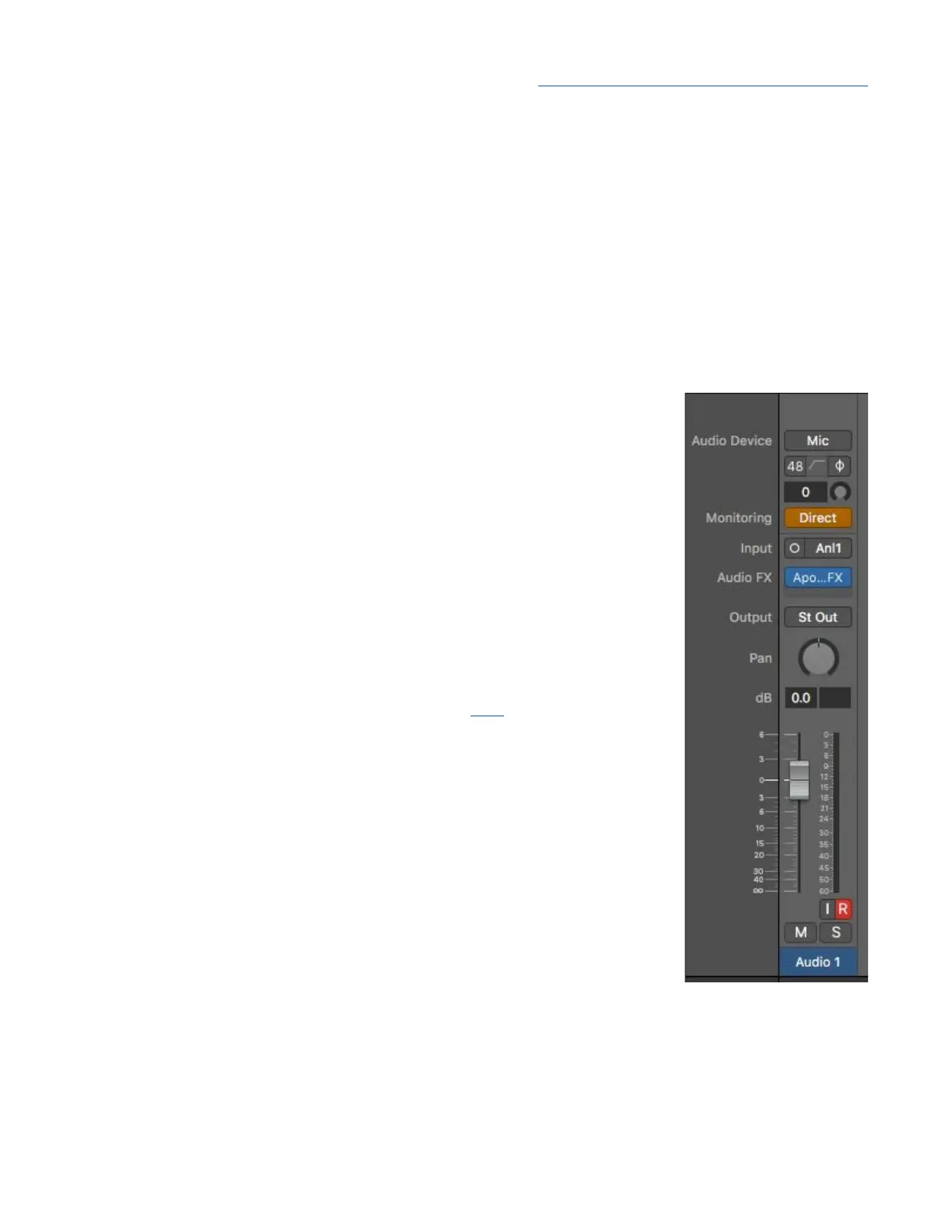
In the Logic channel strip, select the desired Symphony Desktop Input(s)
and Output.
1. Click the Direct button to engage Direct monitoring between the
channel’s Input and Output, with no other settings required. If you’re
experiencing significant latency, click the Direct button and it just
disappears.
2. There’s no separate Direct mixer to adjust - the channel strip fader and
pan control both the direct monitoring and playback level and pan
transparently.
3. To add reverb, create a channel strip bus and instantiate a reverb like
Clearmountain’s Spaces on the automatically created Aux channel strip.
4. To add Apogee DSP processing like Alloy mic preamp emulation and
Channel FX plugins, open an Channel FX plugin in the channel strip
and link it to the hardware input as described here.
56



 To Next Page