17
THE INFORMATION CONTAINED HEREIN IS PROPRIETARY TO APPLANIX CORPORATION. RELEASE TO THIRD PARTIES OF THIS PUBLICATION OR OF
INFORMATION CONTAINED HEREIN IS PROHIBITED WITHOUT THE PRIOR WRITTEN CONSENT OF APPLANIX CORPORATION. APPLANIX RESERVES THE
RIGHT TO CHANGE THE SPECIFICATIONS AND INFORMATION IN THIS DOCUMENT WITHOUT NOTICE. A RECORD OF THE CHANGES MADE TO THIS
DOCUMENT IS CONTAINED IN THE REVISION HISTORY SHEET. COPYRIGHT © APPLANIX CORPORATION, 2021ALL RIGHTS RESERVED. NO PART OF
THIS PUBLICATION MAY BE REPRODUCED, STORED IN A RETRIEVAL SYSTEM OR TRANSMITTED IN ANY FORM OR BY ANY MEANS WITHOUT THE
PRIOR WRITTEN CONSENT OF APPLANIX CORPORATION.
4. LVX Control Software and Configuration
Control and configuration of the LVX is via a web server that supports all common
browsers.
4.1. Connecting a Web Browser
The LVX is preconfigured for a static IP address 192.168.53.100 and Subnet Mask
255.255.255.0.
Please follow the next steps in order to perform connections:
On the address bar of your browser enter the IP address that system is
preconfigured to (etc. http://192.168.53.100).
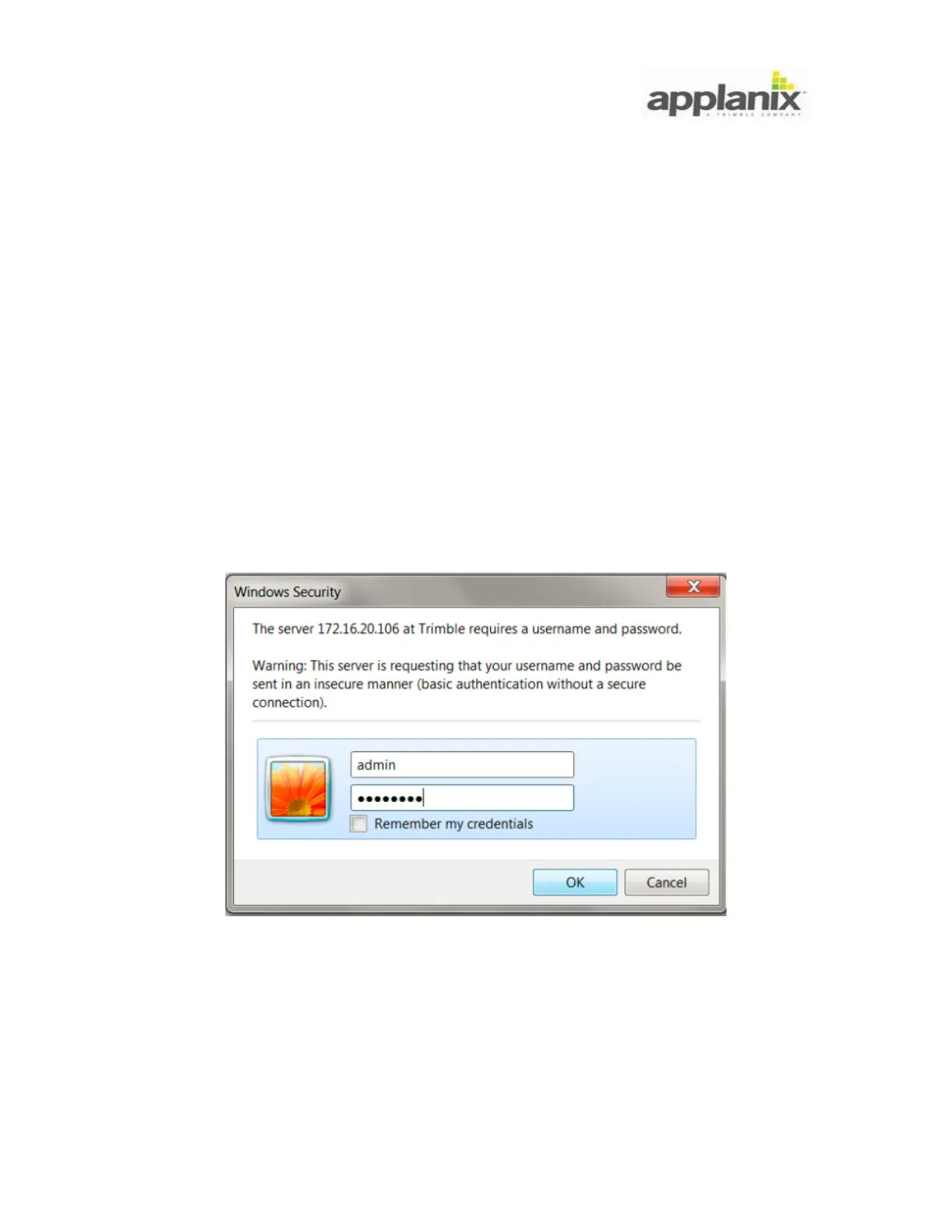
You will be prompted to enter exact credentials (User Name and Password) as it
is shown in Figure 17.
The default credentials are:
User Name: admin
Password: the hardware serial number of the LVX (for example
5750C01796)
Figure 17: Connection Credentials
The credentials can be changed using the WEB UI if required.
Following connection, a splash screen indicating product, system name, serial number,
and firmware version will appear on the screen as shown in Figure 18.


 To Next Page