Page 17
2 INITIAL SETUP
2.1
Initial setup of Aranet PRO/PRO+
Aranet PRO/Aranet PRO+ can be configured with built-in Wi-Fi Access Point or with Ethernet connection to
local network. This allows quick and easy access to Aranet PRO using any personal devices like PC, tablet,
or smartphone.
Aranet PRO/Aranet PRO+ base station Network factory settings are:
• Wi-Fi interface configured as Access Point:
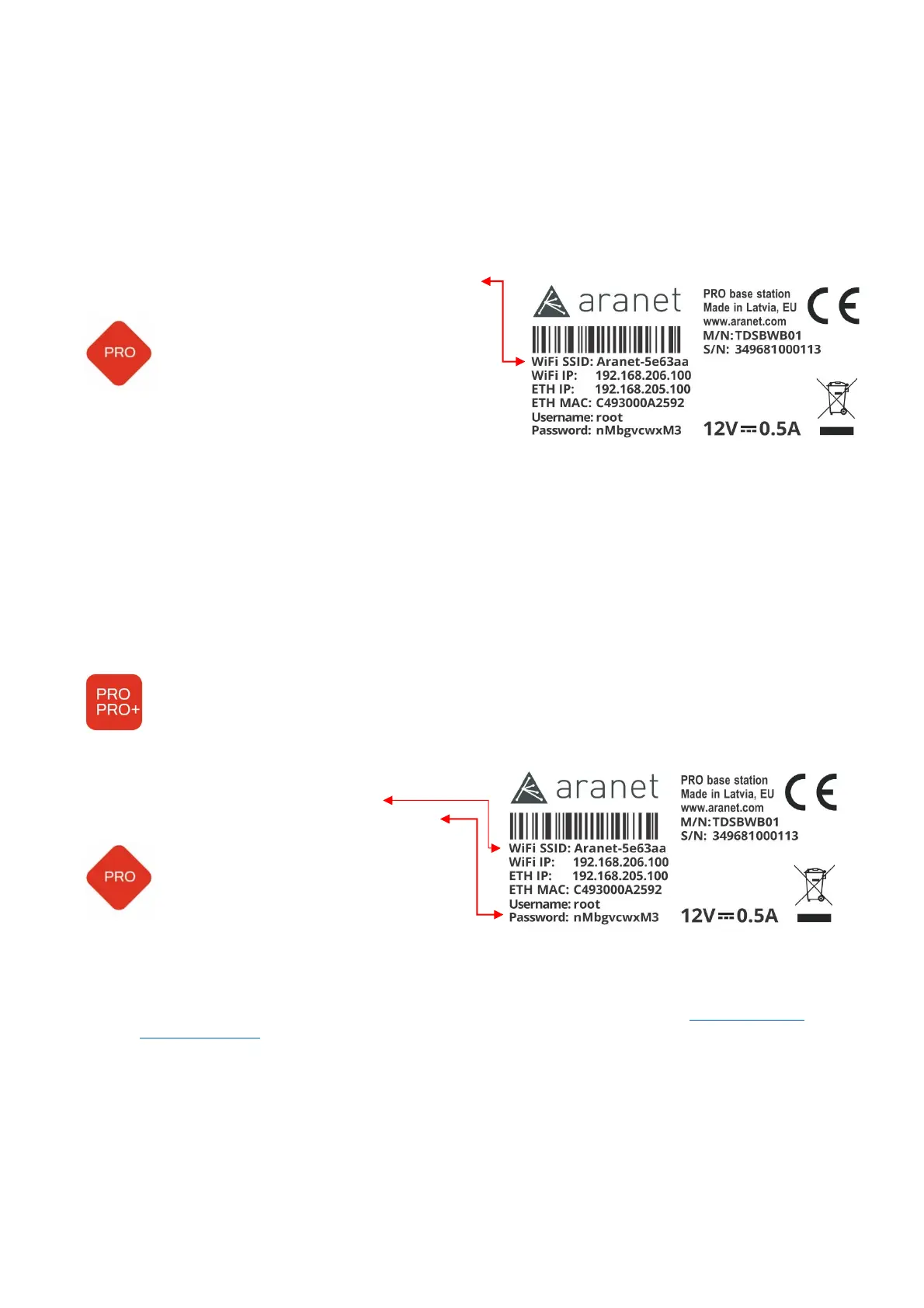
o SSID - “Aranet-******” (refer to the label
attached to Aranet PRO/PRO+);
Encryption – WPA2-PSK-CCMP;
o Aranet PRO Mk2 SSID - “Aranet-******”
Encryption – None;
o IP address – 192.168.206.100;
o Subnet Mask – 255.255.255.0
• Ethernet Interface:
o DHCP client – On;
o Static IP fallback – On;
o IP address – 192.168.205.100;
o Subnet Mask – 255.255.255.0
2.1.1
Initial setup of Aranet PRO/PRO+ using built-in Wi-Fi Access Point
Aranet PRO/Aranet PRO+ setup using built-in Wi-Fi Access Point is the easiest way to start working.
(1) Aranet PRO+: Plug in Ethernet cable connected to powered PoE insert “OUT” terminal or
PoE enabled switch.
Wait until LED indicators “Power”, “System”, and “Wi-Fi” turn On.
Aranet PRO: Plug in included AC power adapter jack and switch base on using On-Off switch.
Wait until LED indicators next to “12V” and “Wi-Fi” turn on and wait for another 30 seconds.
(2) Using a smartphone or a PC open its Wi-Fi
network settings and find new wireless network
access point called “Aranet-******”.
Connect to it using password from the label.
Aranet PRO Mk2 – connect without
password.
(3) Open internet browser and type in the URL bar IP address: 192.168.206.100
(4) You should now see the Aranet PRO/Aranet PRO+ login screen (refer to chapter 2.1.3 Initial Login
and Fast Settings of this manual).



 To Next Page