Page 46
To update firmware, press INSTALL button. After confirming the update with Administrator password, process will
start.
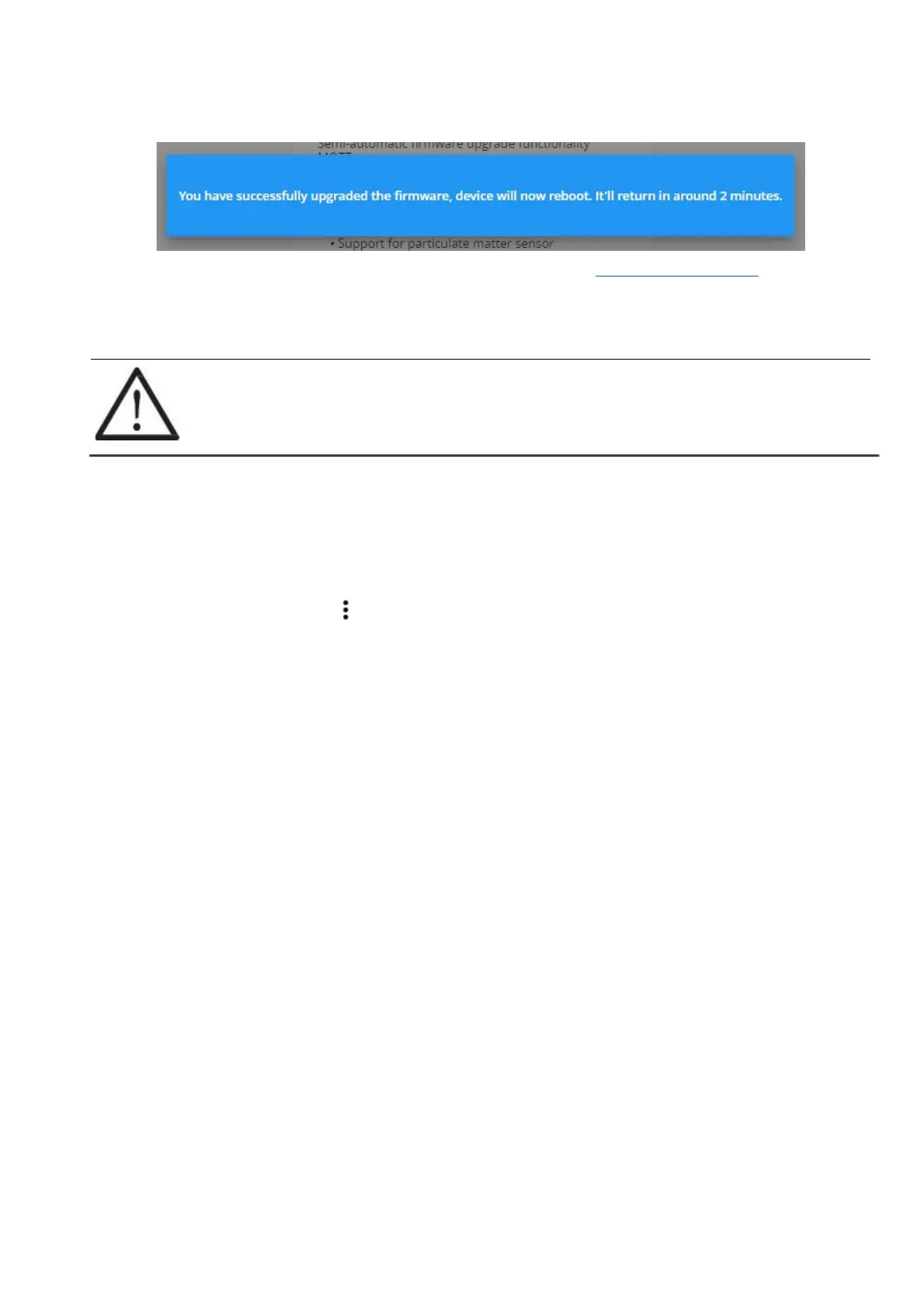
Following message is displayed when process is finished:
To update firmware manually, first download the firmware update file from aranet.com/downloads/ and store it on
your PC. Extract file with extension .gz from the archive. Do not unpack the firmware file! Then click on the
“CHOOSE FIRMWARE FILE” text box and locate the .gz file on the PC. Once that is done press the upload
button next to it.
!NOTE! Firmware can be upgraded to the same or higher version only. Downgrade is
possible to the subversion only. I.e. downgrade from v.3.x.x is not possible to v.2.x.x;
downgrade is possible from v.3.x.x to v.3.y.y.
Firmware upgrade file name should not be changed, as it might not be recognized otherwise.
The software update usually takes about two minutes to be completed. During that period, the device will
reboot to complete the update. After the firmware upgrade, if the Aranet PRO/PRO+ web interface does not
function properly, we recommend clearing the browser’s cache.
Example on clearing the cache for Chrome web browser:
(1) On your computer, open Chrome.
(2) At the top right, click More
(3) Click More tools > Clear browsing data.
(4) At the top, choose a time range. To delete everything, select All time.
(5) Next to "Cookies and other site data" and "Cached images and files," check the boxes. (6) Click
Clear data.



 To Next Page