LS-200 User Manual
11www.arec.com
1.1.1.2 Advanced conguration
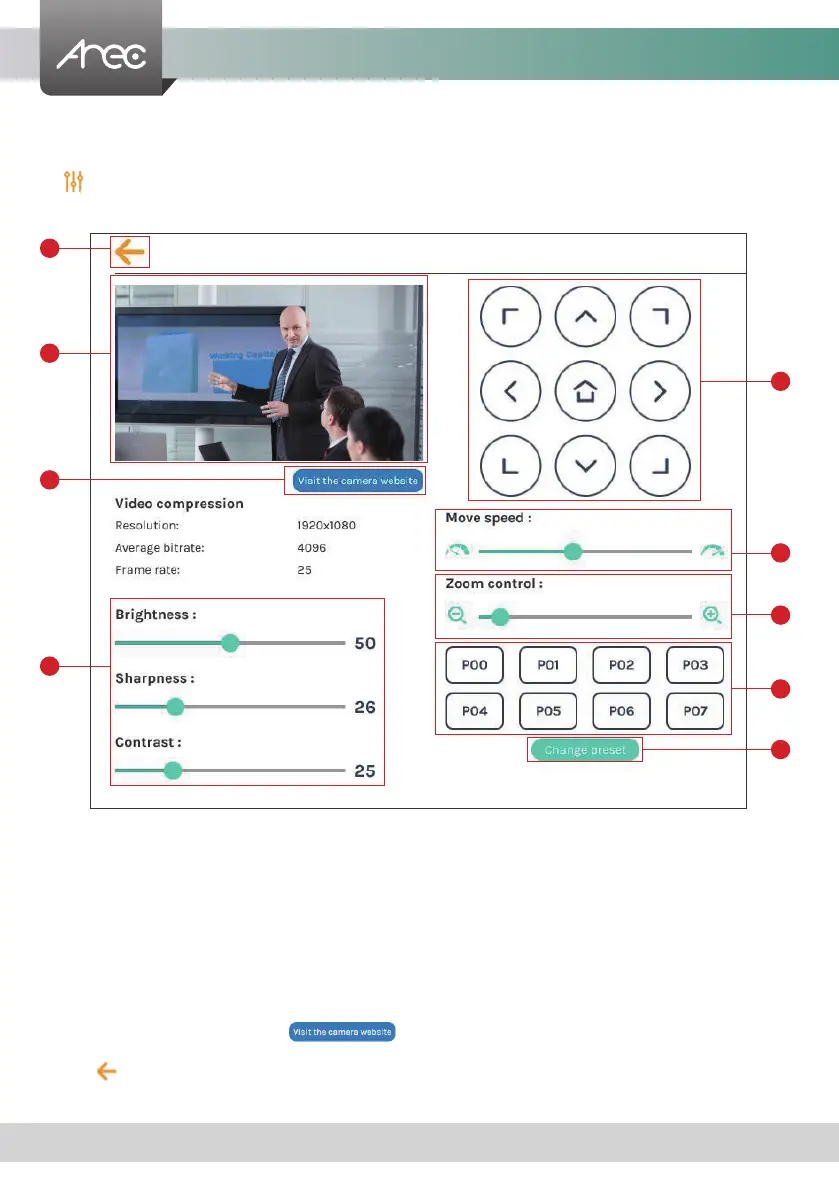
1. The video input preview.
2. Direction control panel: Click the arrow buttons to move the camera.
3. Movement speed: Move leftward or rightward to set slower or faster the camera is moving.
4. Zoom in/out: Click the buttons or drag on the control bar.
5. Preset positions: Click the buttons to command that the camera go to the preset position.
6. Change preset: Click the button to modify the preset positions. Select any of the P00~P07, move the camera to the
desired position by using the direction control panel or using the zoom in/out control. Click Save button to complete
the change or click Cancel button to give it up.
Note: If you use AREC CI-xxx network camera with TP-100, you can change preset of TP-100's Home.
7. Brightness, sharpness, and contrast: Slide the adjust bar leftward or rightward to change the camera image settings.
8. Visit the camera website: Click this button to enter the webcam management web site, input the
verication code as prompted.
9. Click button at upper left corner to return to the last page.
A preview use and further conguration of the video input is provided. After the video input setting is successfully applied,
click to enter the advanced conguration page. In the case of a PTZ camera, the direction control panel, zoom in/out
control bar, and up to 8 preset positions are enabled.
2
8
1
7
3
4
5
6
9


 To Next Page