LS-200 User Manual
29www.arec.com
1.6.4 Conguration
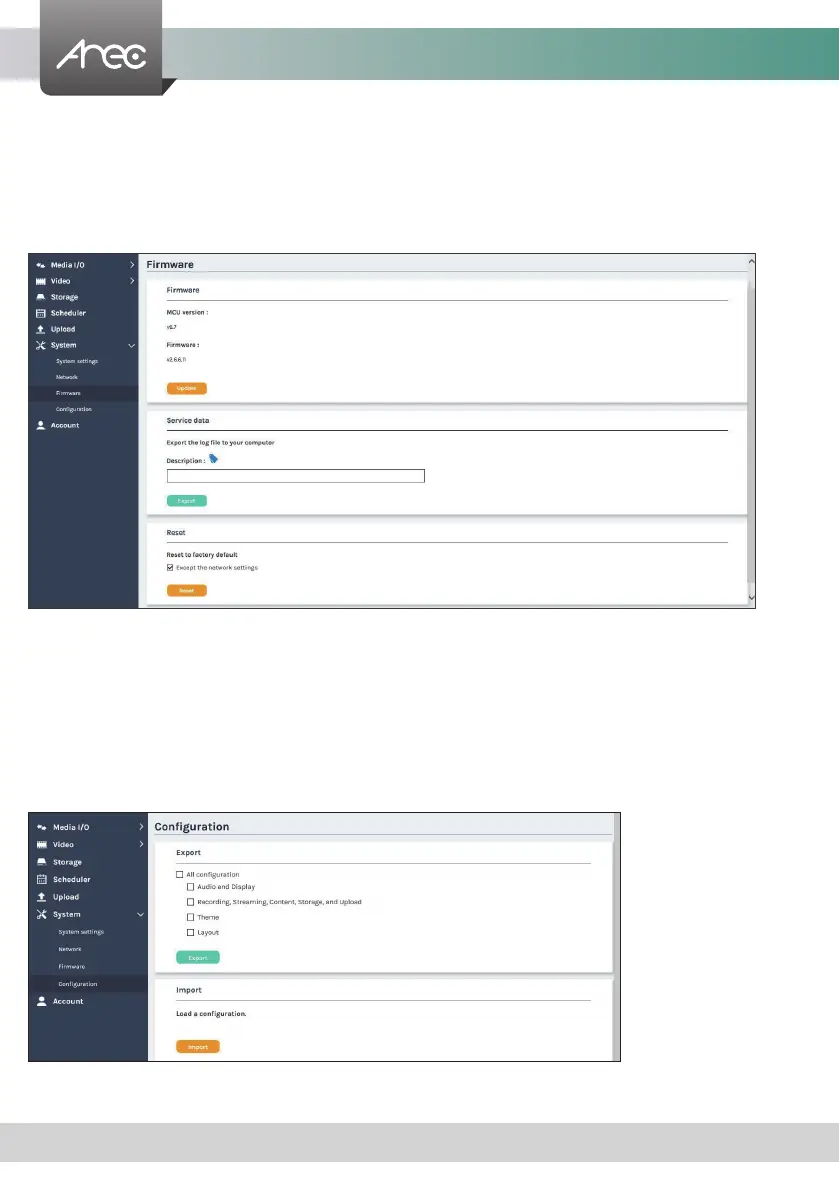
You can export or import the conguration in this page:
Export : Select the conguration to export and click “Export”.
Import : Click “Import”to load a conguration.
1.6.3 Firmware
This page displays the device rmware version. To update the rmware, click “Update" and a dialog box opens asking you to
select the le. Select the desired le and click “Open”, the dialog box closes and the le name appears underneath. Click “Apply”
to start rmware update. Click “Cancel” if the uploaded le is no longer wanted.
Note: System will reboot automatically when the firmware update is completed. It might takes a few minutes. Do not
shutdown/ power off the system during rmware updating.
Service data : Export the log le to your computer or upload it to the Customer Service Server. Input the le name, and then
click “Export” or “Upload”.
Note : The length of the string is 0~16 characters, allowing letters, numbers, symbols 11(~!@$%^&*-+_).
Reset : Reset to factory default. Check if you want to keep your network settings, and click “Reset”.The dialog pop out and
ask you “System will reboot after updating, continue?
” Click “Conrm” to start reset.


 To Next Page