42
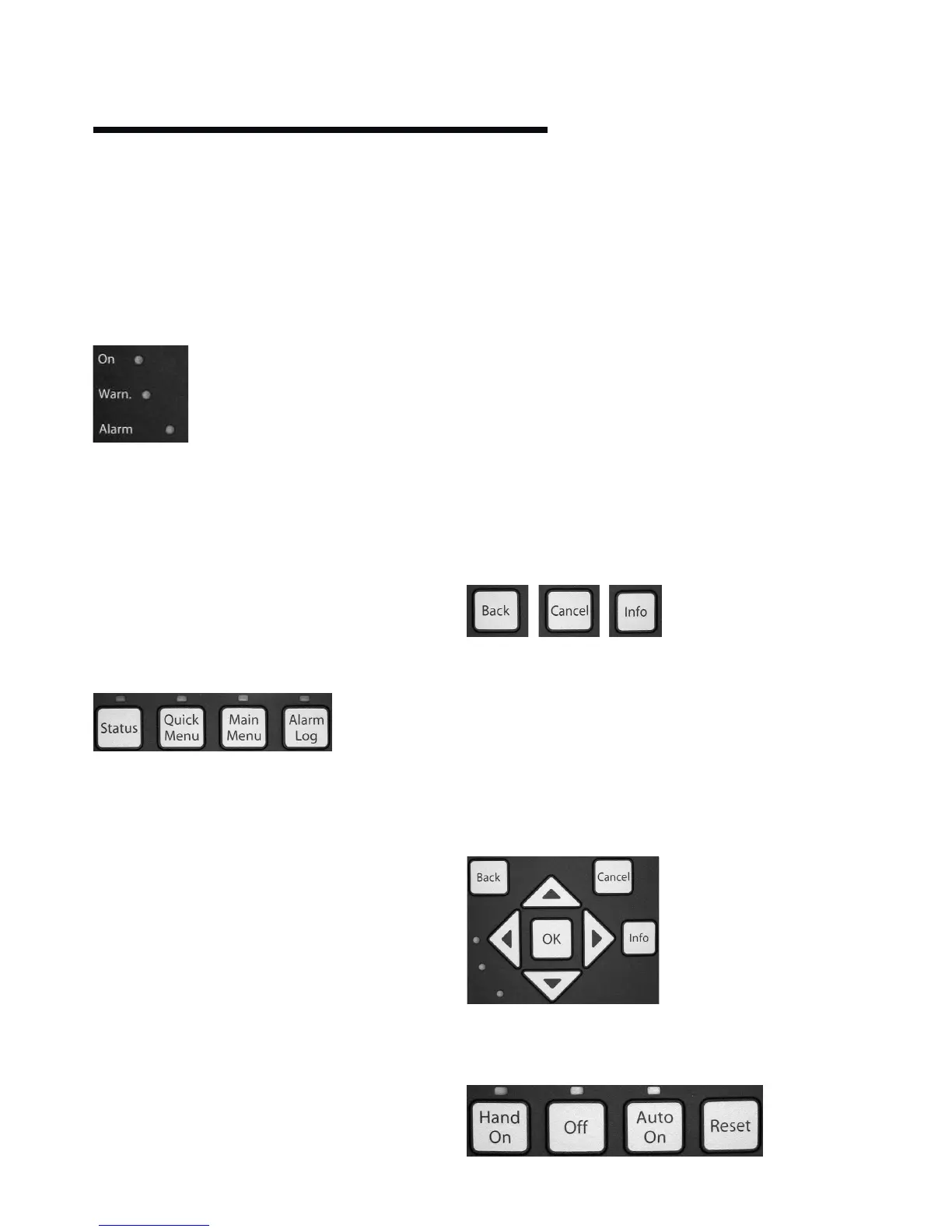
12.2 indicator lights (leds)
If certain threshold values are exceeded, the alarm and/or
warning led lights up. A status and alarm text appear on the
control panel. The on led is activated when the frequency
converter receives power from mains voltage, a dc bus ter-
minal, or an external 24v supply. At the same time, the back
light is on.
•Greenled/on: Control section is working.
•Yellowled/warn.: Indicates a warning.
•FlashingRedled/alarm: Indicates an alarm.
12.3 control keys
Menu keys
The menu keys are divided into functions. The keys below the
display and indicator lamps are used for parameter set-up, in-
cluding choice of display indication during normal operation.
Status
Indicates the status of the frequency converter and/or the
motor. Three dierent readouts can be chosen by pressing
the Status key: five line readouts, four line readouts or Smart
Logic Control.
Use Status for selecting the mode of display or for changing
back to Display mode from either the Quick Menu mode, the
Main Menu mode or Alarm mode. Also use the Status key to
toggle single or double read-out mode.
Quick Menu
Allows quick set-up of the inverter by access to a limited
number of parameters. Quick Menu does not include all
the parameters that may need to be changed when utilis-
ing Sensorless control and it is therefore recommended that
parameter changes are made in Main Menu mode.
Main Menu
Is used for programming all parameters.
Alarm Log
Displays an Alarm list of the five latest alarms (numbered
a1-a5). To obtain additional details about an alarm, use the
arrow keys to manoeuvre to the alarm number and press ok.
Information is displayed about the condition of the frequency
converter before it enters the alarm mode.
The Alarm log button on the lcp allows access to both Alarm
log and Maintenance log.
Back
Reverts to the previous step or layer in the
navigation structure.
Cancel
Last change or command will be cancelled as long as the
display has not been changed.
Info
Displays information about a command, parameter, or func-
tion in any display window. Info provides detailed information
when needed.
Navigation Keys
The four navigation arrows are used to navigate between the
dierent choices available in Quick Menu, Main Menu and
Alarm Log. Use the keys to move the cursor.
OK
Is used for choosing a parameter marked by the cursor and
for enabling the change of a parameter.
OperationKeysforlocalcontrolarefoundatthebottomofthe
control panel.
Hand On
Enables control of the pump via the glcp. It is possible to
enter the pump speed data by means of the arrow keys.




 To Next Page