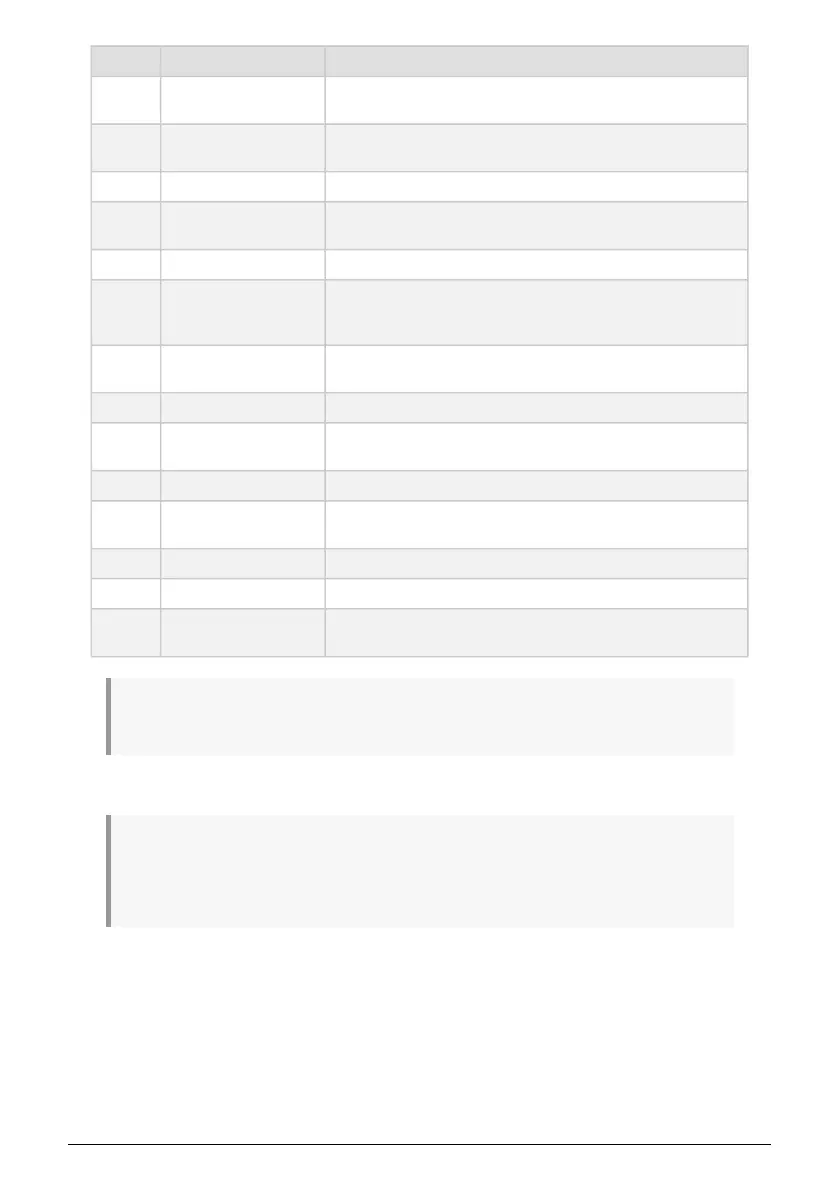
Number Name Description
6. Pads [p.12]
For finger drumming and playing MIDI notes. Velocity- and pressure-
sensitive.
7.
Save/Quant/Undo/Redo
buttons
This section lets you manage your Presets and quantize Scales and
Rhythm.
8. DAW Command Center Remote controls for your DAW.
9. Large Display
Shows parameter names, values, and all information about KeyLab
Essential status.
10. Contextual buttons Four buttons with various tasks depending on context.
11. Dentented Main Encoder
Navigates Presets in Analog Lab [p.34], navigates into KeyLab
Essential's feature menu, and performs other functions in DAWs [p.43].
Is also a clickable select button.
12. Program button
Navigates through the 3 main operating modes: Arturia, DAW, and
User.
13. Part button Handles Part selection and Split Points.
14. Hold button
Sustains notes and arpeggios played from the keys (not the pads)
when active.
15. Chord button A convenient function for playing chords with one finger.
16. Scale button
Reduces the number of notes on the keyboard to those that fit a
particular key and tonality.
17. Arpeggio button A Controller Keyboard without an Arpeggiator? We don't think so.
18. Knobs and Faders Control parameters in plugins, e.g. instrument and effects.
19. MIDI Keyboard
49 or 61 velocity sensitive, synth-action keys. Velocity curve can be
edited in the MIDI Control Center App.
! Velocity sensitive: Both the MIDI keyboard and the pads on KeyLab Essential are sensitive to how
hard you play them. Hit harder for higher volume.
! Pressure Sensitivity: Playing a pad and then pressing it harder will send out Pressure data that can
trigger various modulation changes (filter, volume etc.).
Pressure sensivity is often called Aftertouch. KeyLab Essential pads use the more luxurious version
called Polyphonic Aftertouch, where each pad sends out individual data.
Arturia - User Manual KeyLab Essential mk3 - Hardware Overview 7


 To Next Page