When set to DAWs Program, KeyLab Essential will automatically recognize and connect to
your DAW. If your DAW isn't recognized, please check your DAW's MIDI settings and make
sure your DAW is up to date.
If KeyLab Essential still doesn't recognize the DAW, please refer to these manuals for full
info on installation and trouble-shooting.
! Of course you can use all other KeyLab Essential features – like Hold, Chord, Arpeggiator, Transpose
etc. – in any DAW.
6.1.1. Transport Control
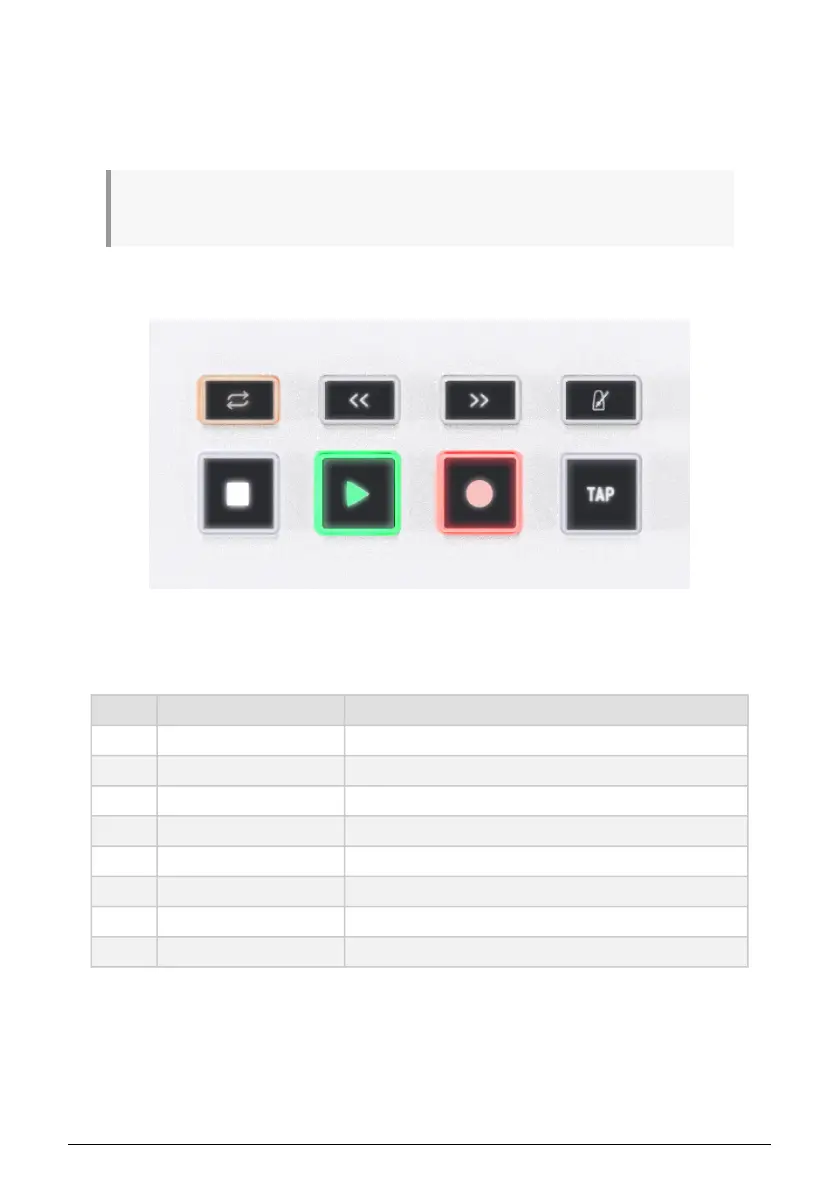
With KeyLab Essential in DAW mode, you can use the 6 Transport buttons to the left of the
screen to control your DAW transport plus Metronome and Tap Tempo. This works similarly
across all supported DAWs.
Pad Function Display
1 Loop Mode On/Off Loop Mode ON/OFF
2 Rewind Rewinds you DAW
3 Fast Forward Fast forwards your DAW
4 Metronome Turns DAW metronome ON/OFF
5 Stop PLAY icon in the lower left corner
6 Play/Pause PLAY icon in the lower left corner disappears
7 Record Record icon appears in the upper left corner
8 Tap Tempo
Tap Tempo XX BPM
when tapping this pad
Buttons are lit more brightly when their functions are engaged, as shown by the example of
the play button in the above photo.
In addition to the above functions, there are numerous DAW-specific functionality in the 5
DAWs currently supported. For full info, please refer to these manuals.
44 Arturia - User Manual KeyLab Essential mk3 - DAW Control


 To Next Page